
Sift User Guide
2. Your First Case
This practice case lets you try Sift without using confidential documents. One witness describes a delivery of twelve oak panels. A picture of the receipt records their condition. All names and documents are fictional.
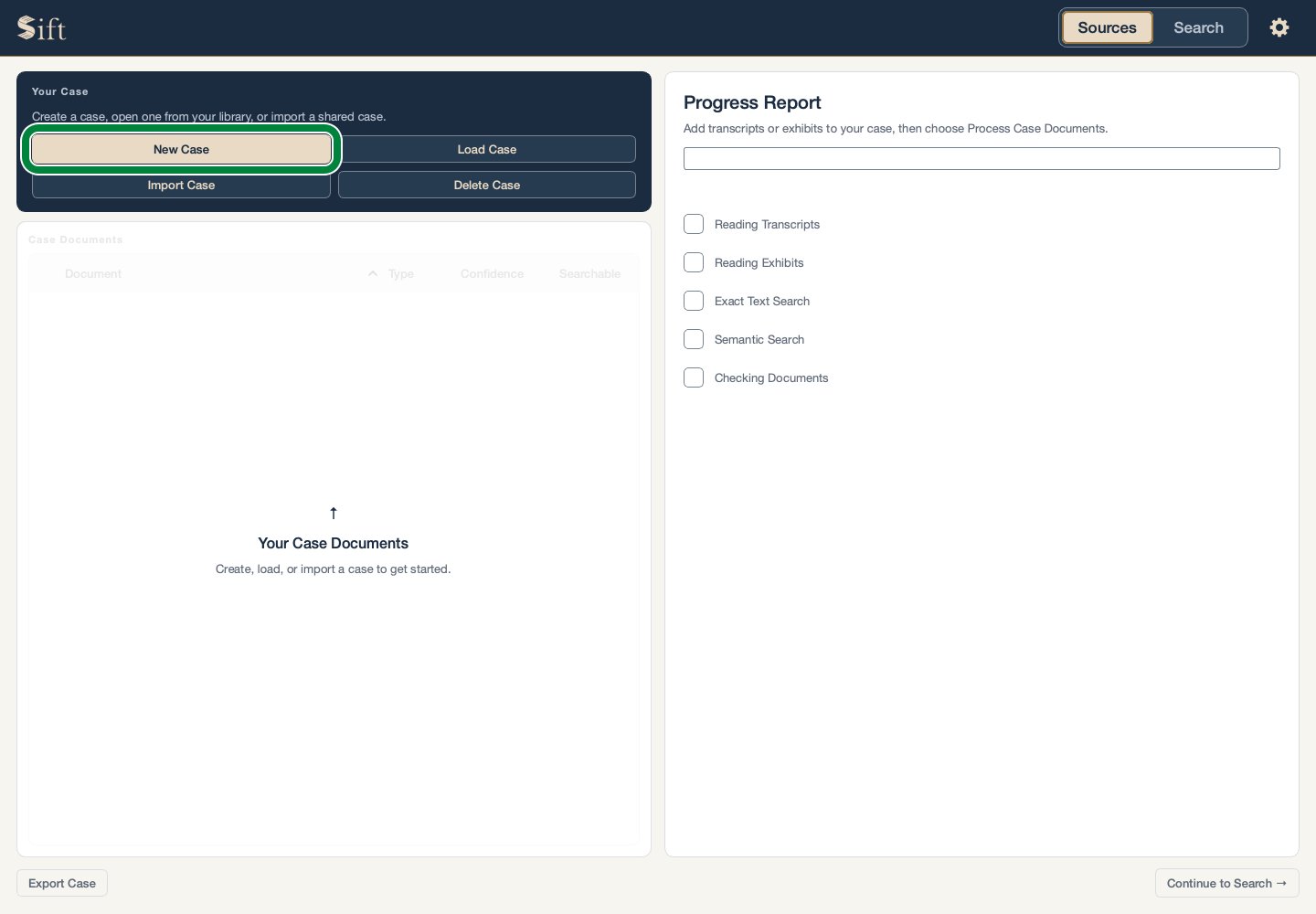
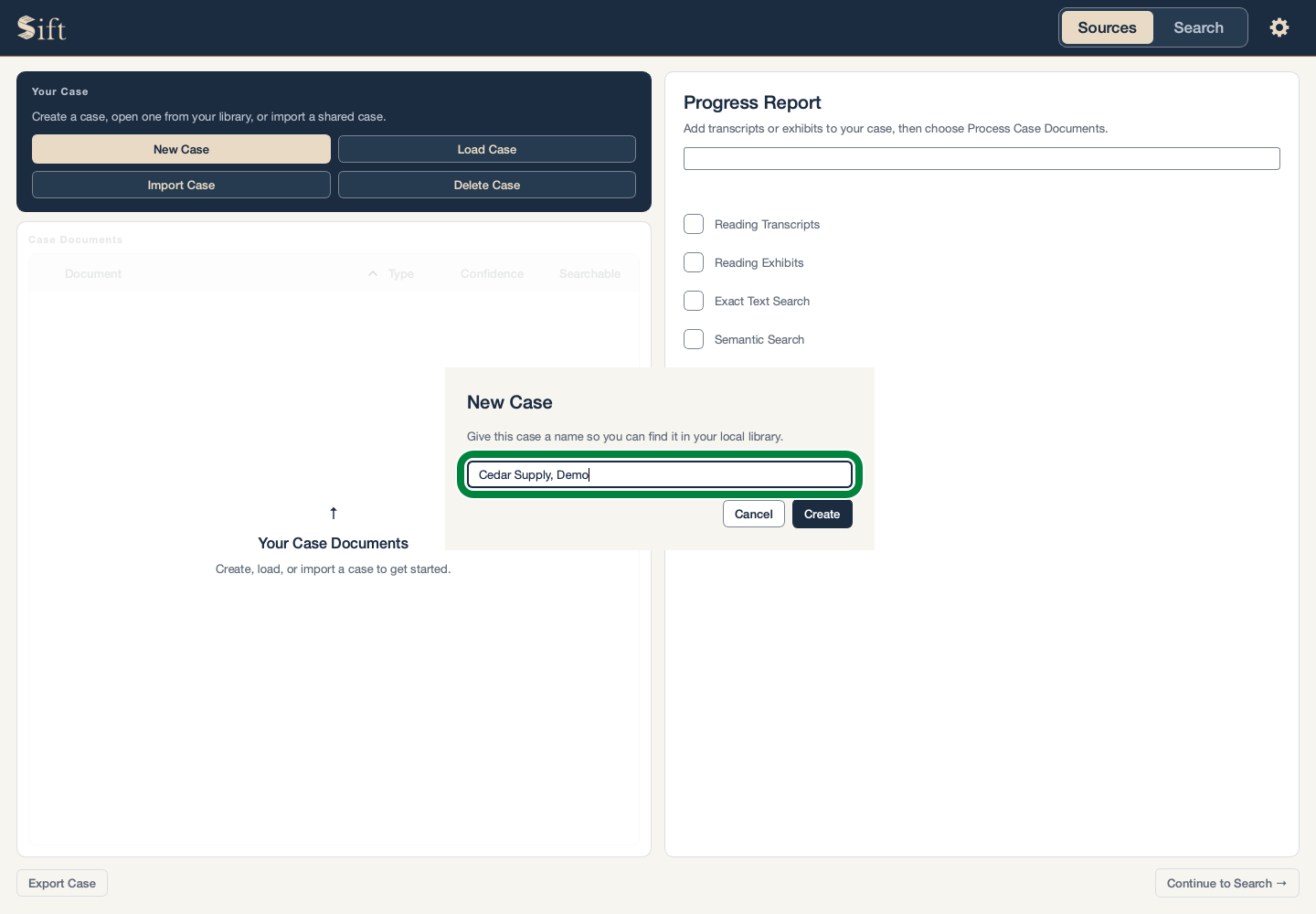
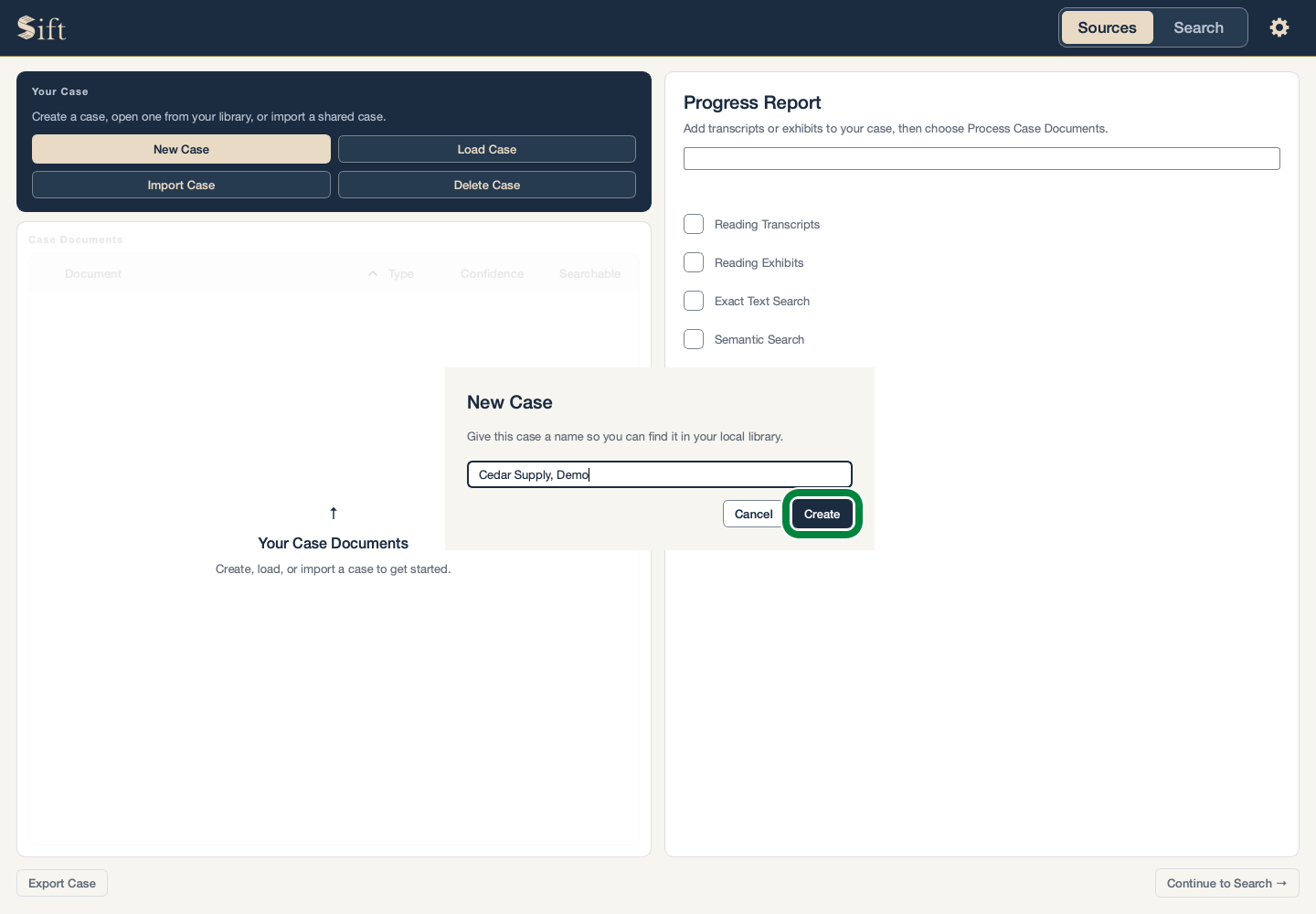
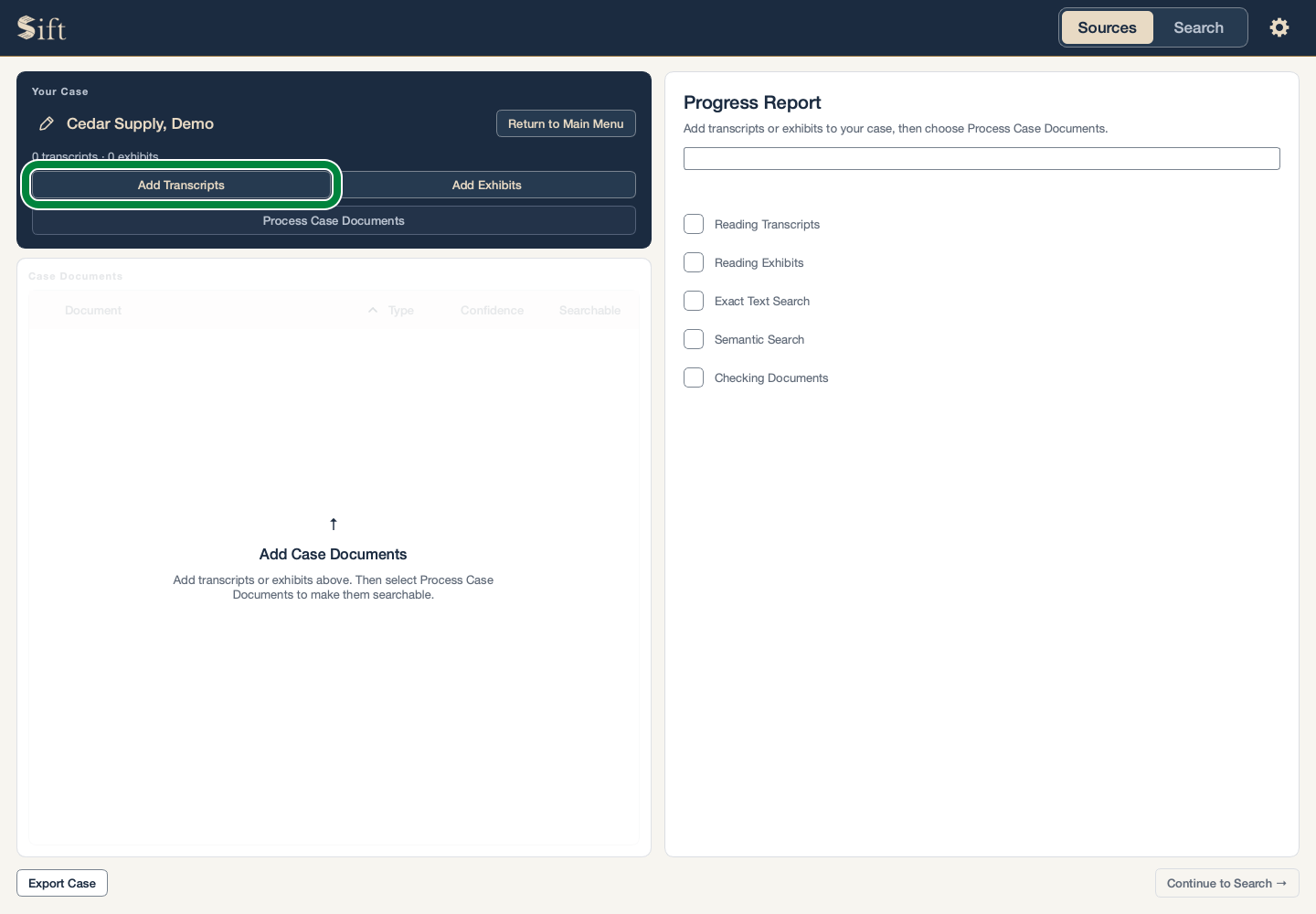
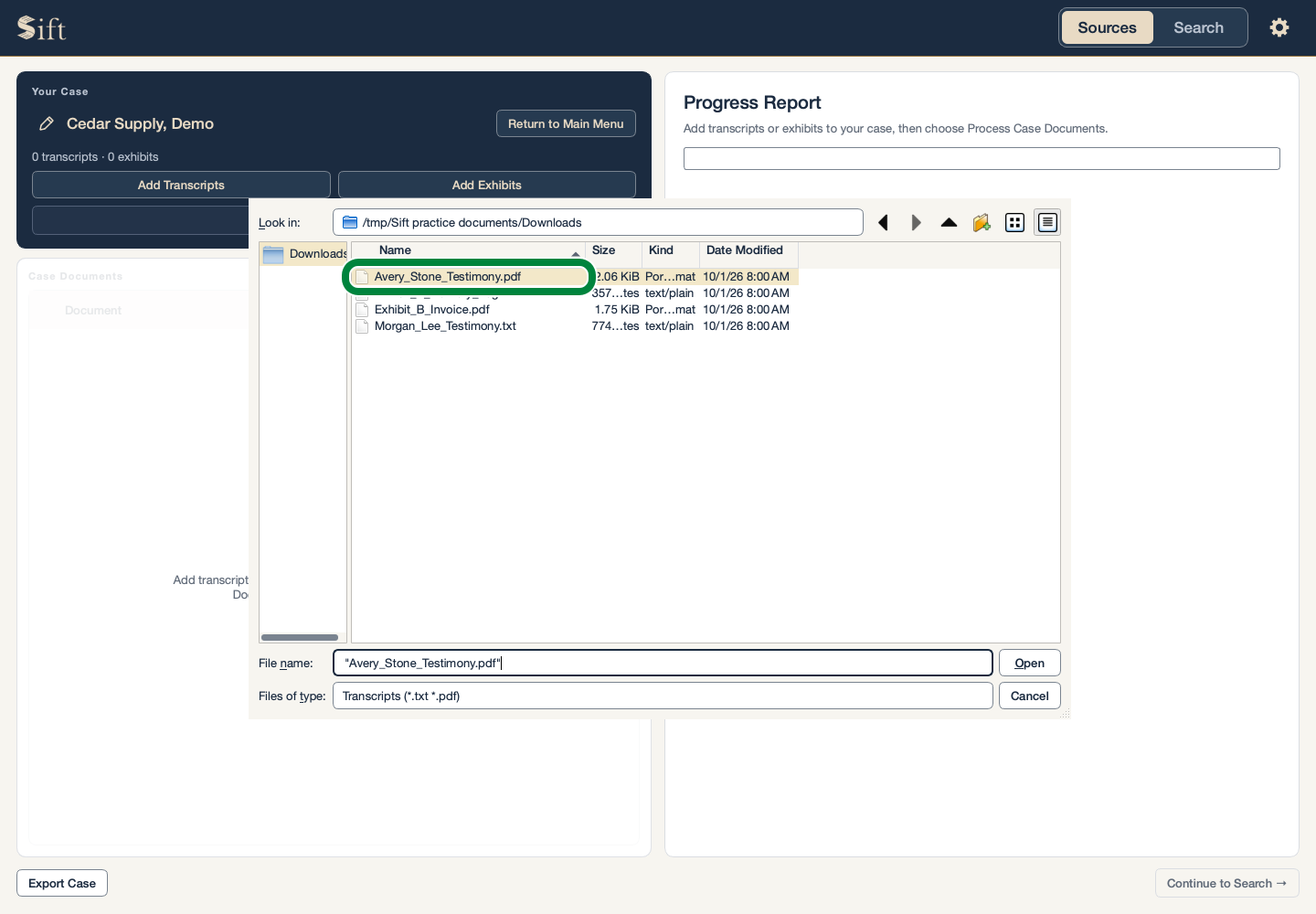
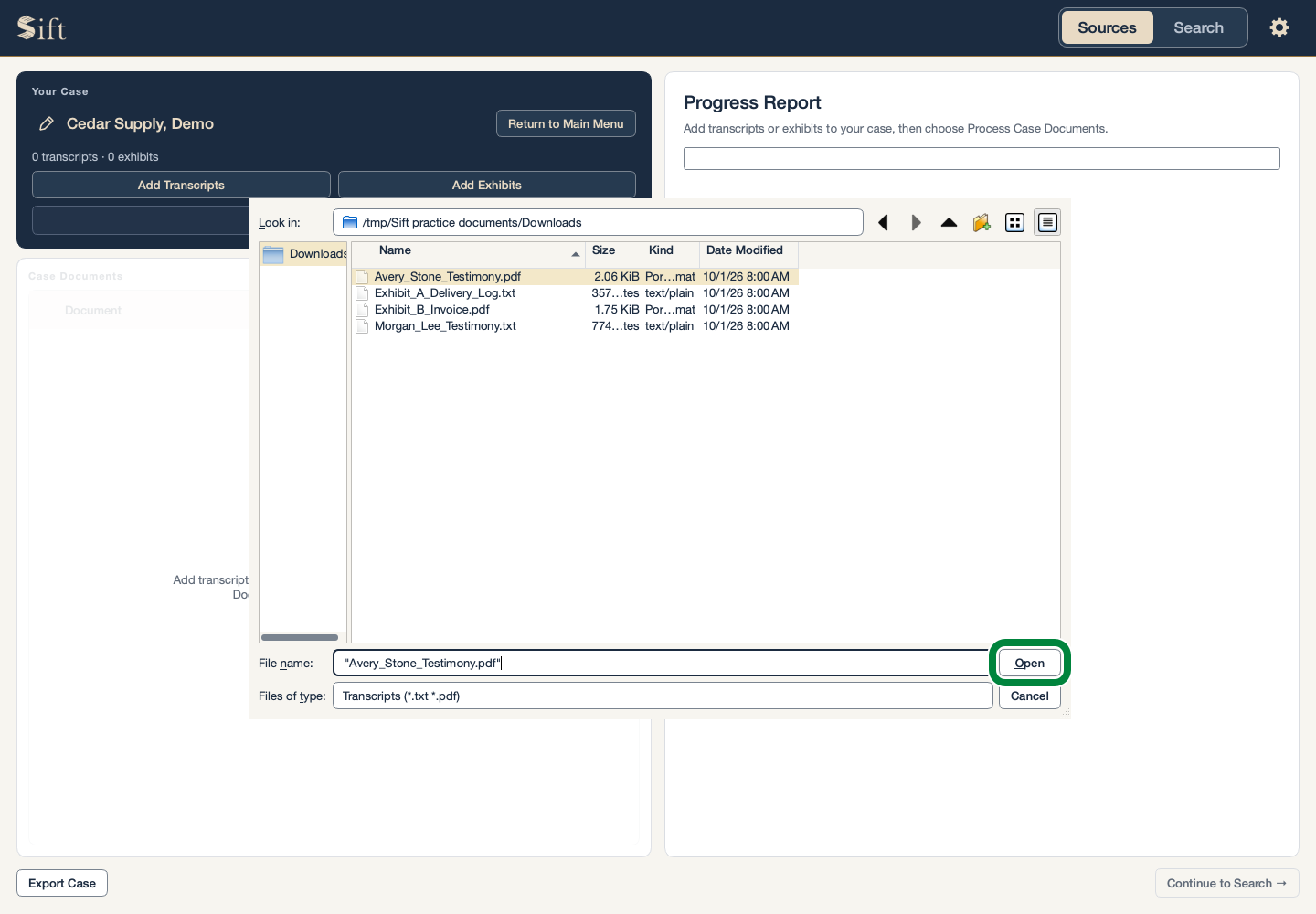
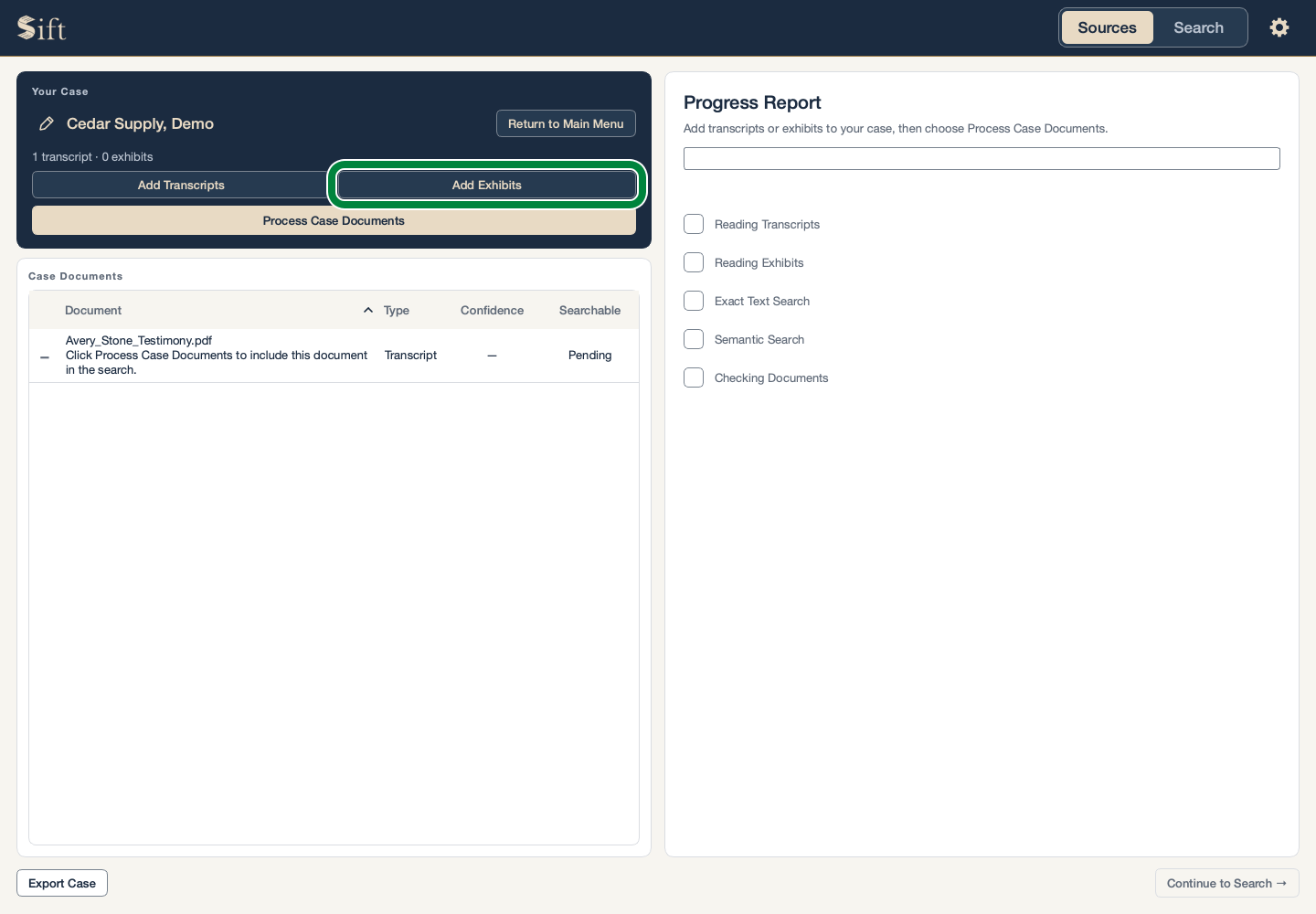
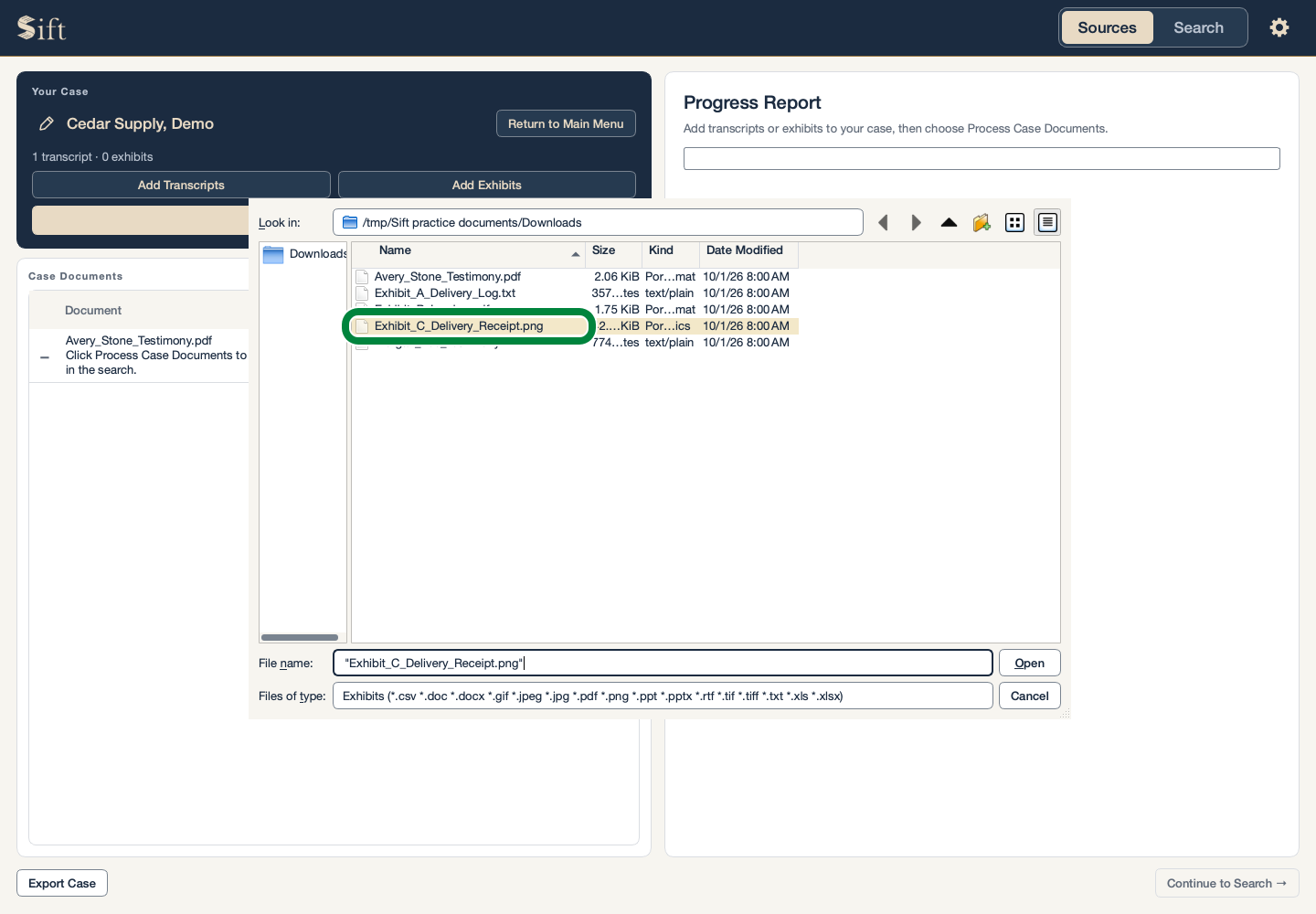
Each picture has a thick green circle around the place to use. Your computer’s file-selection windows may look a little different.
Open the Practice Downloads
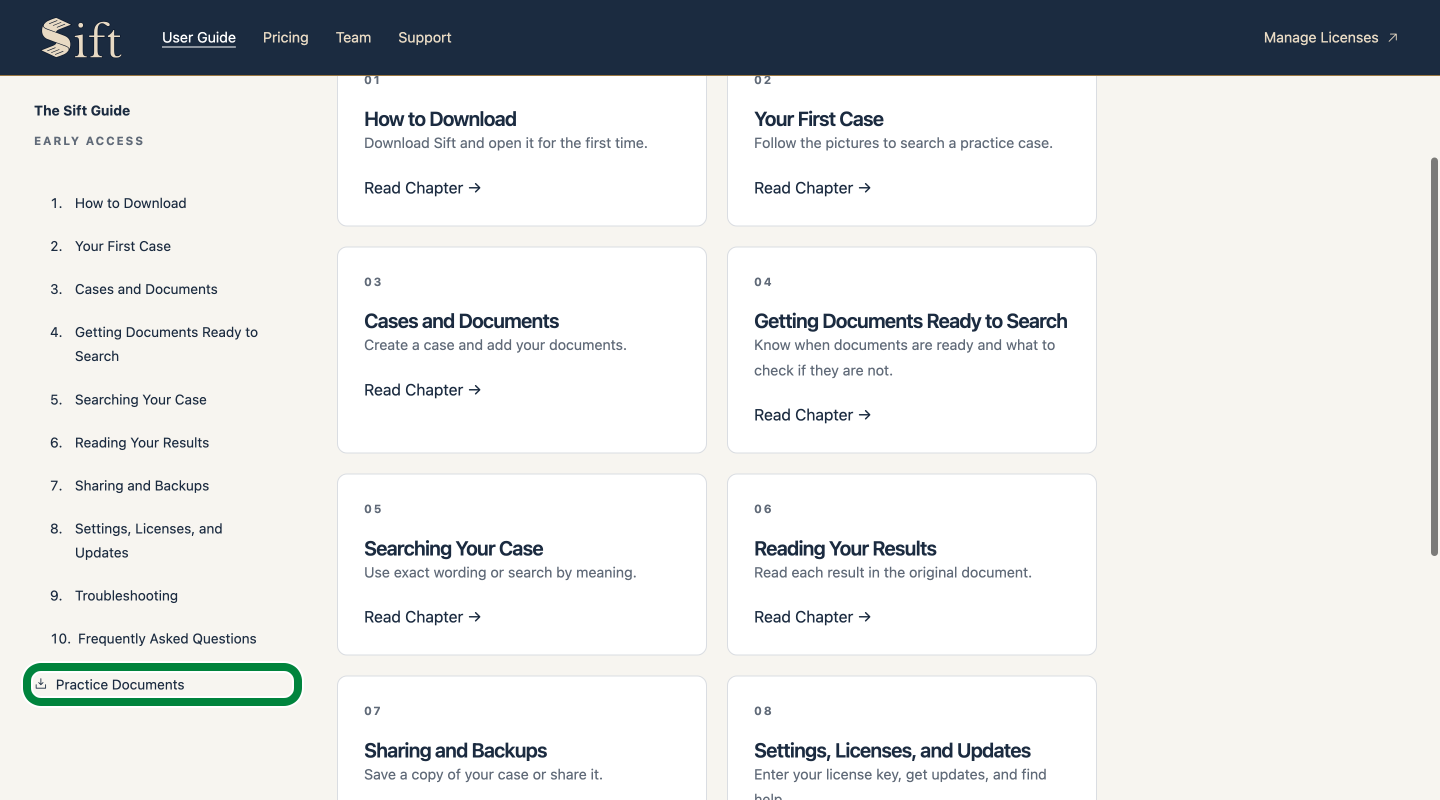
Click Practice Documents in the guide navigation. The practice download page opens.
Download the Two Practice Files
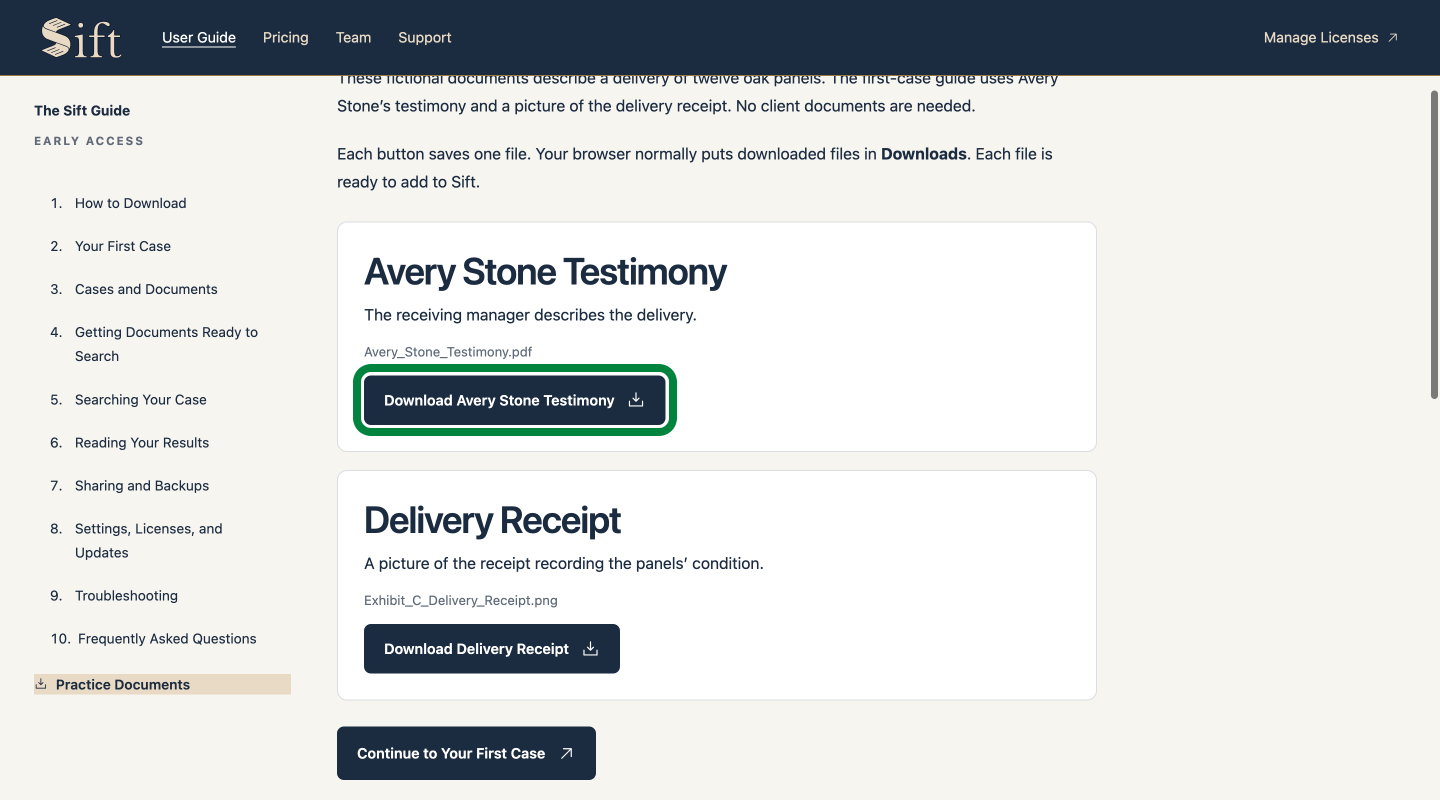
Click Download Avery Stone Testimony. Your browser saves Avery_Stone_Testimony.pdf.
Click Download Delivery Receipt. Your browser saves Exhibit_C_Delivery_Receipt.png.
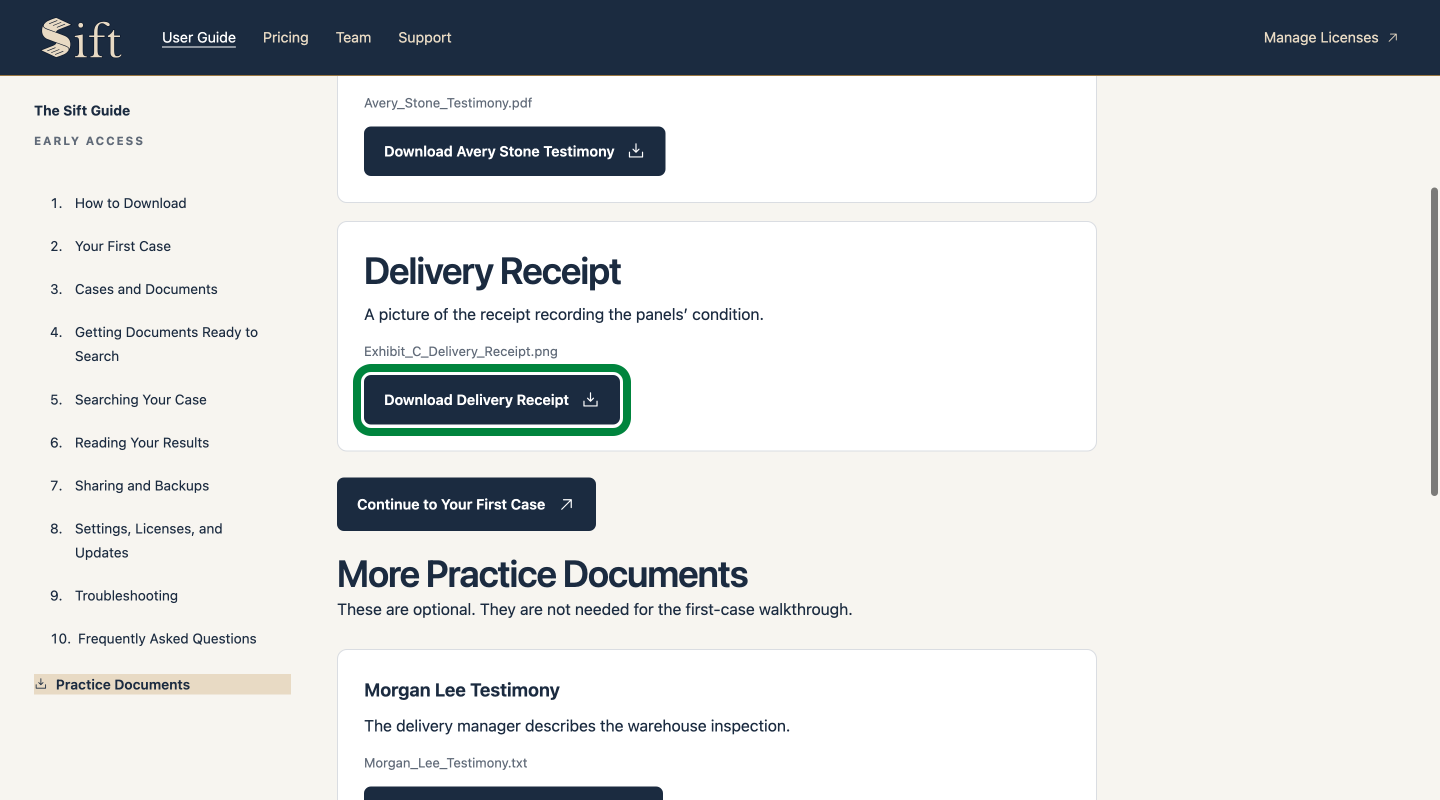
Your browser normally saves these files in Downloads. Each file is ready to add to Sift.
Return to This Guide
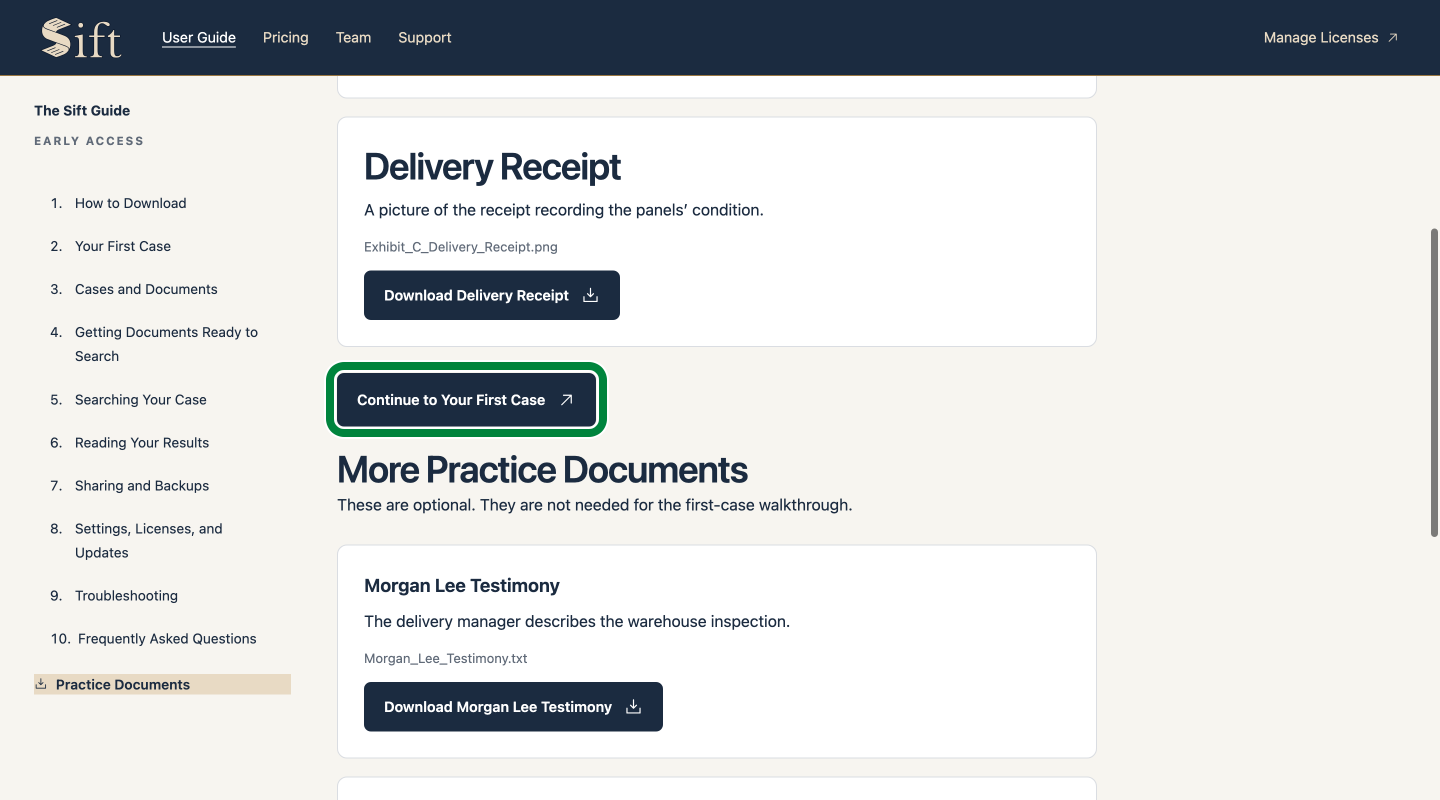
Click Continue to Your First Case. This guide returns to the case-creation instructions.
Create Your Practice Case
These steps begin on Sift’s Sources page, after activation.
Click New Case. A window asks for a case name.
Type Cedar Supply, Demo in Case Name.
Click Create. The case name appears above the document buttons.
Add Avery’s Transcript
Click Add Transcripts. A file-selection window opens.
Select Avery_Stone_Testimony.pdf from Downloads.
Click Open. The transcript appears in the case’s document list.
Add the Receipt Picture
Click Add Exhibits. A file-selection window opens.
Select Exhibit_C_Delivery_Receipt.png from Downloads.
Click Open. The receipt appears in the document list.
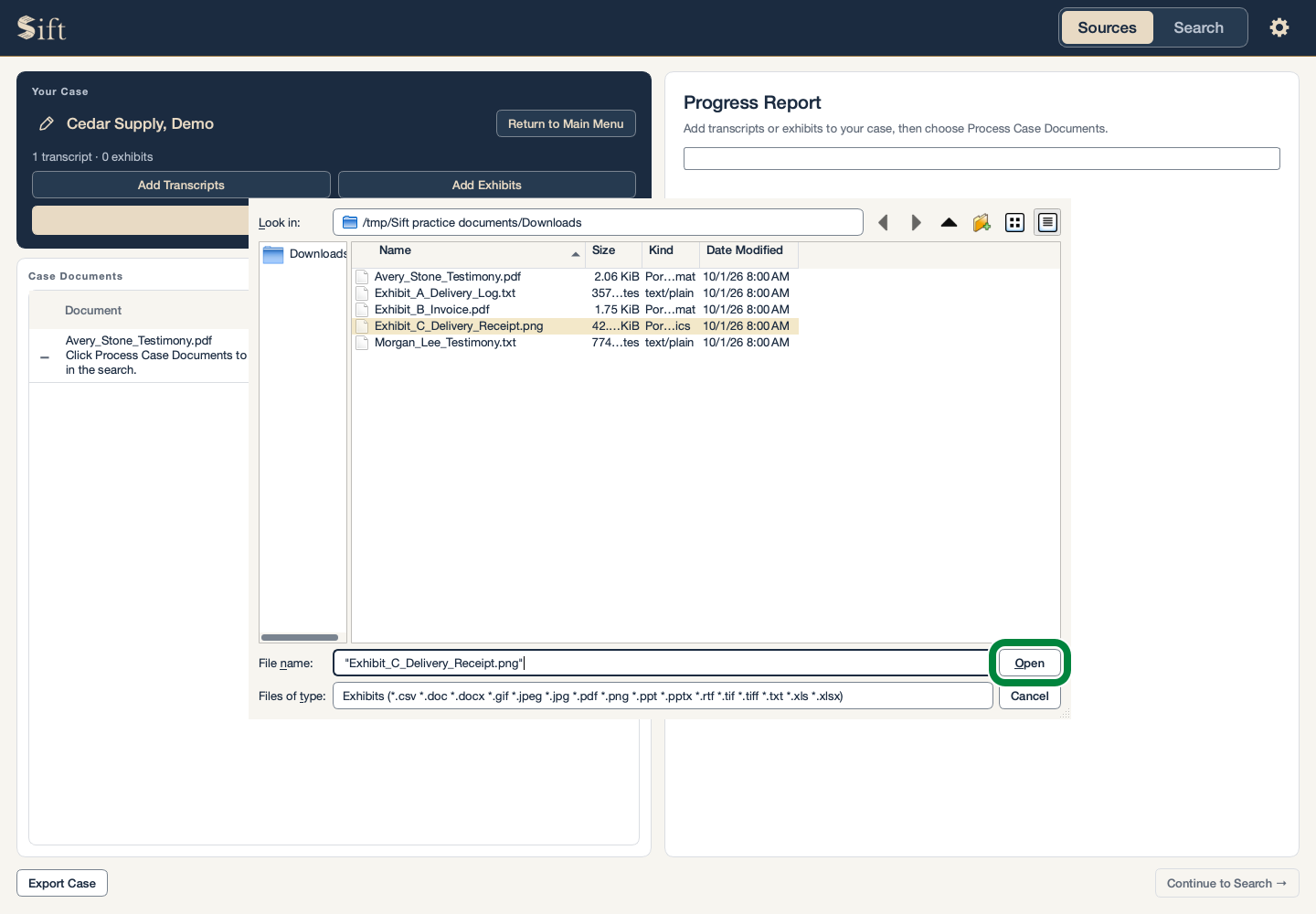
Sift keeps its own copies. The files you added remain unchanged.
Make the Documents Searchable
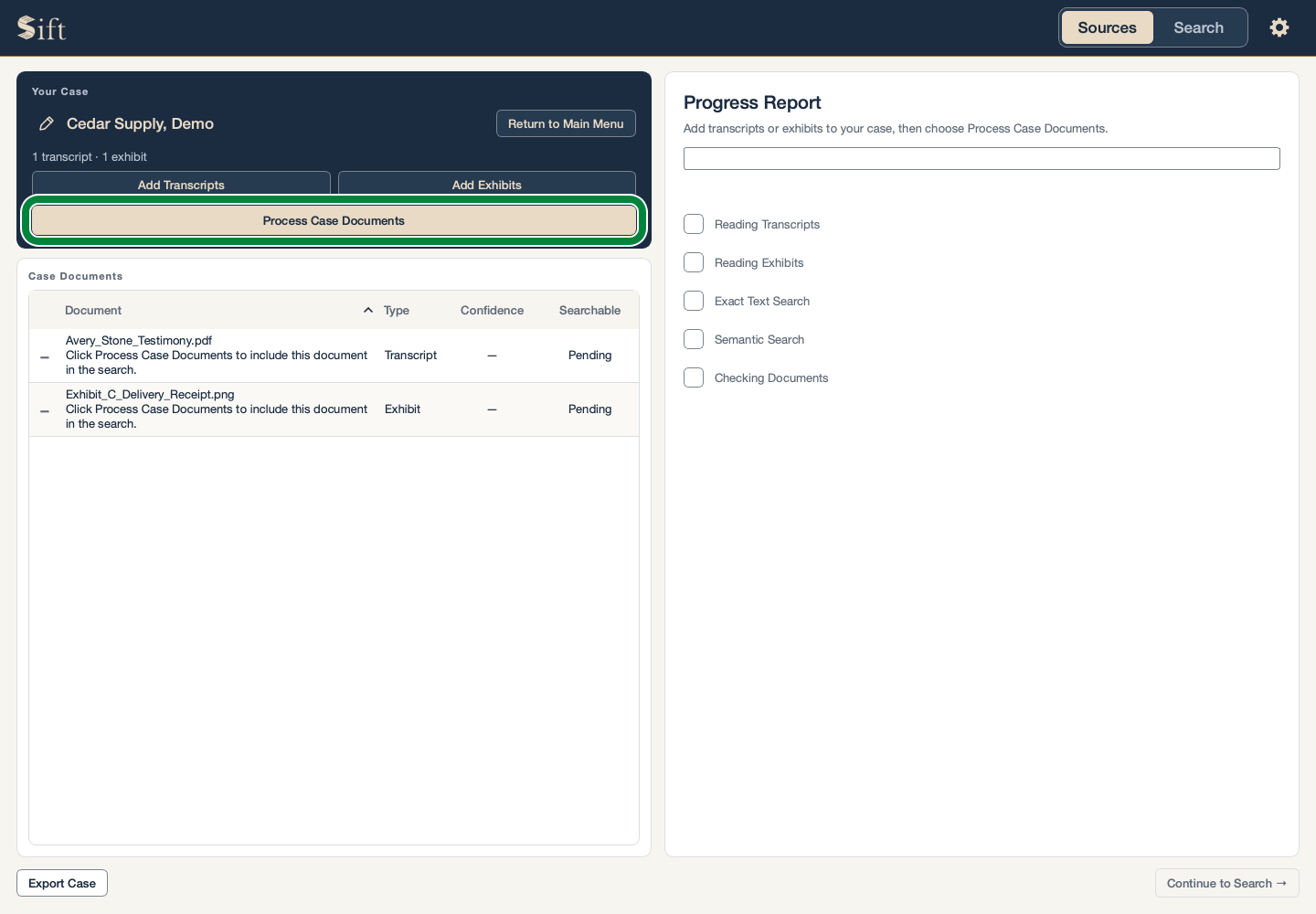
Click Process Case Documents. Sift begins reading the documents.
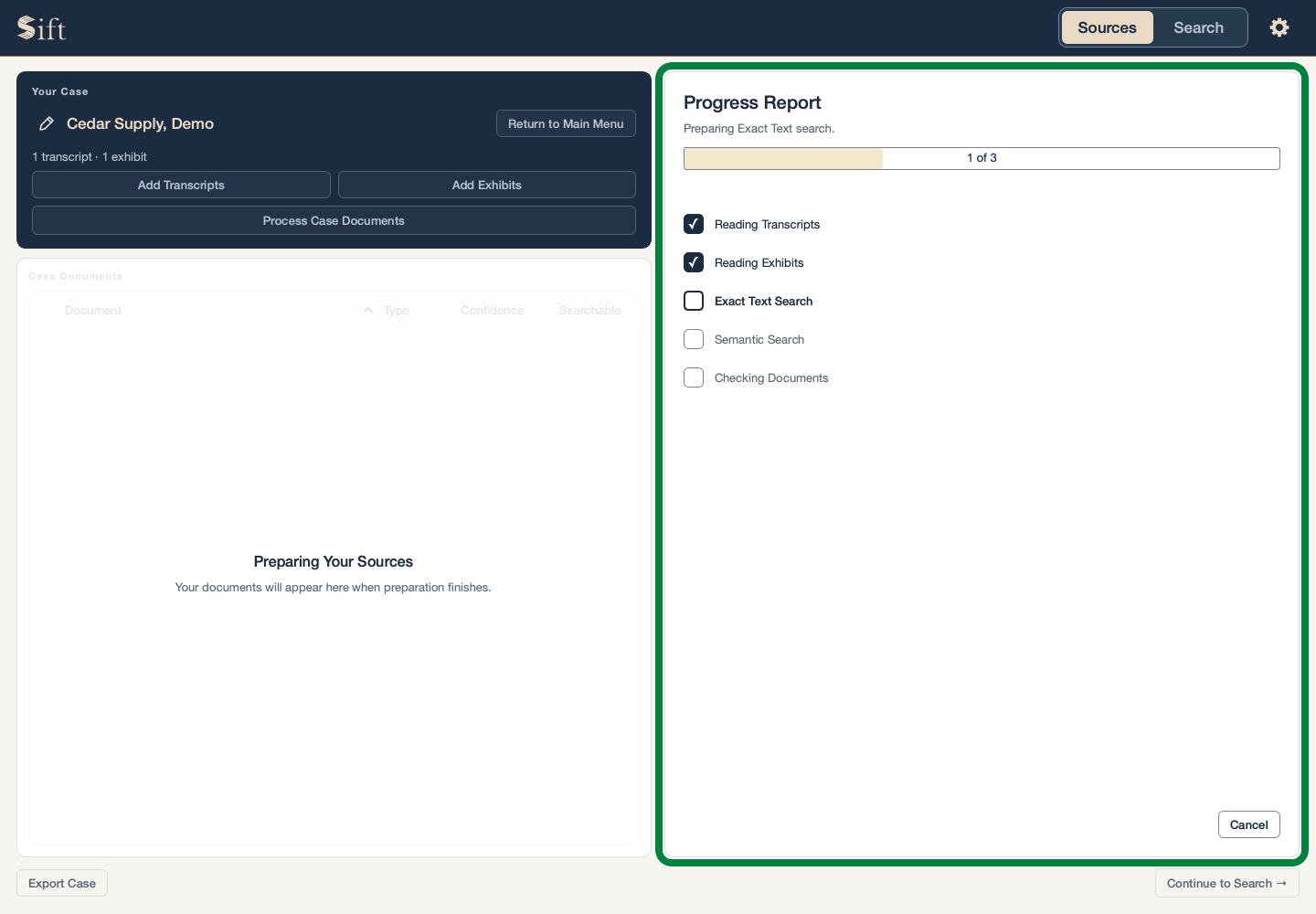
Wait for the Progress Report to finish. The Sources list returns when the documents are ready.
Click a document in the Sources list. Its contents and any warnings appear beside the list.
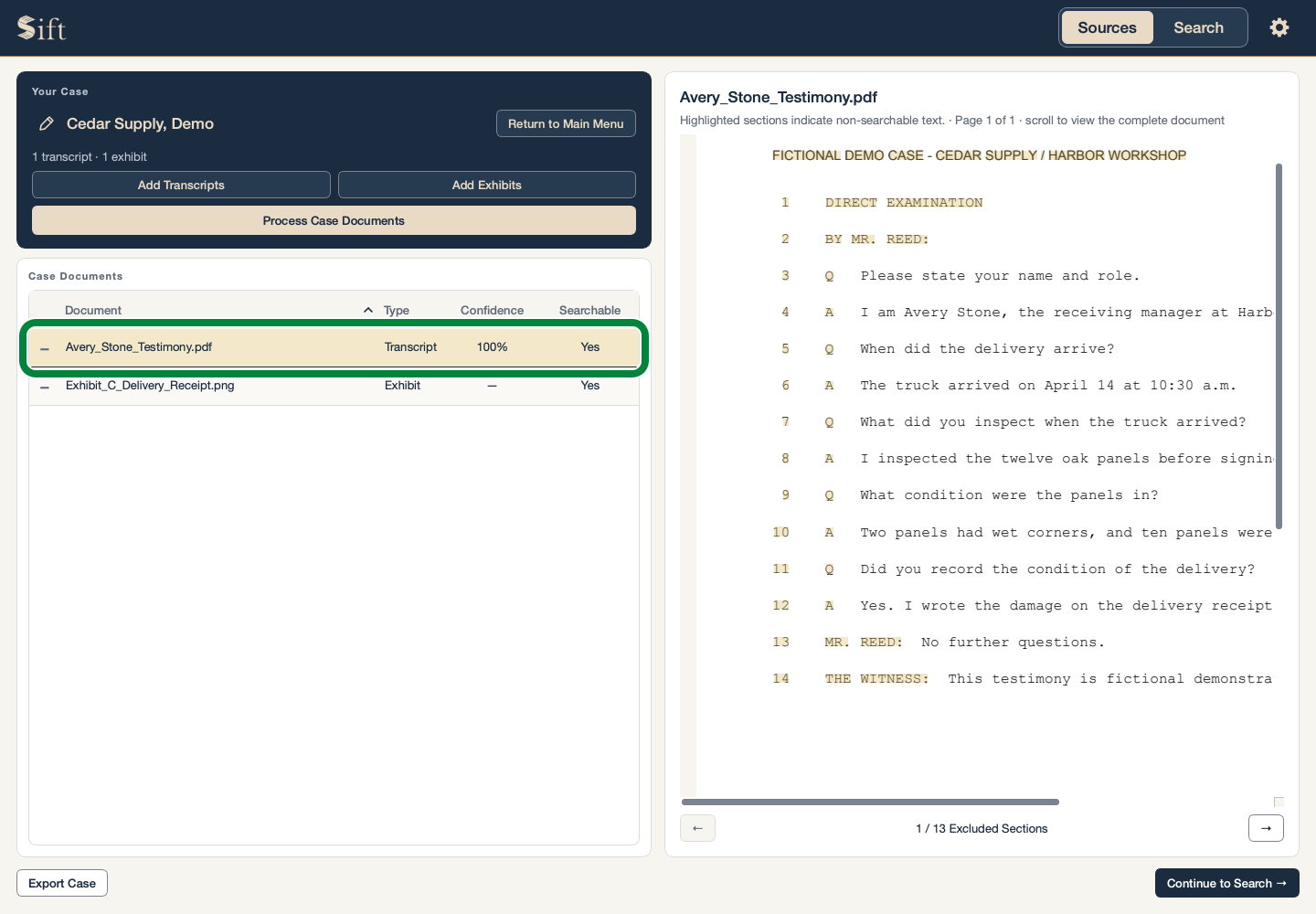
A warning can mean that some words could not be read. The original page is still available to review.
Find Words You Remember
Click Continue to Search →. The Search page opens.
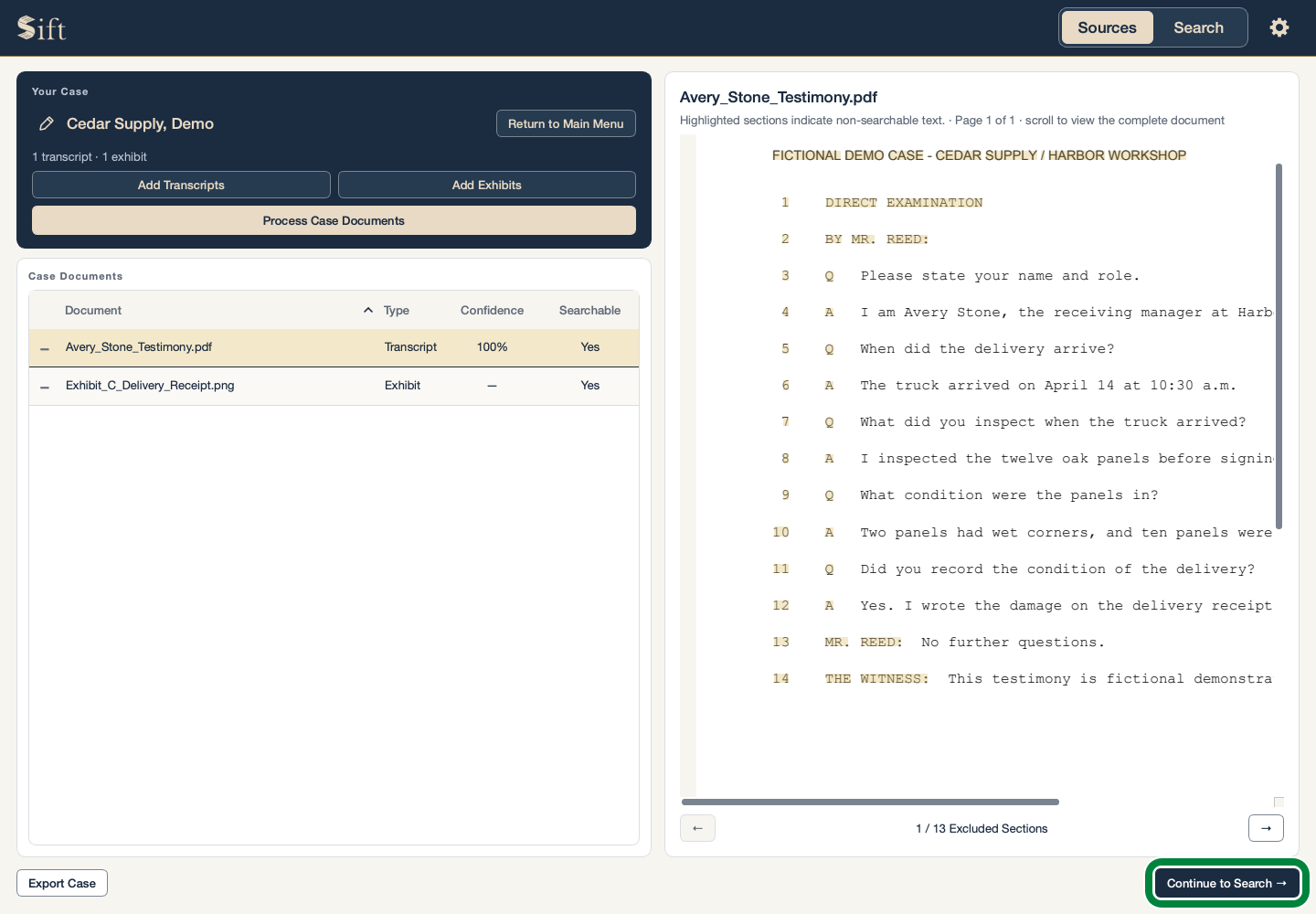
Click Exact Text Search. This option finds the words you type.
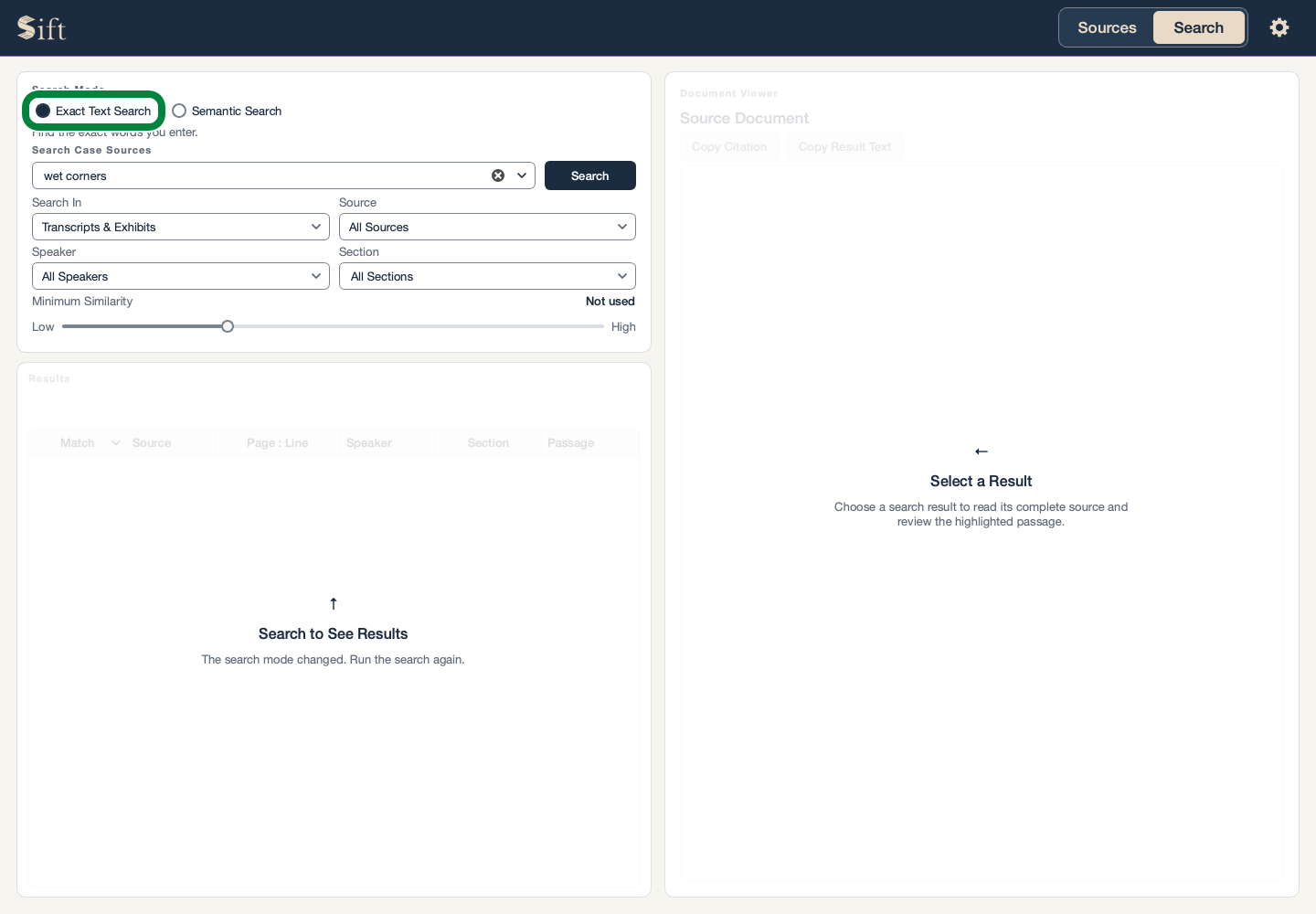
Type wet corners in the search box.
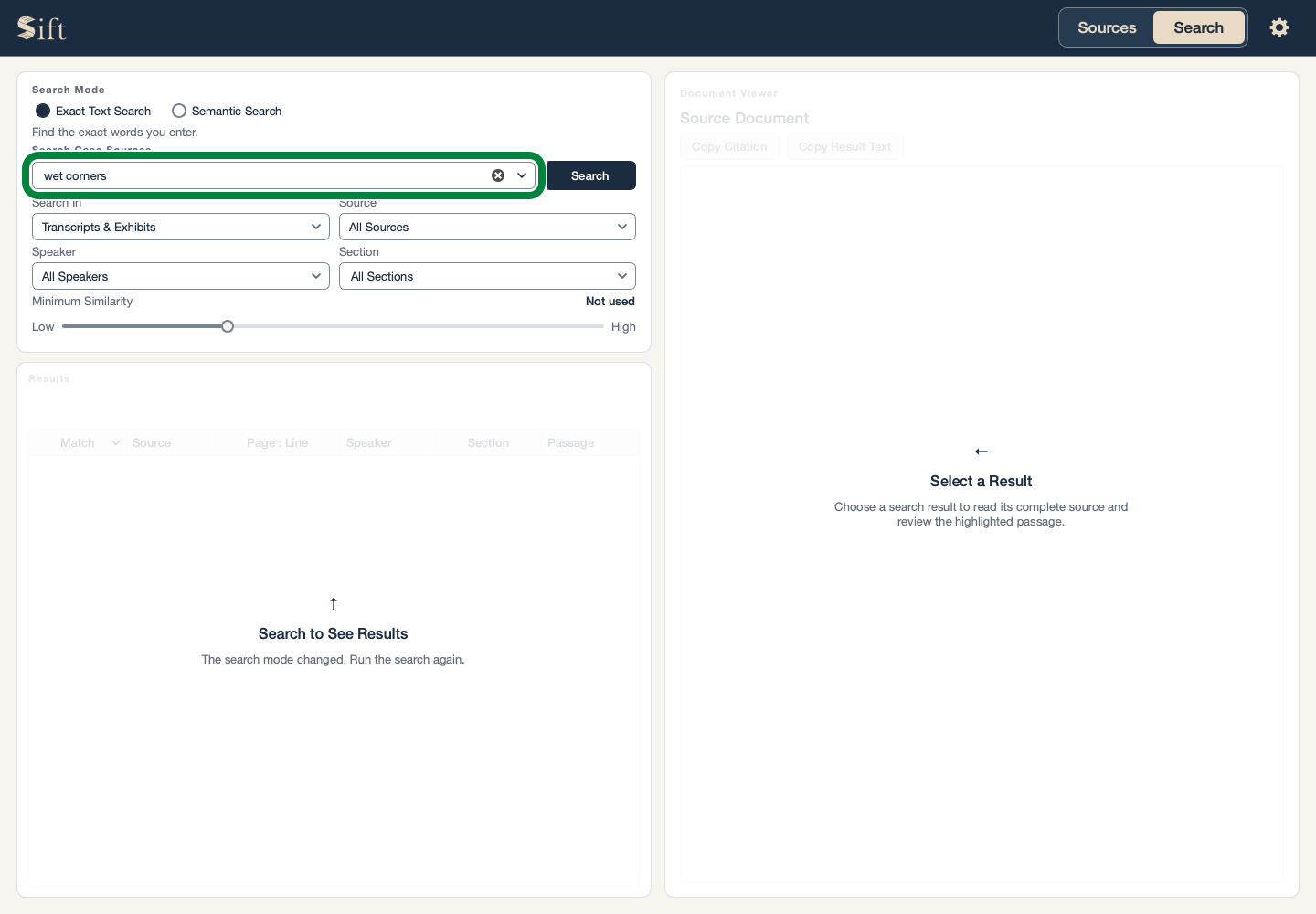
Click Search. Matching passages appear in the results list.
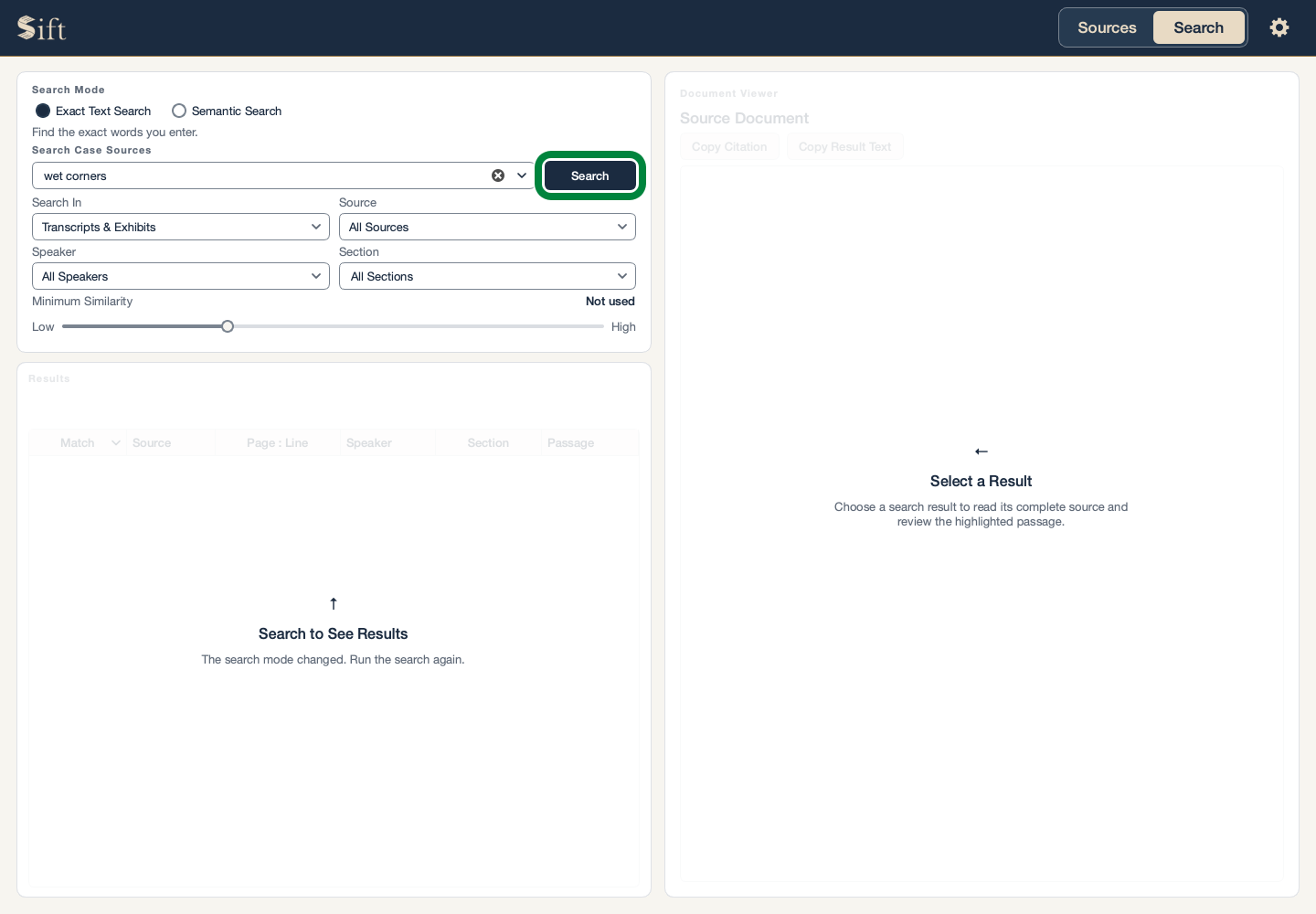
Click the testimony result. The passage appears in the Document Viewer, with the matching words highlighted.
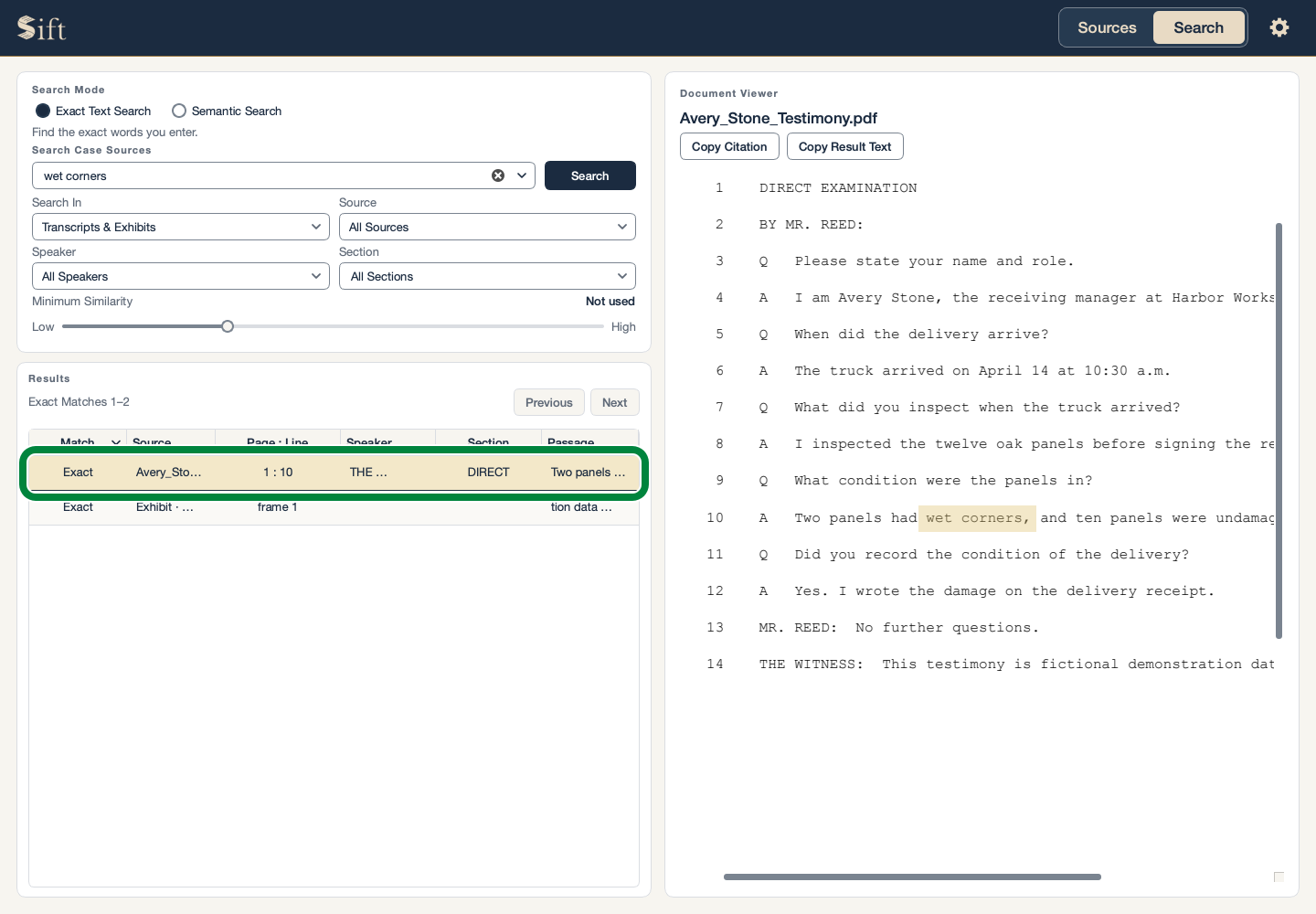
Click the receipt result. The receipt picture appears with the matching words highlighted.
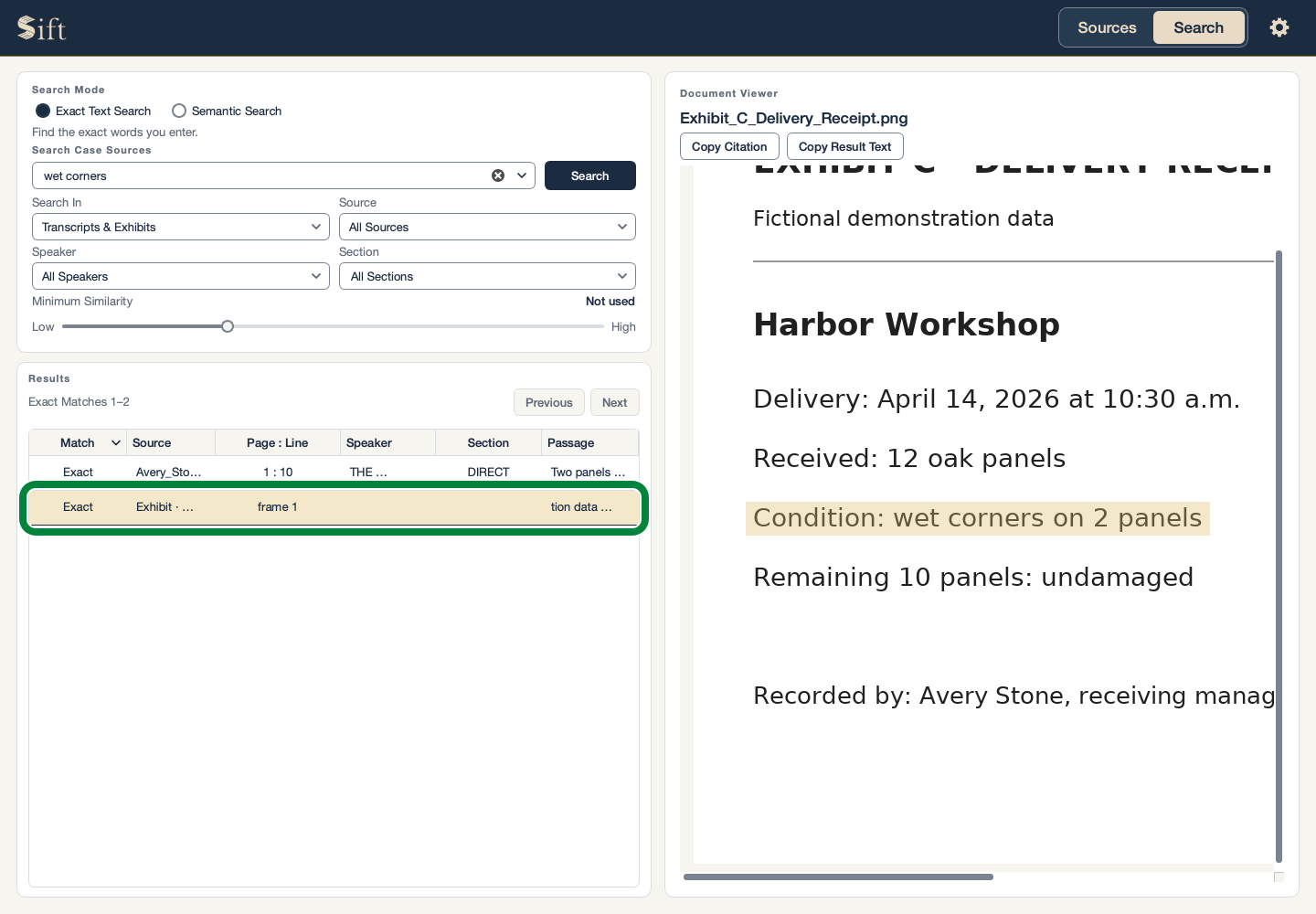
Sift can search words in scanned pages and pictures containing text. Faint printing or an unclear picture can cause words to be missed.
Ask a Question
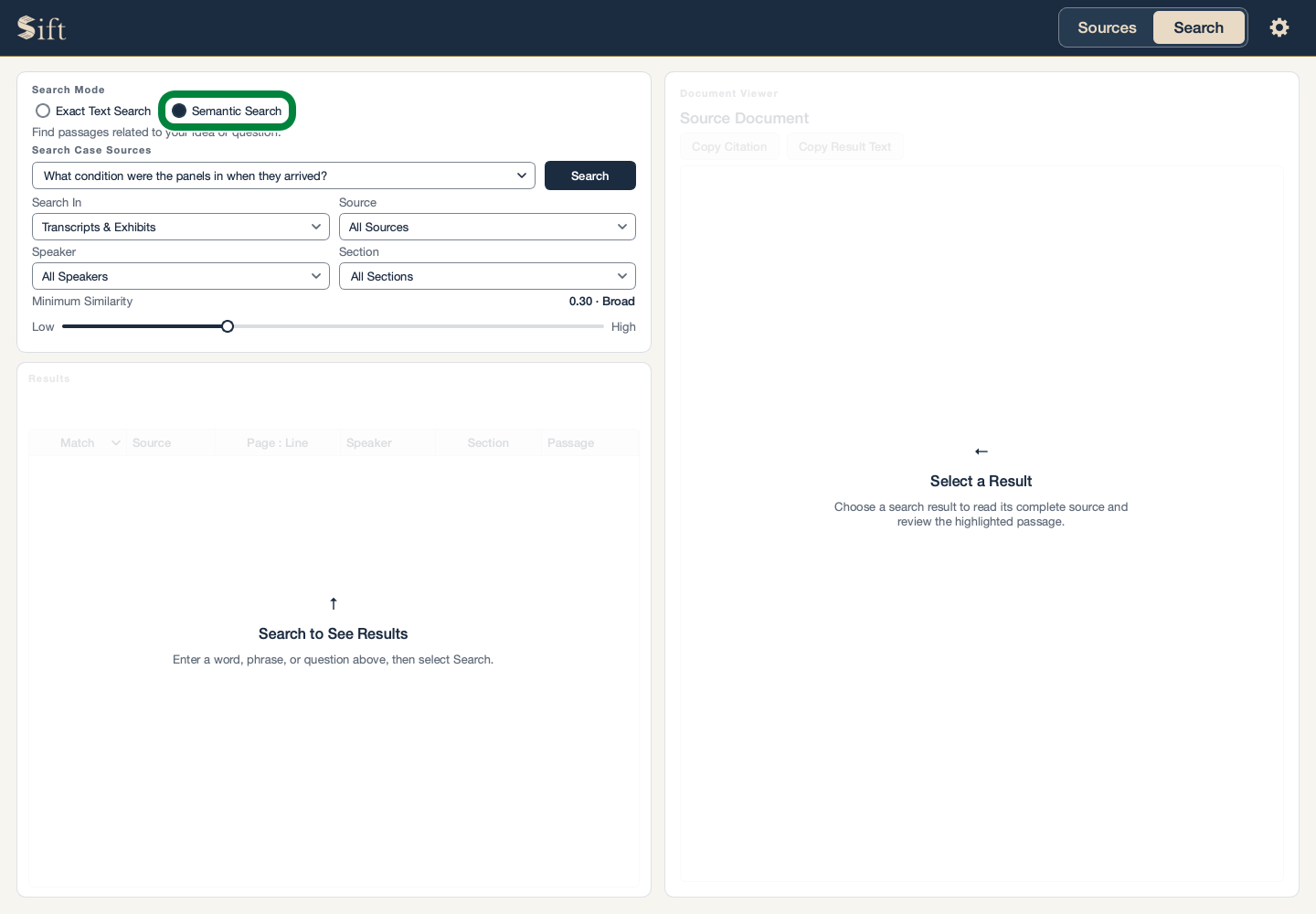
Click Semantic Search. This option finds passages about an idea or question, even when the wording differs.
Type What condition were the panels in when they arrived? in the search box.
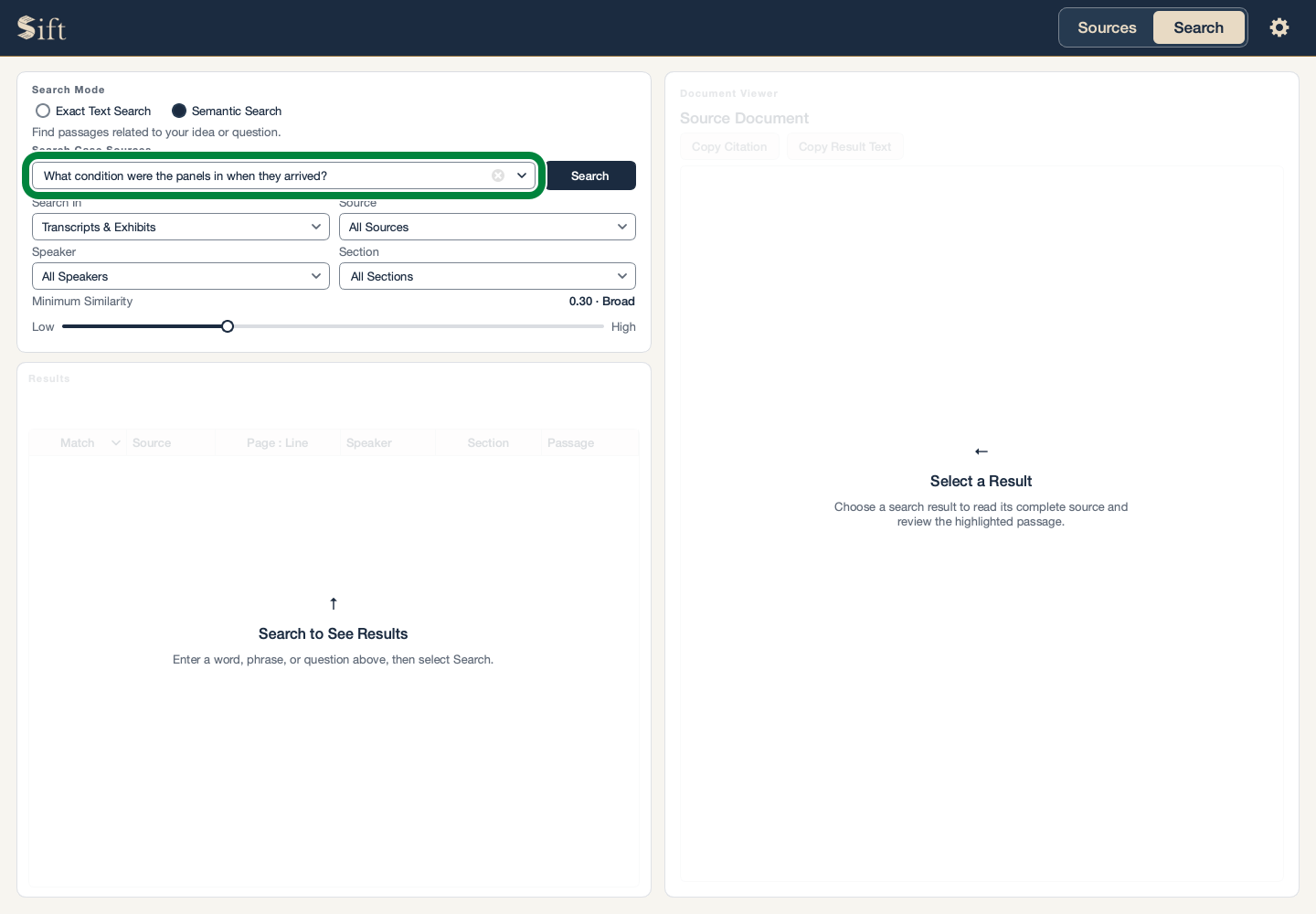
Click Search. Related passages appear in the results list.
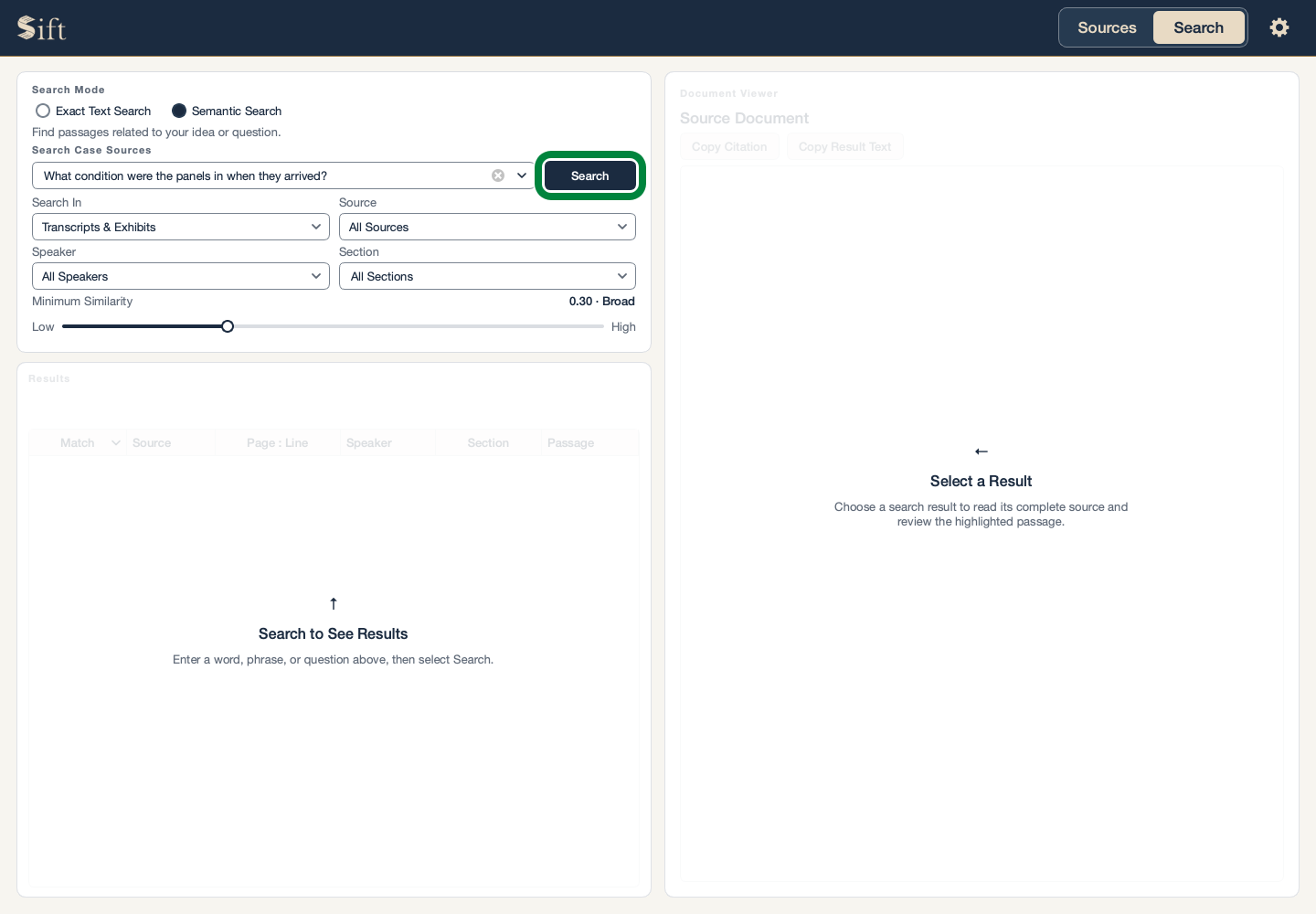
Click a result. The original passage opens beside the results.
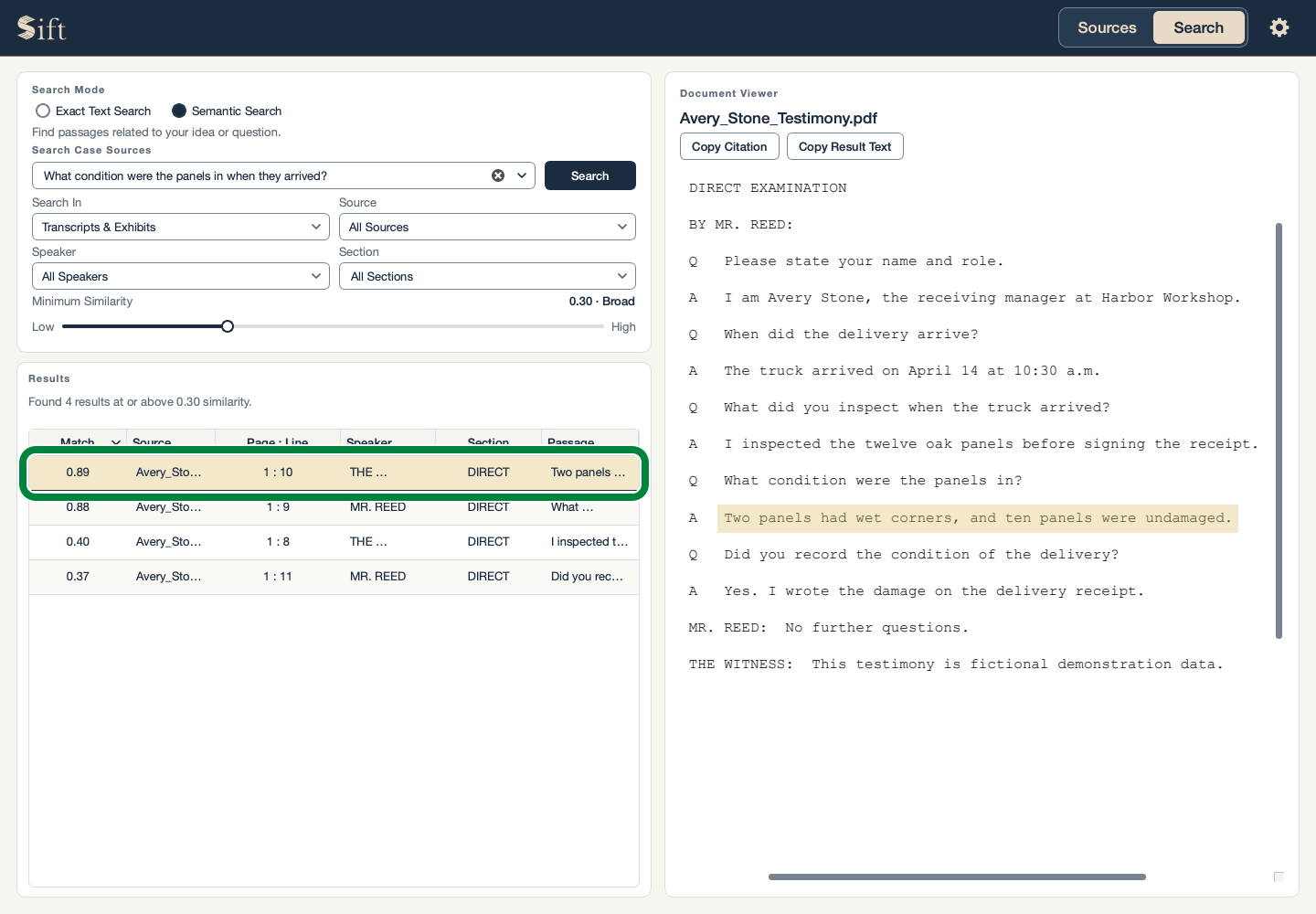
Sift finds passages for you to read. It does not decide which witness is correct or write a legal conclusion.
Your practice case is saved in Sift. Cases and Documents explains how to reopen it, rename it, or remove it.