
Sift User Guide
8. Settings, Licenses, and Updates
Settings brings your license, updates, and help into one page. Opening it leaves your case and search results in place.
Open Settings
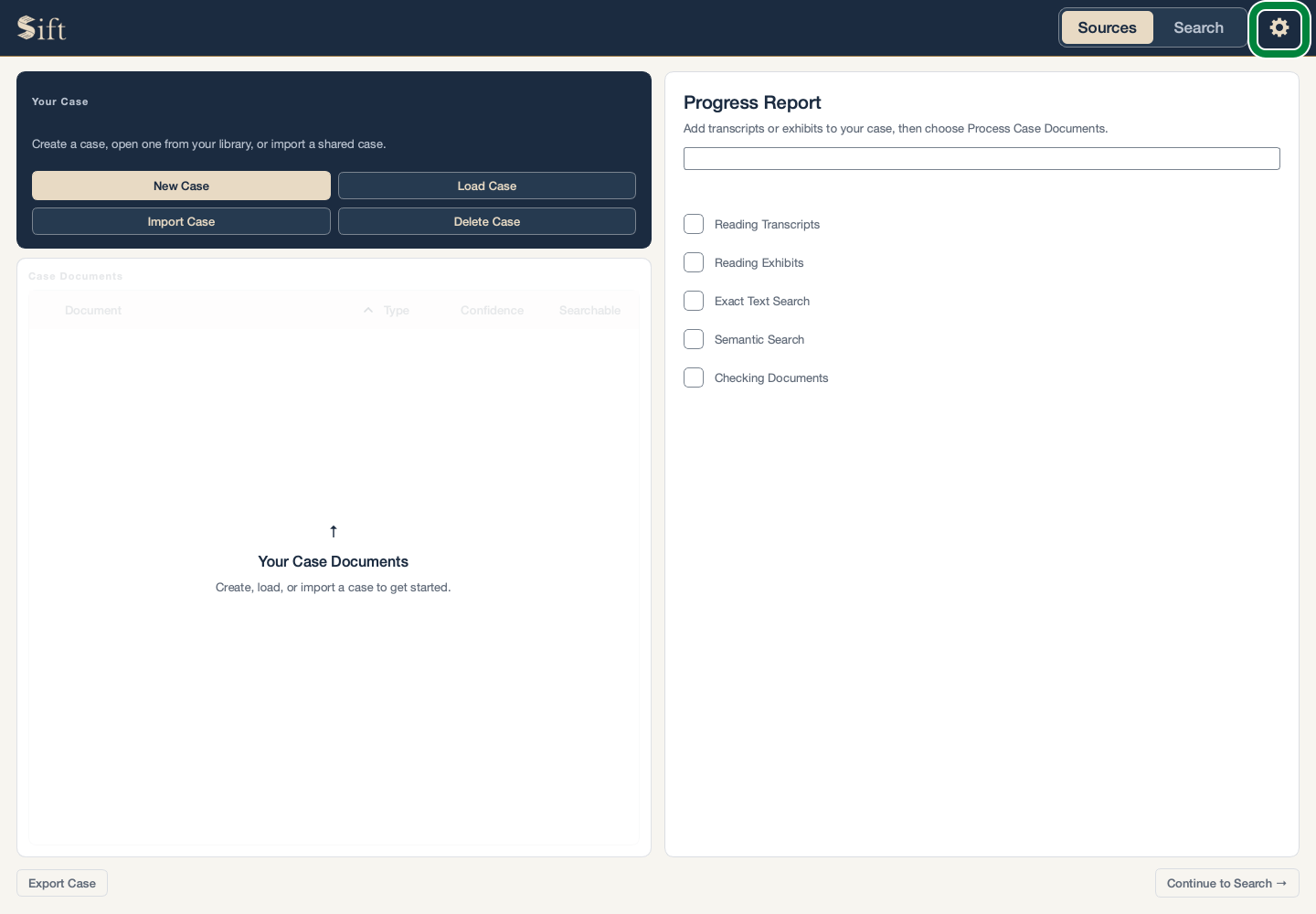
Click the gear to the right of Sources / Search. The Settings page opens.
Activate Sift
Sift needs an internet connection for activation. Your license key is available in your Telophor customer account. First launch opens Settings automatically.
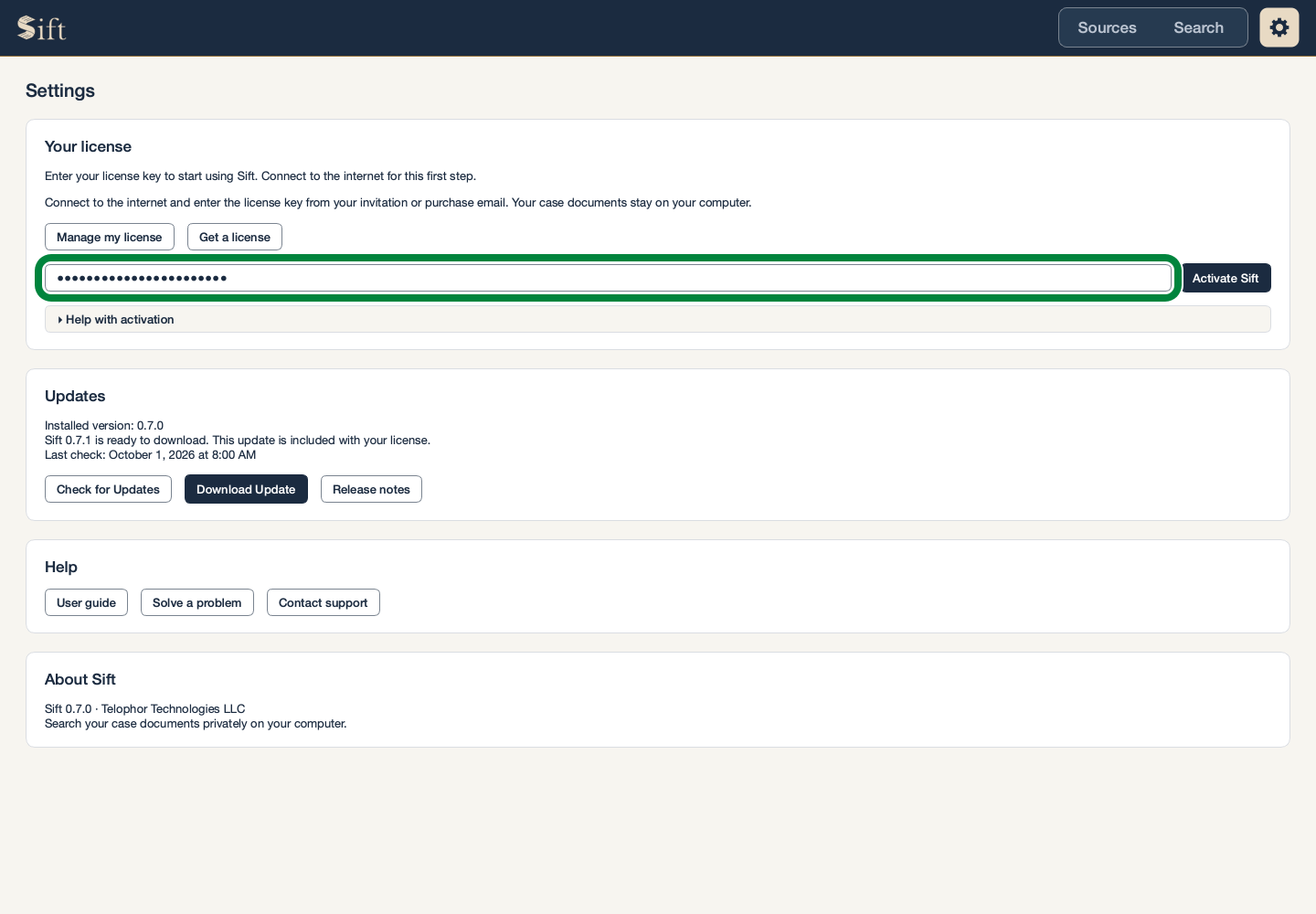
Type your license key in the License key box.
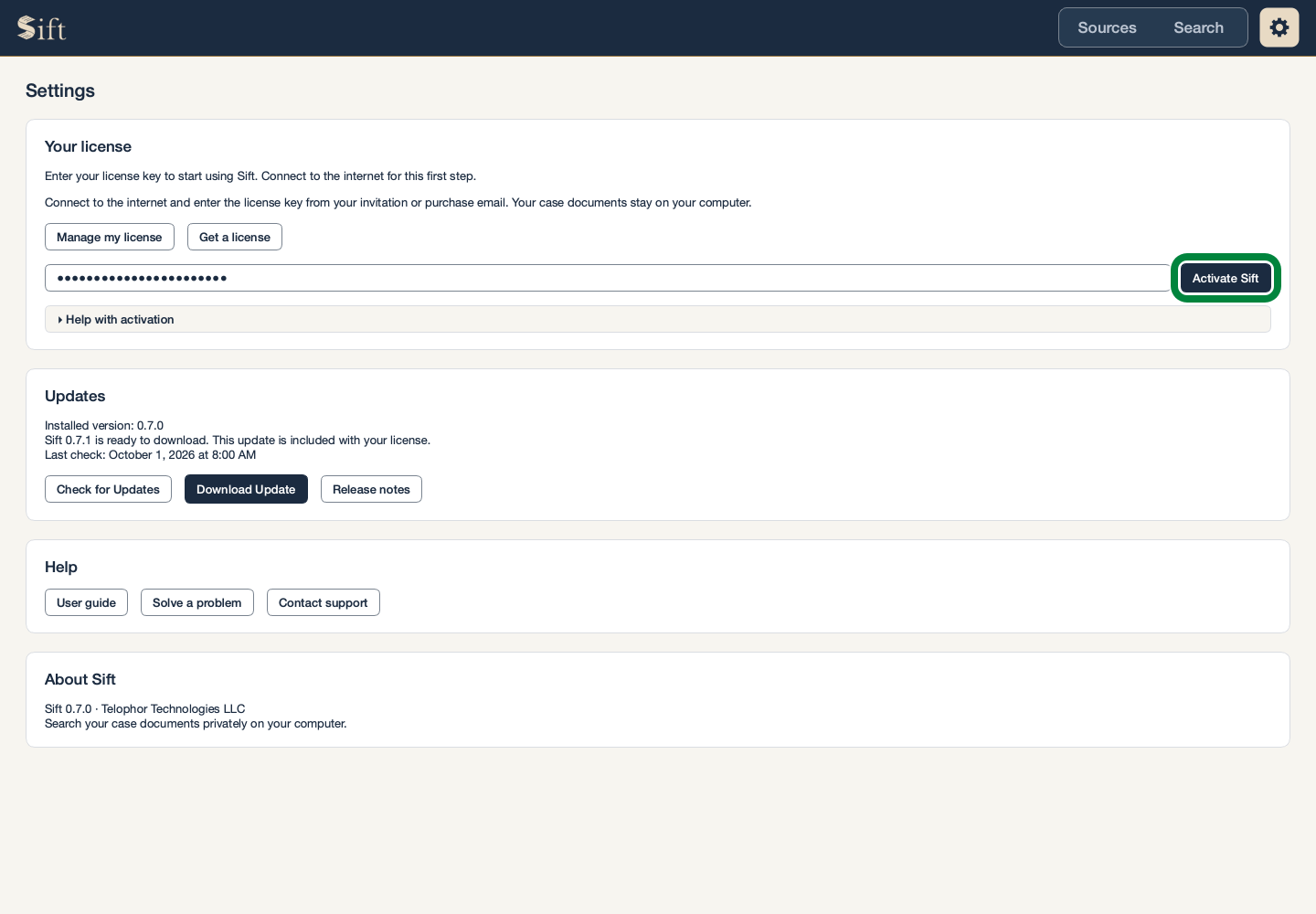
Click Activate Sift. The message Your license is active confirms that Sift is ready.
After activation, Sift can search your documents without an internet connection. An interrupted connection does not take away an already active license.
A beta key works with the test version of Sift. The commercial release requires a separate purchased license.
Find Your License and Downloads
Click Manage my license. Your browser opens the Telophor customer account managed by Polar.
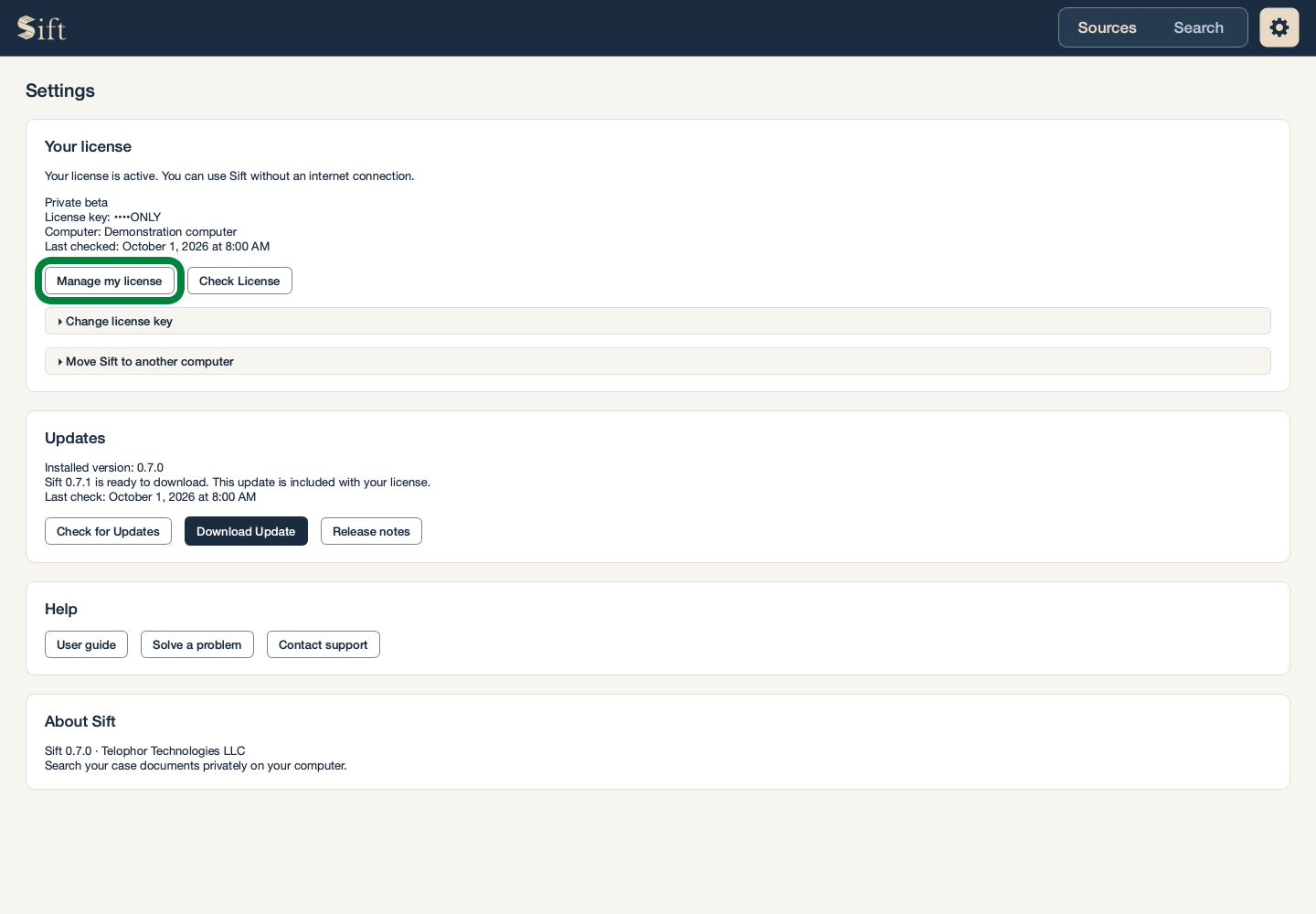
That account contains your license, available Sift downloads, and purchase information. Help with a missing license is available from support.
Check the License
This is usually automatic when an internet connection is available.
Click Check License to check it now. The license message shows the result.
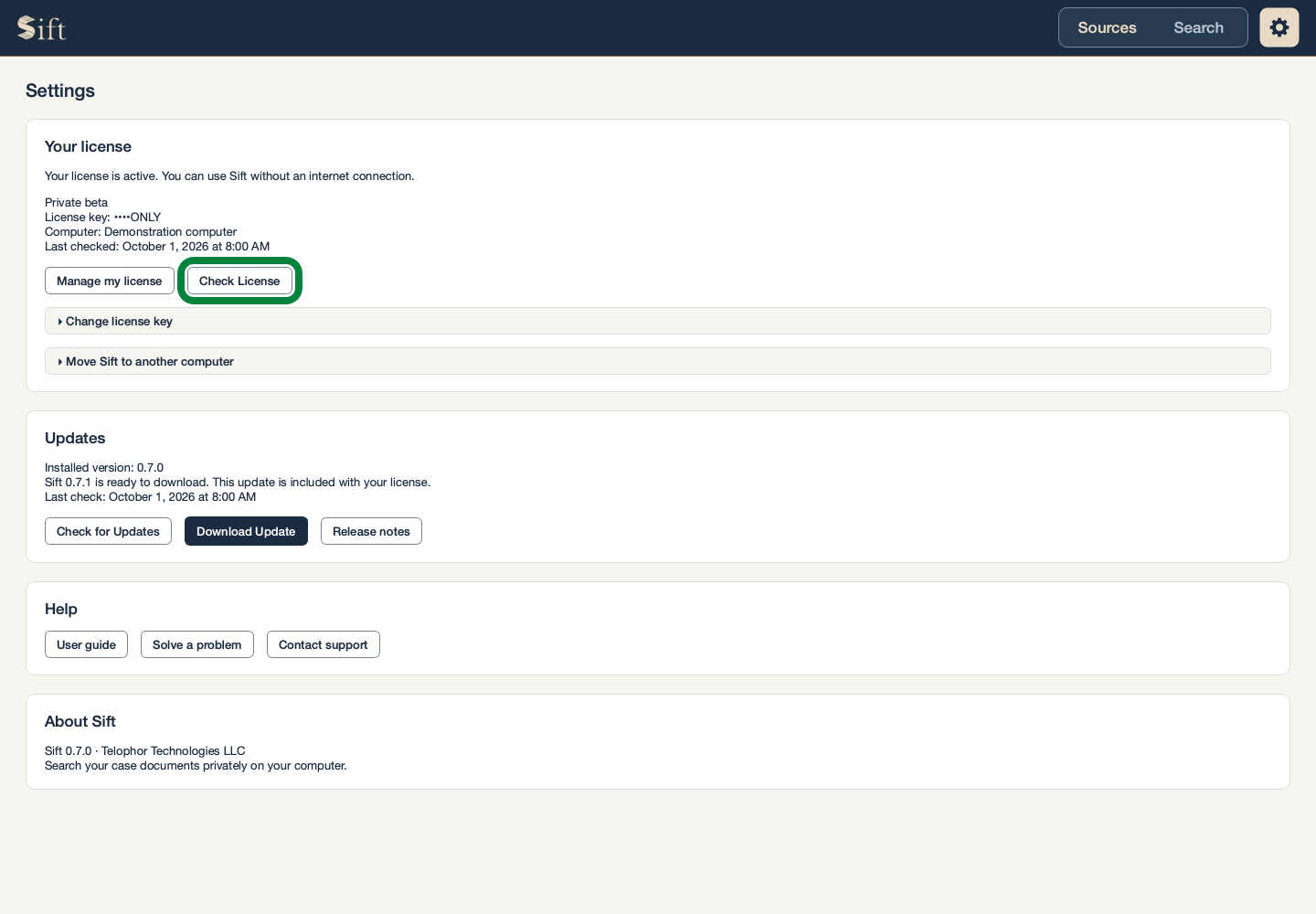
Unconfirmed activations and other unusual license messages are best handled with support, rather than repeated activation attempts.
Save a Replacement Key
These steps are for a new key supplied for your existing license.
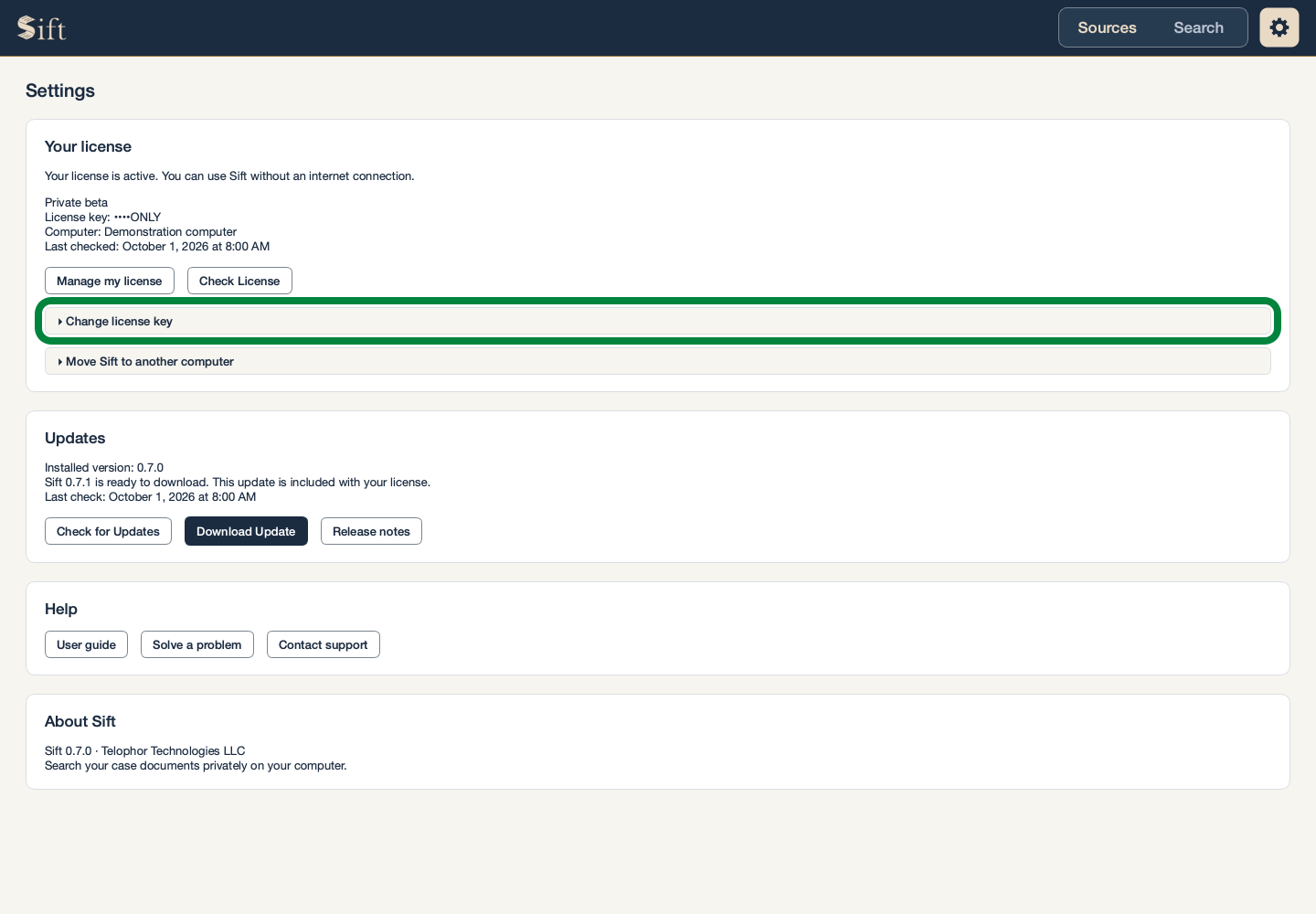
Click Change license key. The new-key box appears on the same page.
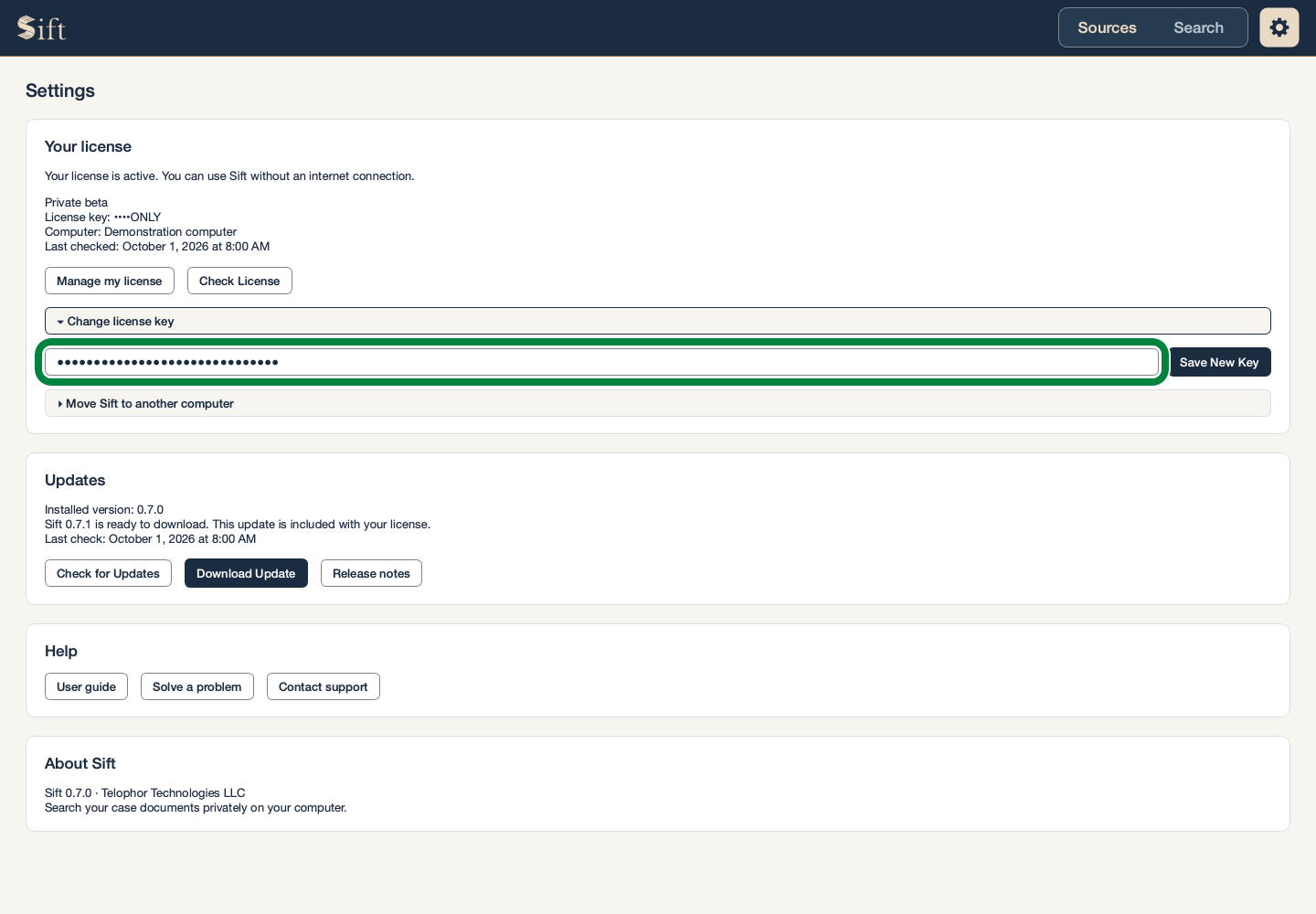
Type the replacement key in License key.
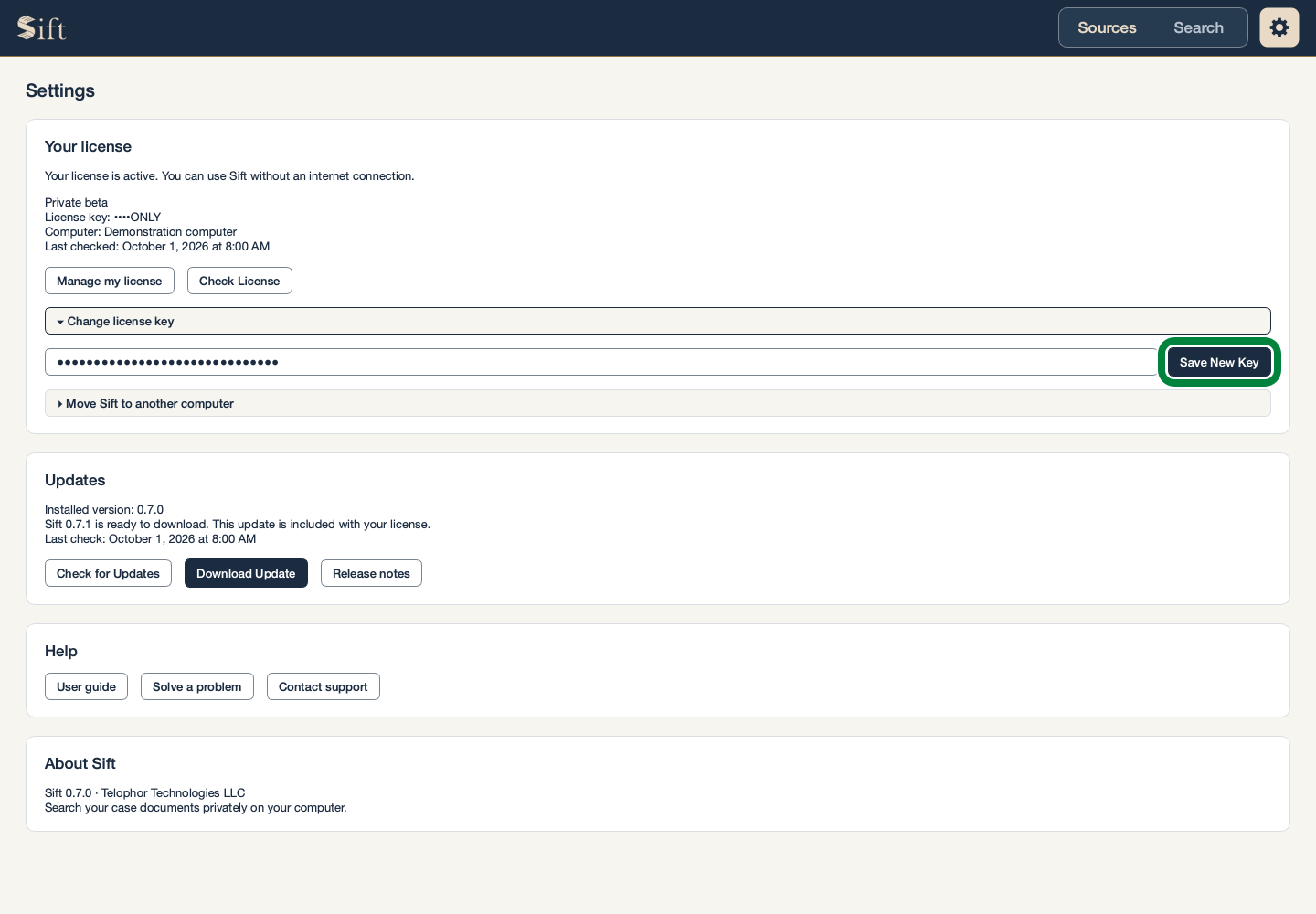
Click Save New Key. Sift checks the new key and shows the result.
Move Sift to Another Computer
One license allows one active computer at a time. Deactivation leaves your cases on the old computer; it does not move them to the new one. Sharing and Backups explains how to move a case.
These steps require an internet connection and no case work in progress.
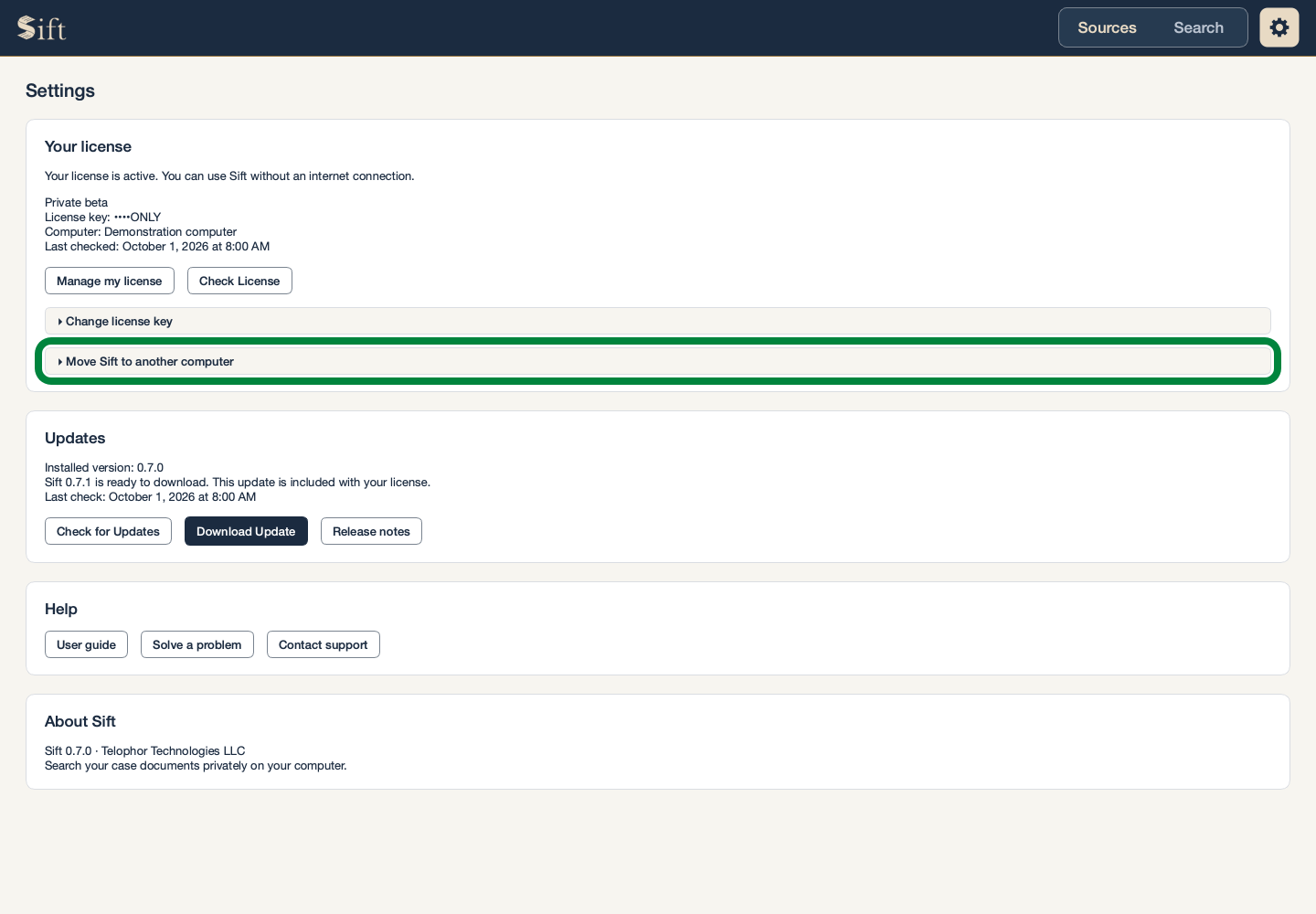
Click Move Sift to another computer. The deactivation controls appear on the same page.
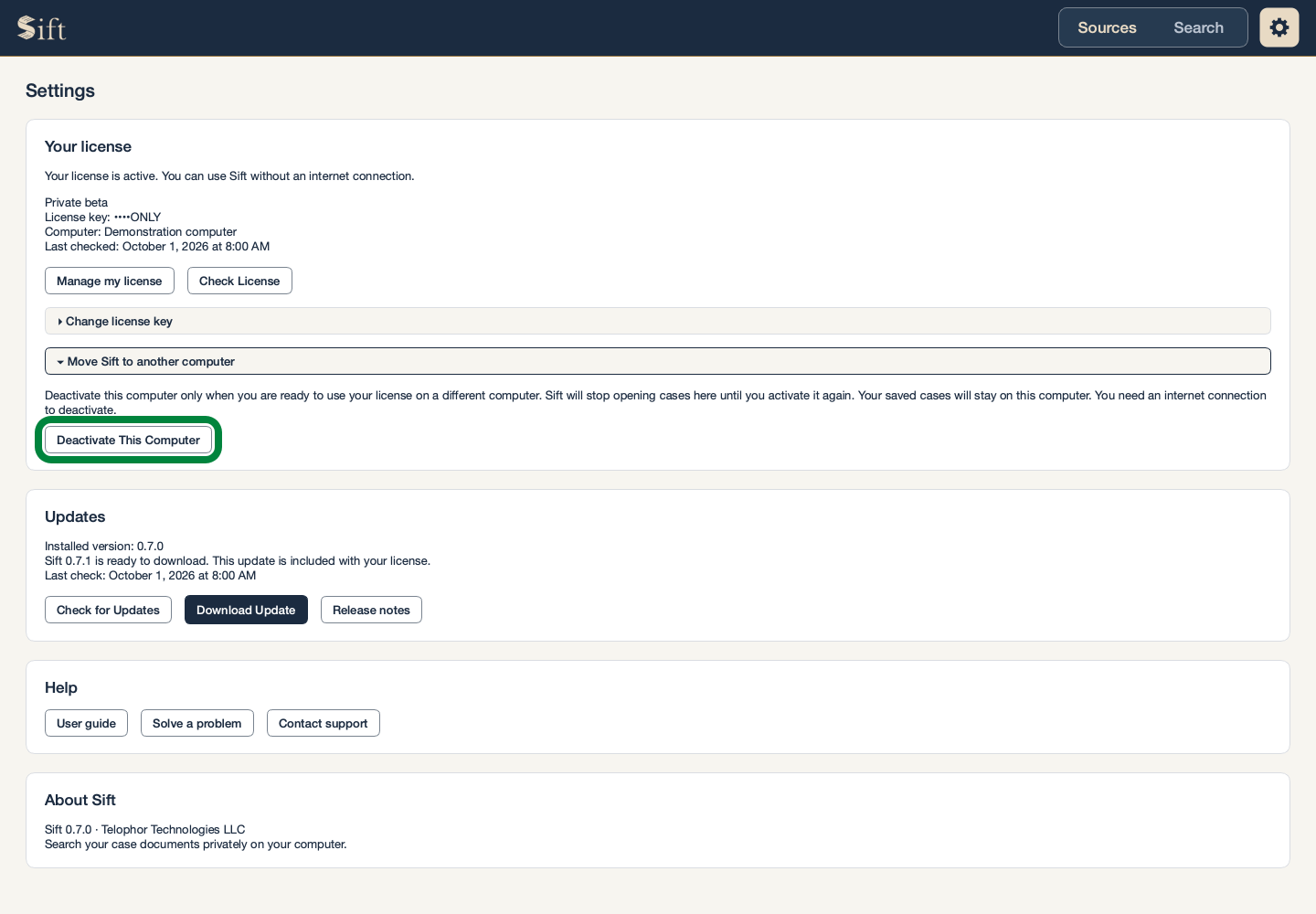
Click Deactivate This Computer. A confirmation window opens.
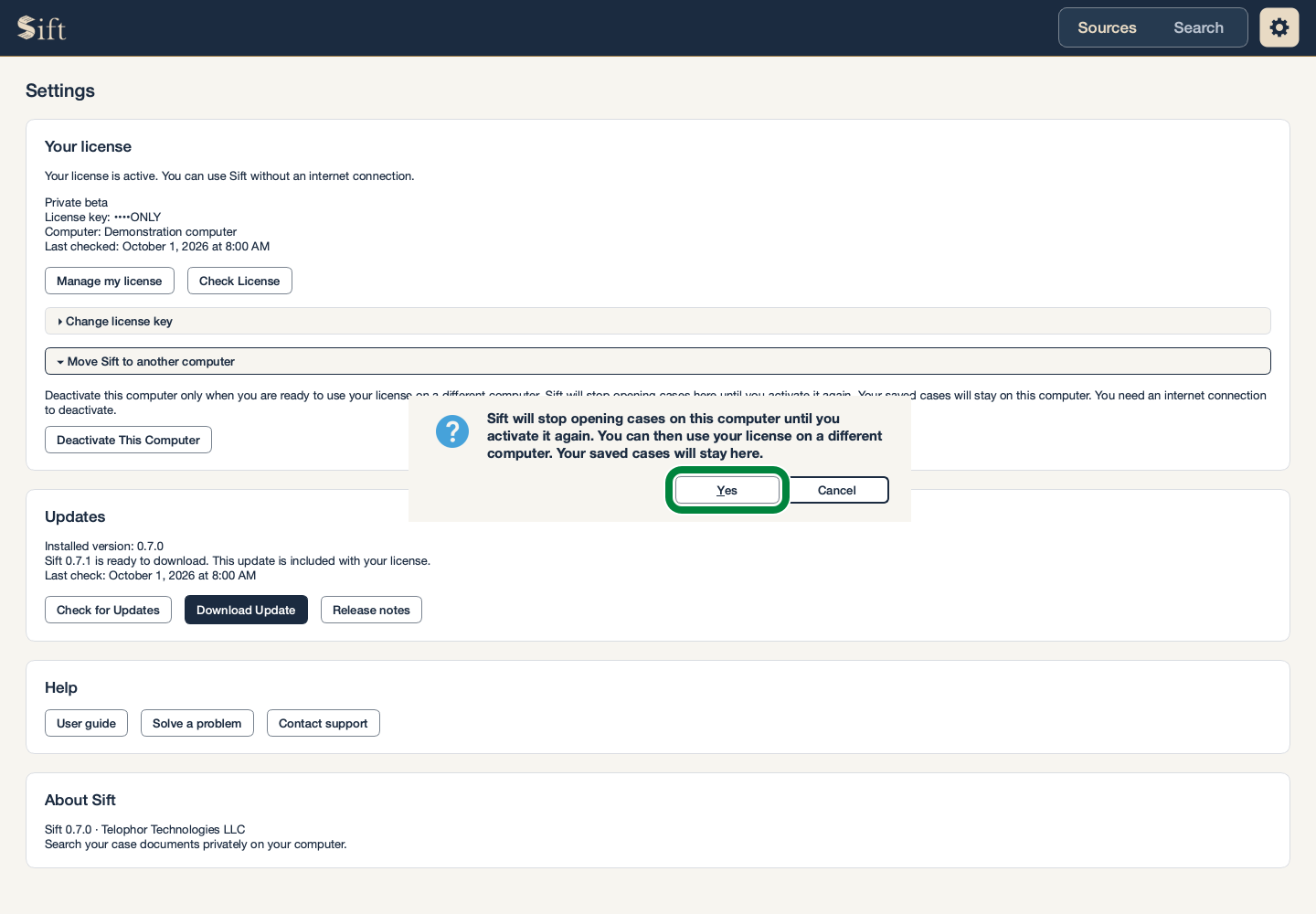
Click Yes to confirm. Sift reports when this computer has been deactivated.
The activation steps above apply on the replacement computer. If the old computer is lost or unavailable, support can help free the license.
Check for an Update
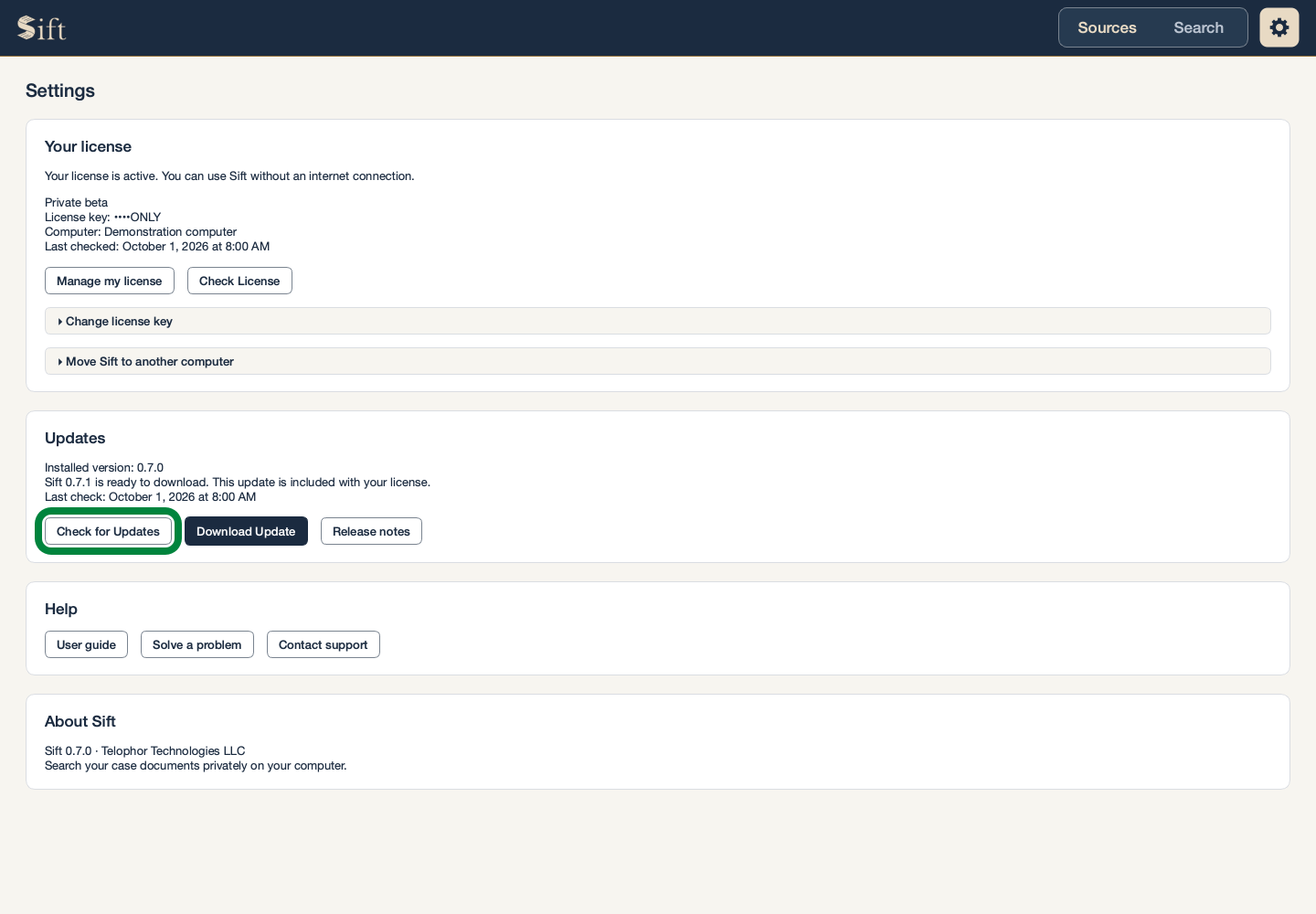
Click Check for Updates. The Updates section reports whether a newer version is available.
Click Download Update when it appears. Your browser opens the account containing your available downloads.
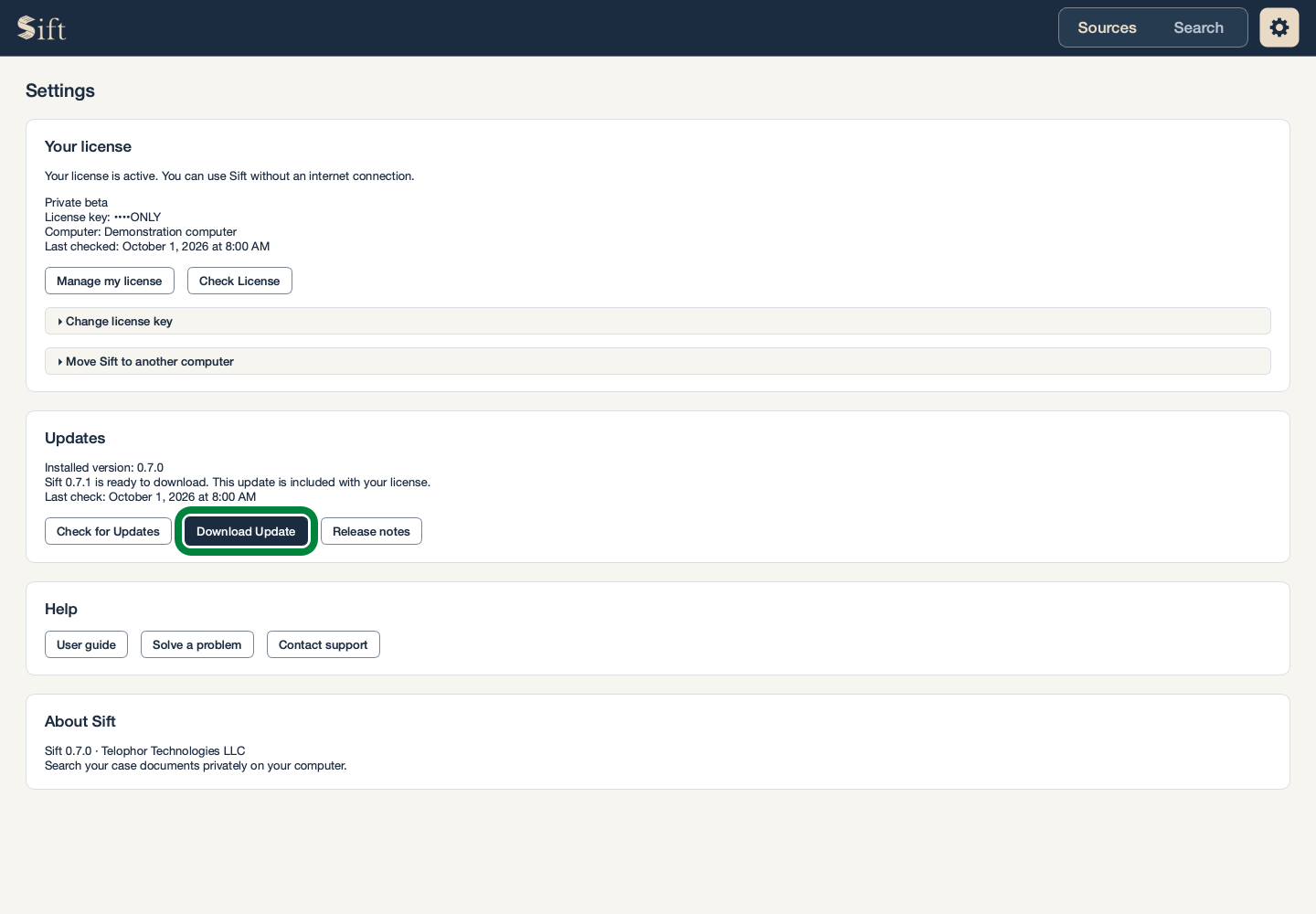
Sift does not install updates automatically. An ordinary update keeps your cases and activation. A future paid upgrade is labeled separately, so checking for an update does not commit you to a purchase.
Read What Changed
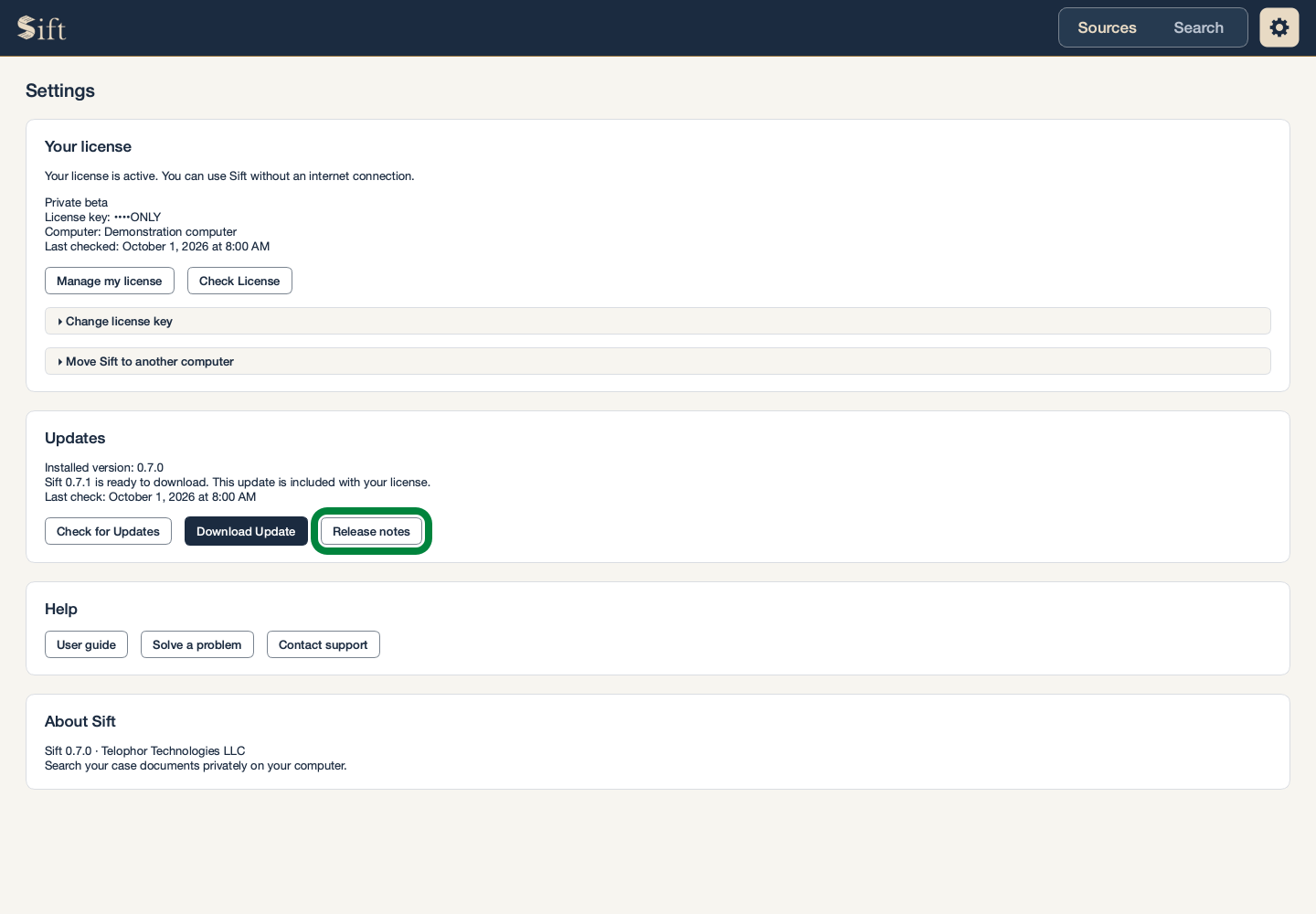
Click Release notes. The website opens with information about Sift versions.
Open This Guide
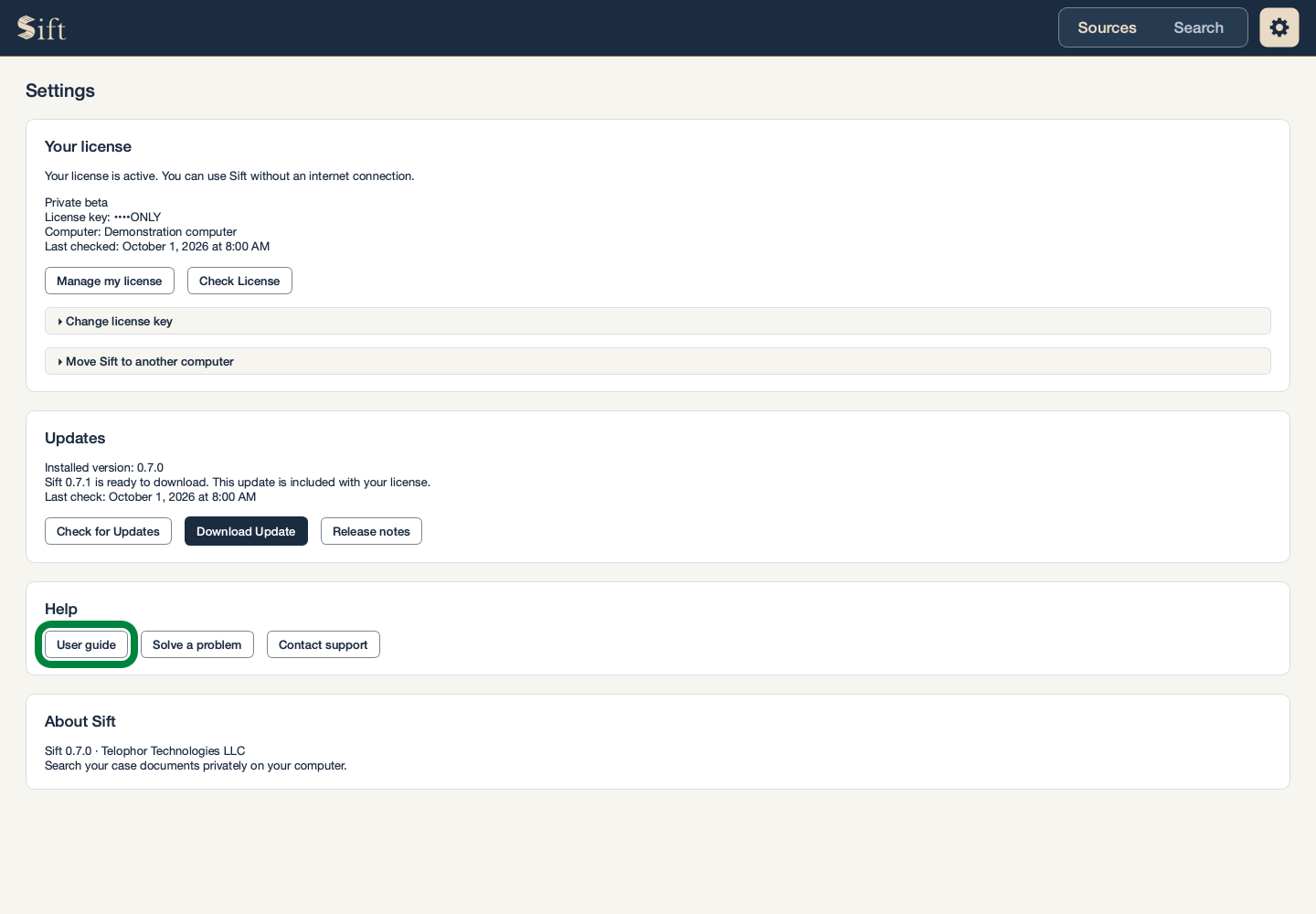
Click User guide. This guide opens in your browser.
Find Help with a Problem
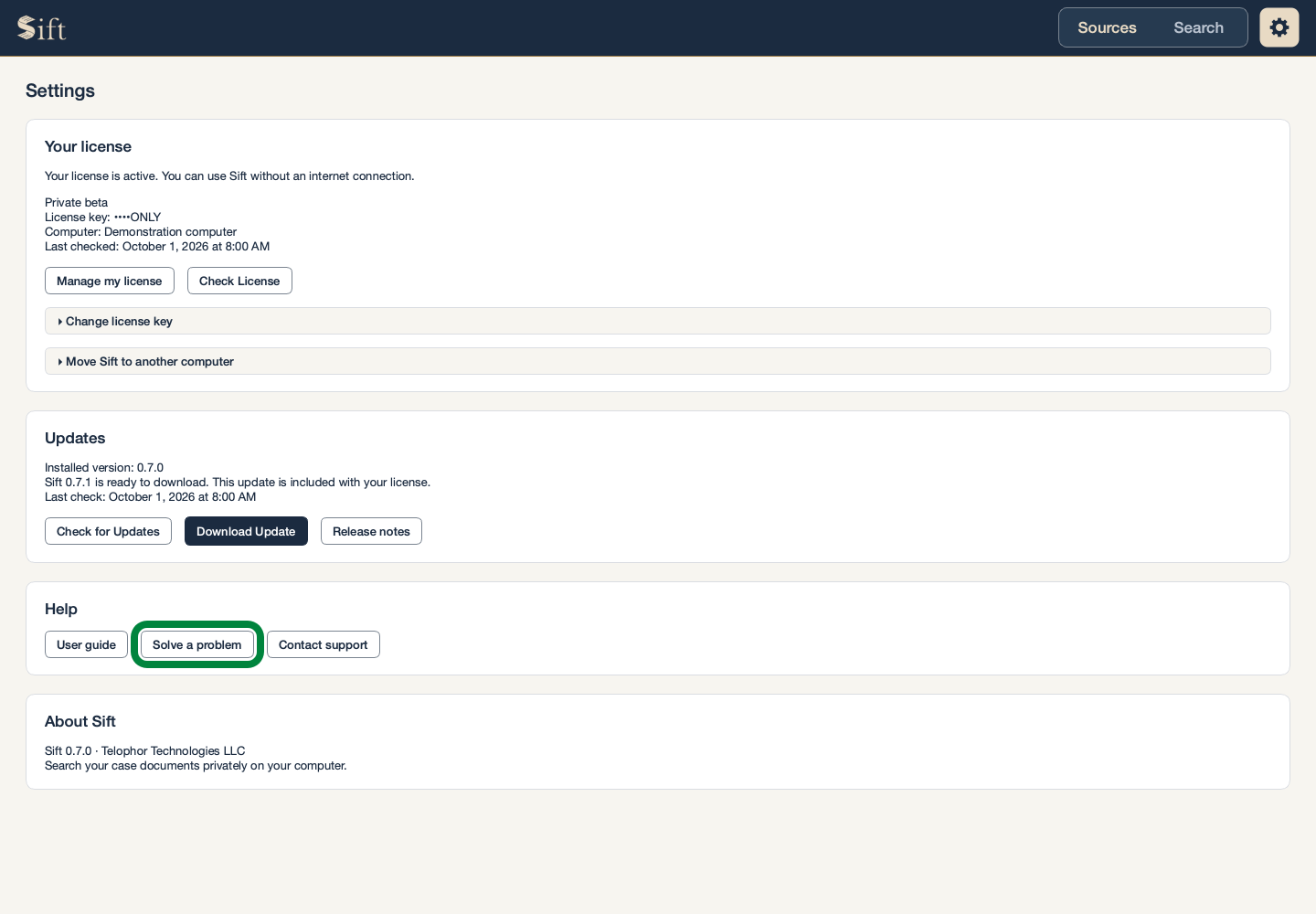
Click Solve a problem. Help with common problems opens in your browser.
Contact Support
Click Contact support. The contact information opens in your browser.
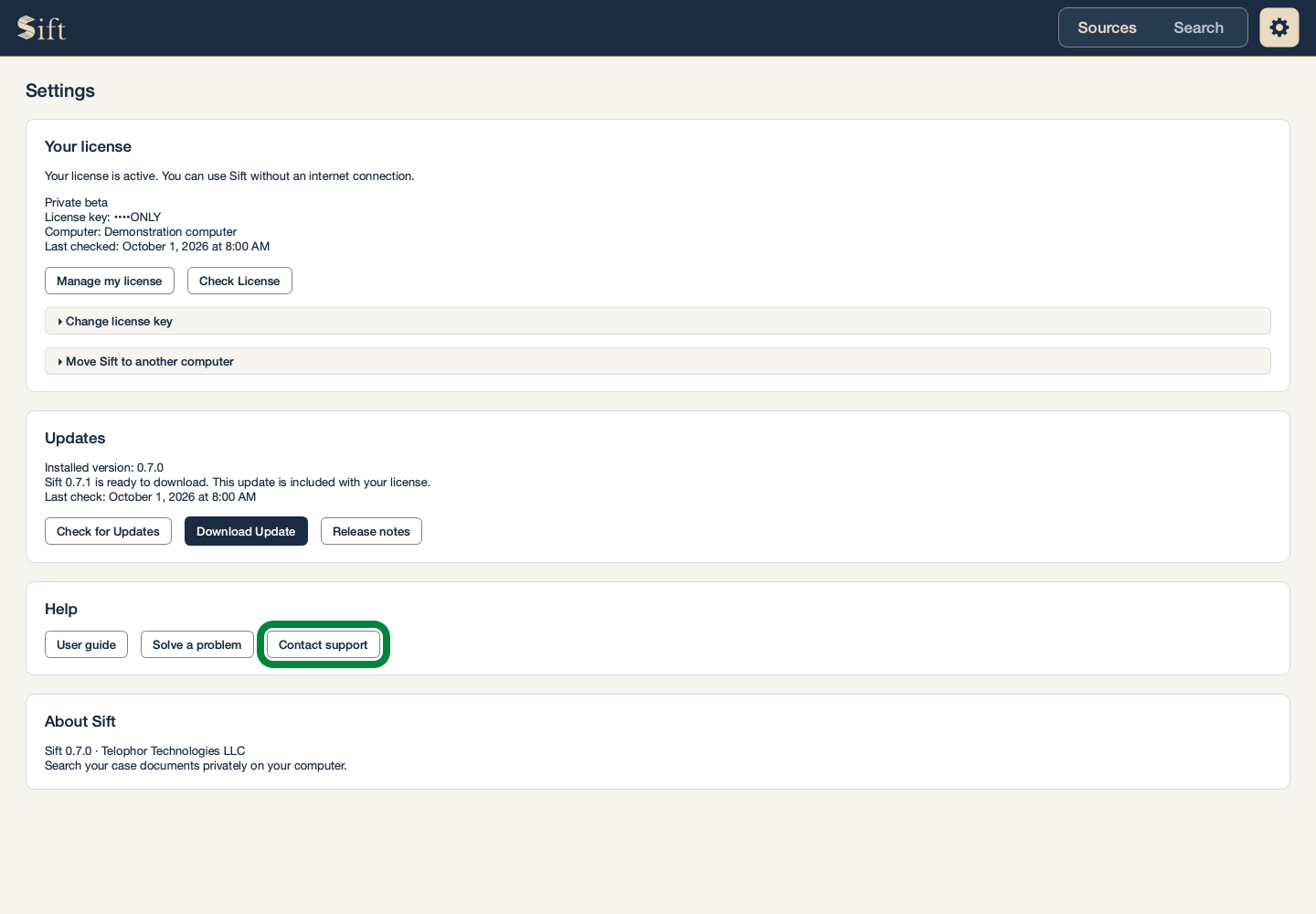
About Sift, at the bottom of Settings, shows your Sift version. This is useful when asking for assistance.