
Sift User Guide
6. Reading Your Results
A search result is a way back to a document. The highlighted words are a starting point; the surrounding passage can change their meaning.
Open the Source Passage
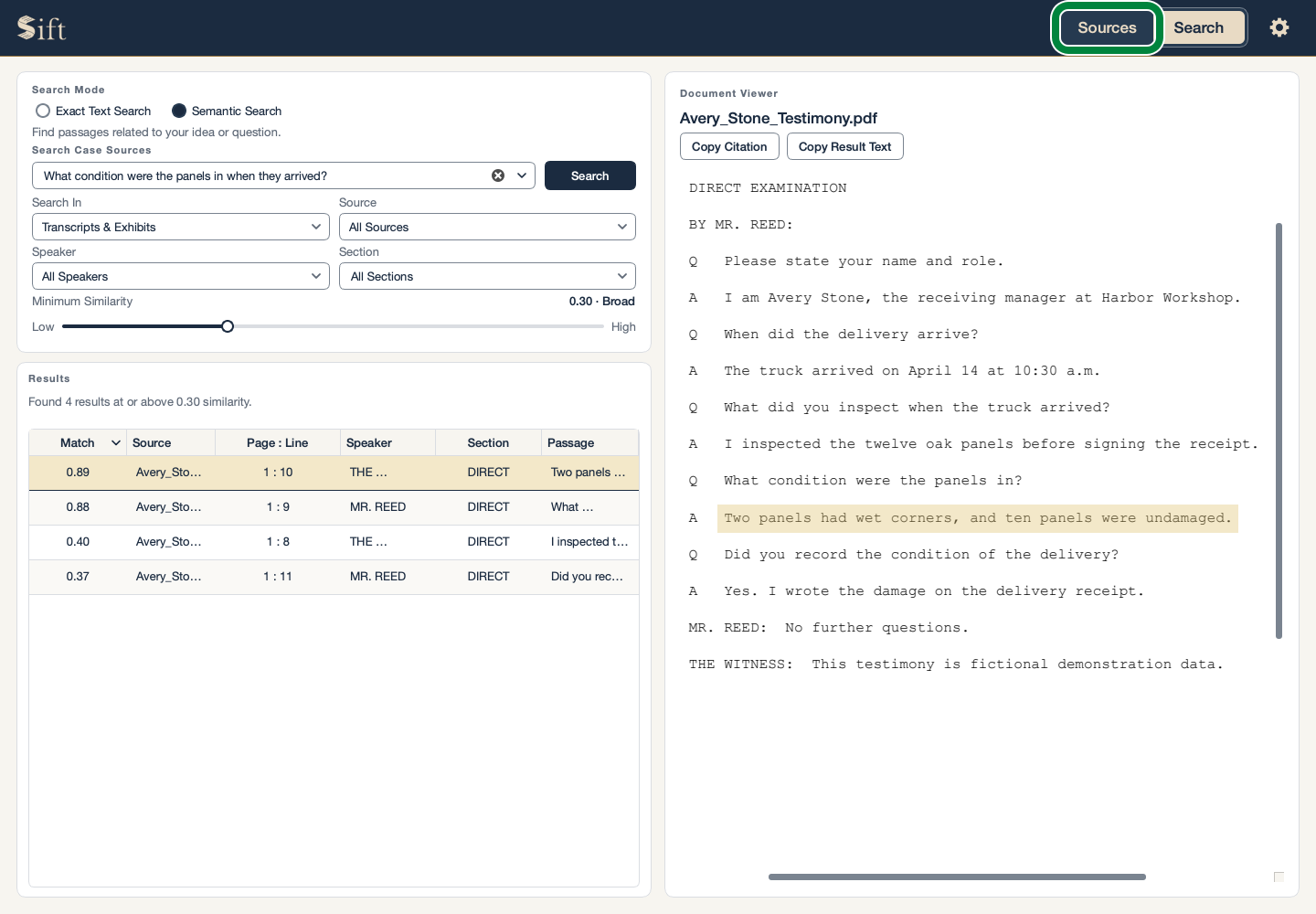
Click a result in the list. Sift opens the original passage beside the results and highlights the match.
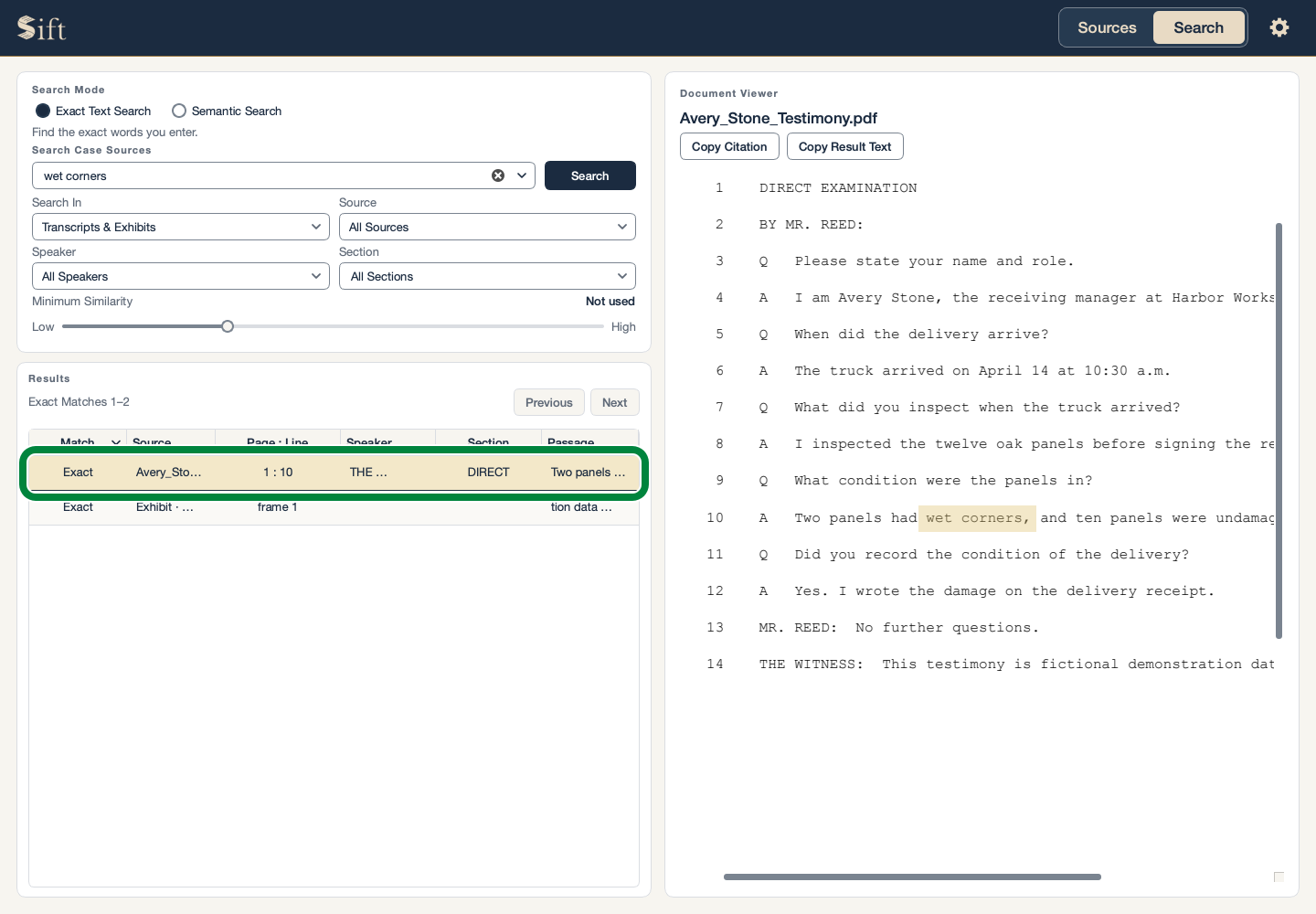
The source name and available page, line, speaker, or examination details appear with the result. Some documents do not contain all of these details.
A transcript’s surrounding questions and answers help show the full context. A date, heading, or nearby paragraph can be just as important in an exhibit.
Review a Scanned Page or Picture
Click the receipt result in the practice case. The original receipt picture appears with the matching words highlighted.
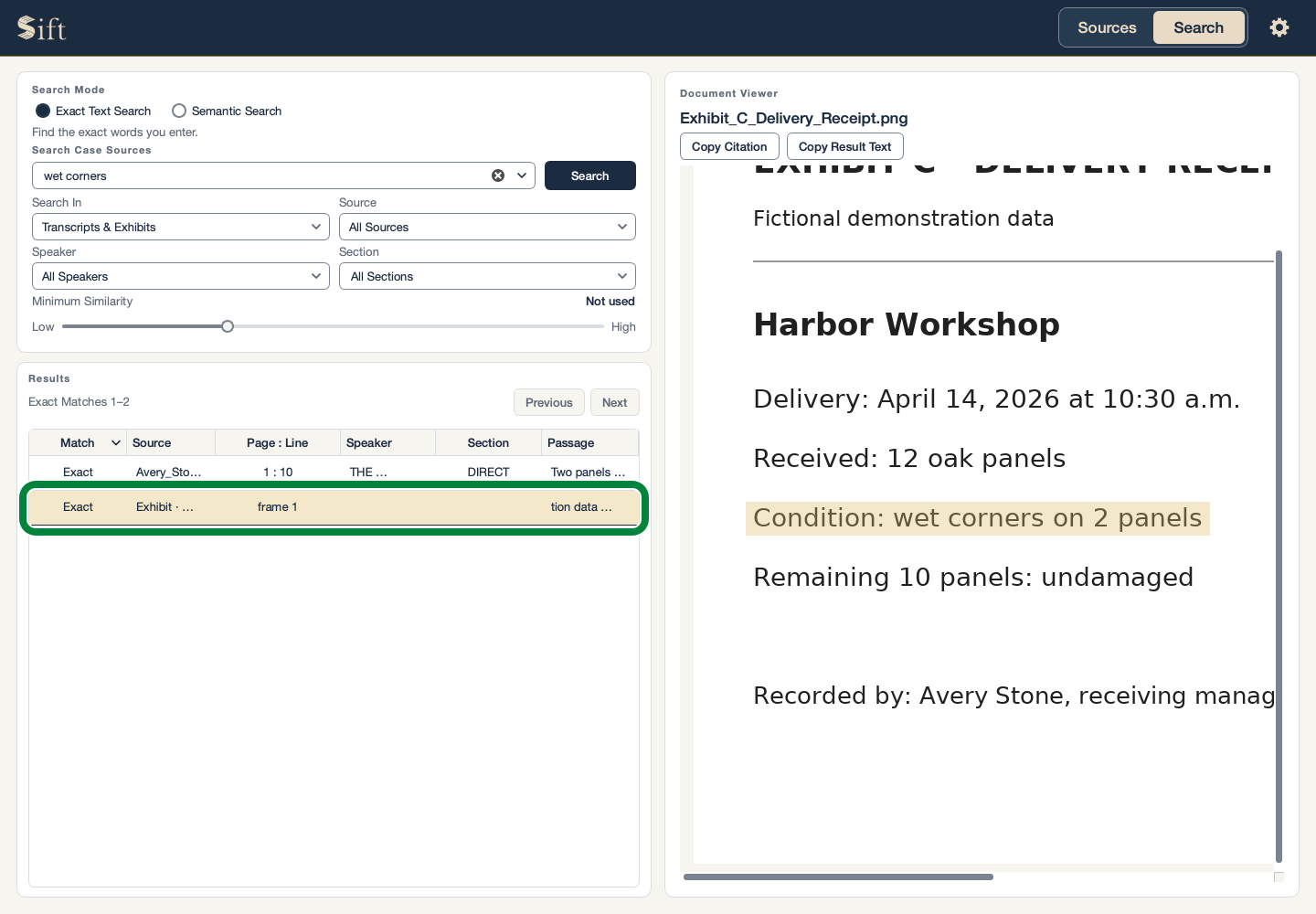
Searchable words in a scan can contain reading mistakes. The visible page or picture is the place to check the wording. Results from presentations and spreadsheets also identify the relevant slide or cell when that information is available.
Copy a Citation
These steps begin with the result’s passage visible in the Document Viewer.
Click Copy Citation. The result’s source reference is ready to paste into your own document.
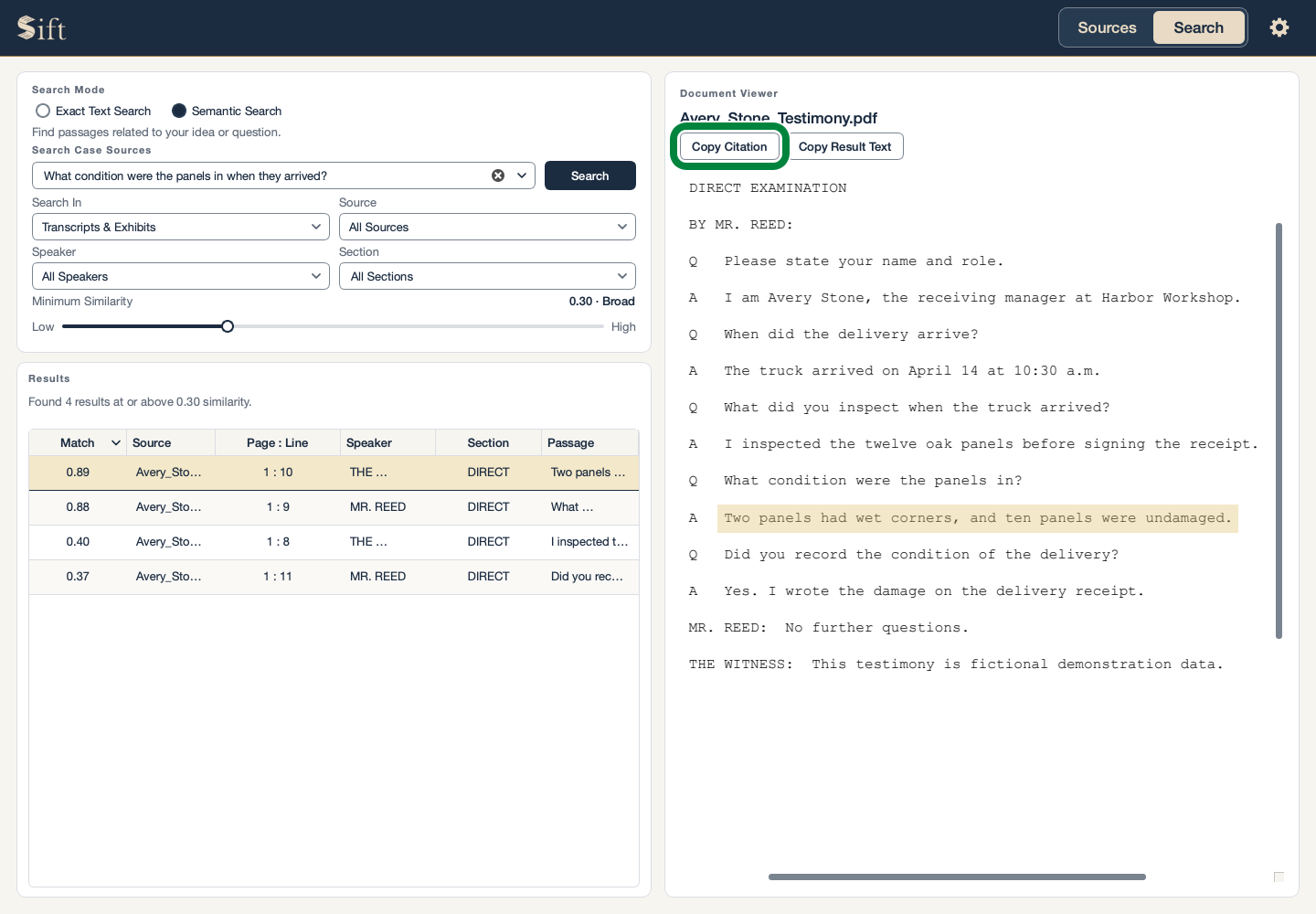
Sift’s citation is a starting reference. The original source remains the authority for page numbers, line numbers, and wording.
Copy the Result’s Words
Click Copy Result Text. The selected result’s words are ready to paste into your own document.
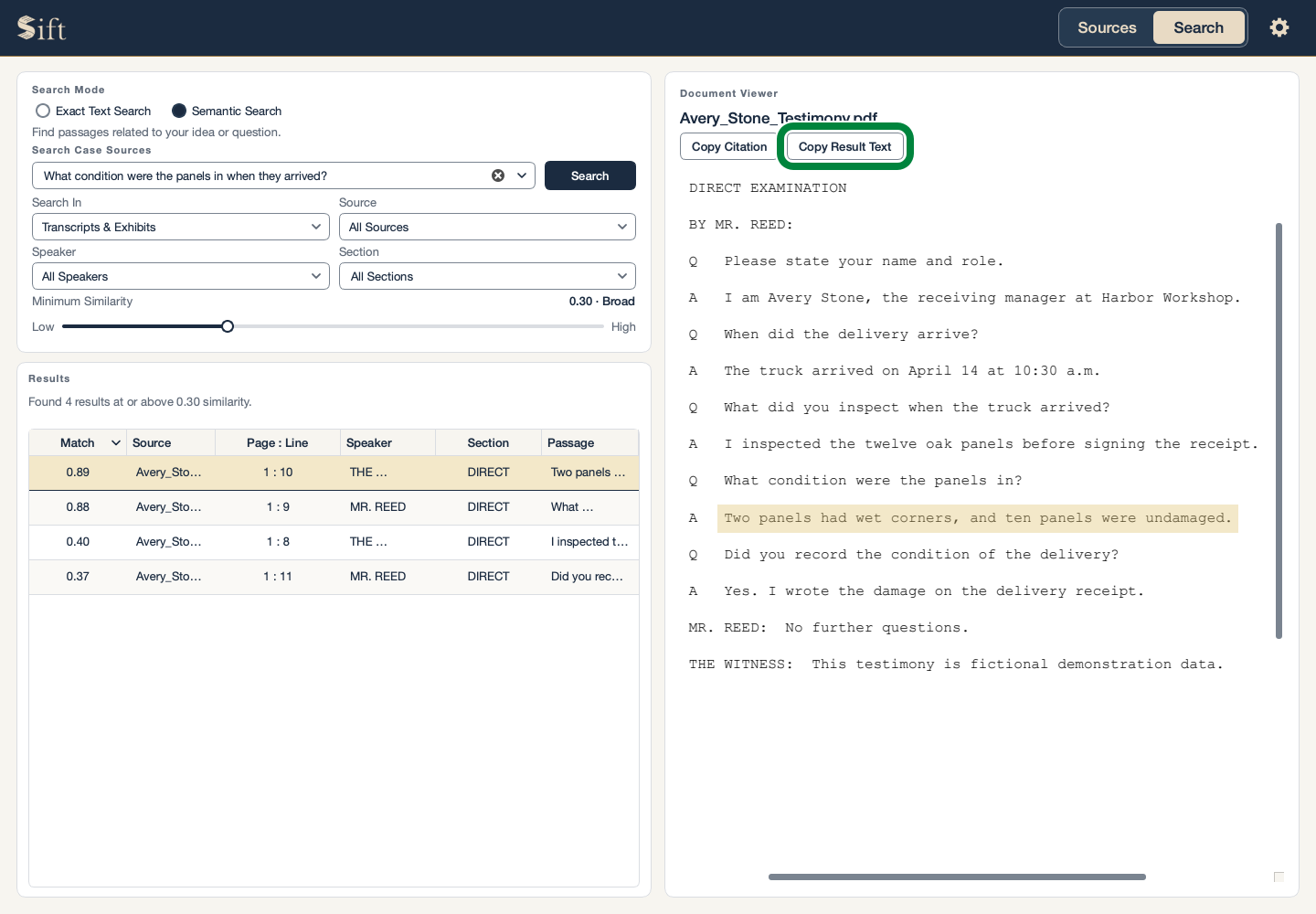
The copied words do not include every surrounding question, answer, or paragraph. A short extract may need additional context to be understood fairly.
Review the Whole Document
Click Sources at the top of Sift. The case’s document list appears.
Click the document name in the list. The original document and any reading warnings appear beside it.
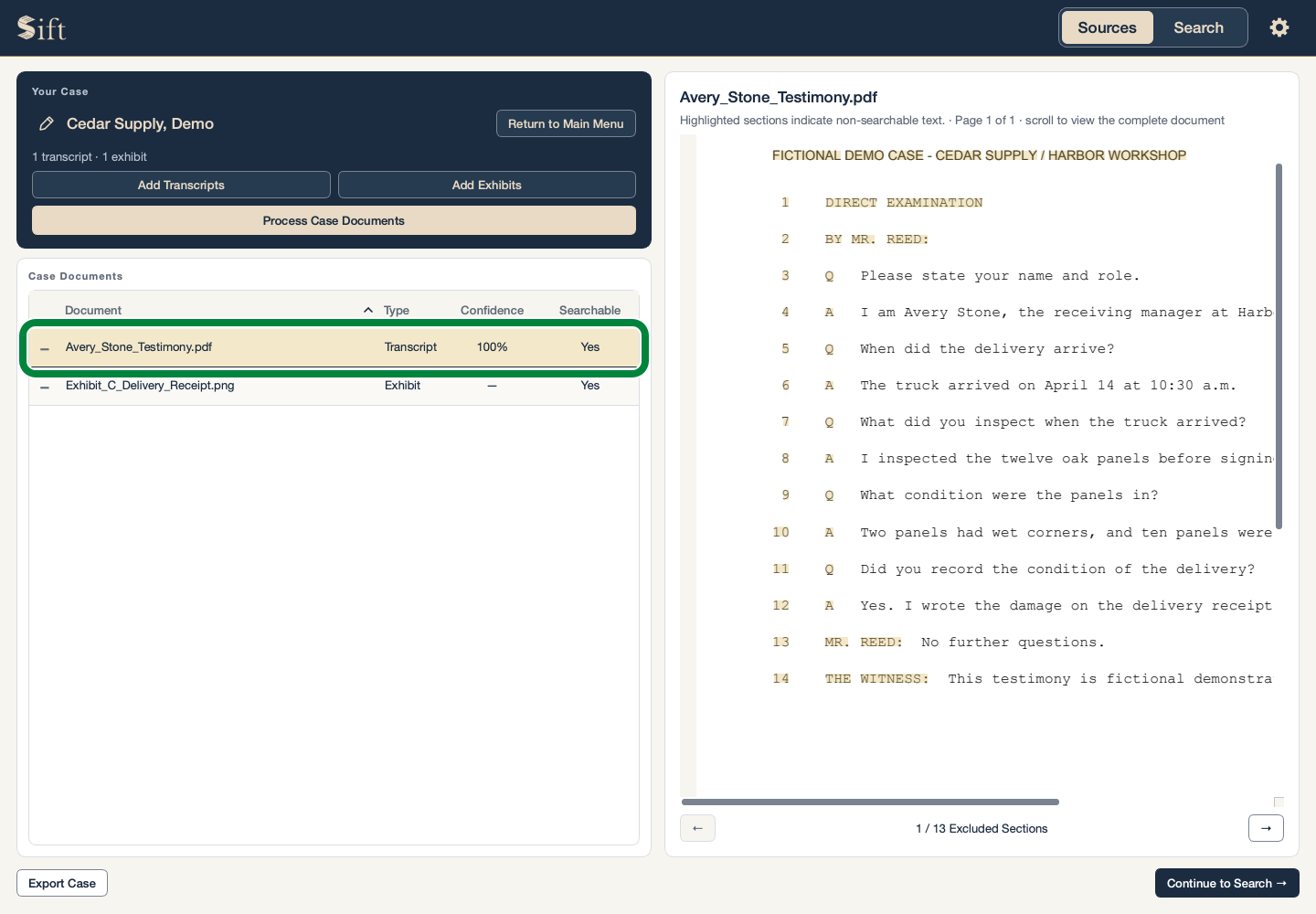
Sources can show a complete original even when some of its words could not be searched. Preparing documents explains the warnings.