
Sift User Guide
5. Searching Your Case
Sift offers two ways to search the same case:
- Exact Text Search finds words you remember, such as a name or quoted phrase.
- Semantic Search finds passages about a short idea or question, even when the wording differs.
Both include questions, answers, and remarks throughout a transcript. Both lead back to the source document. Sift does not write a legal answer or decide what the evidence proves.
Find Exact Words
These steps begin on the Search page with a prepared case open. The example wording comes from Your First Case.
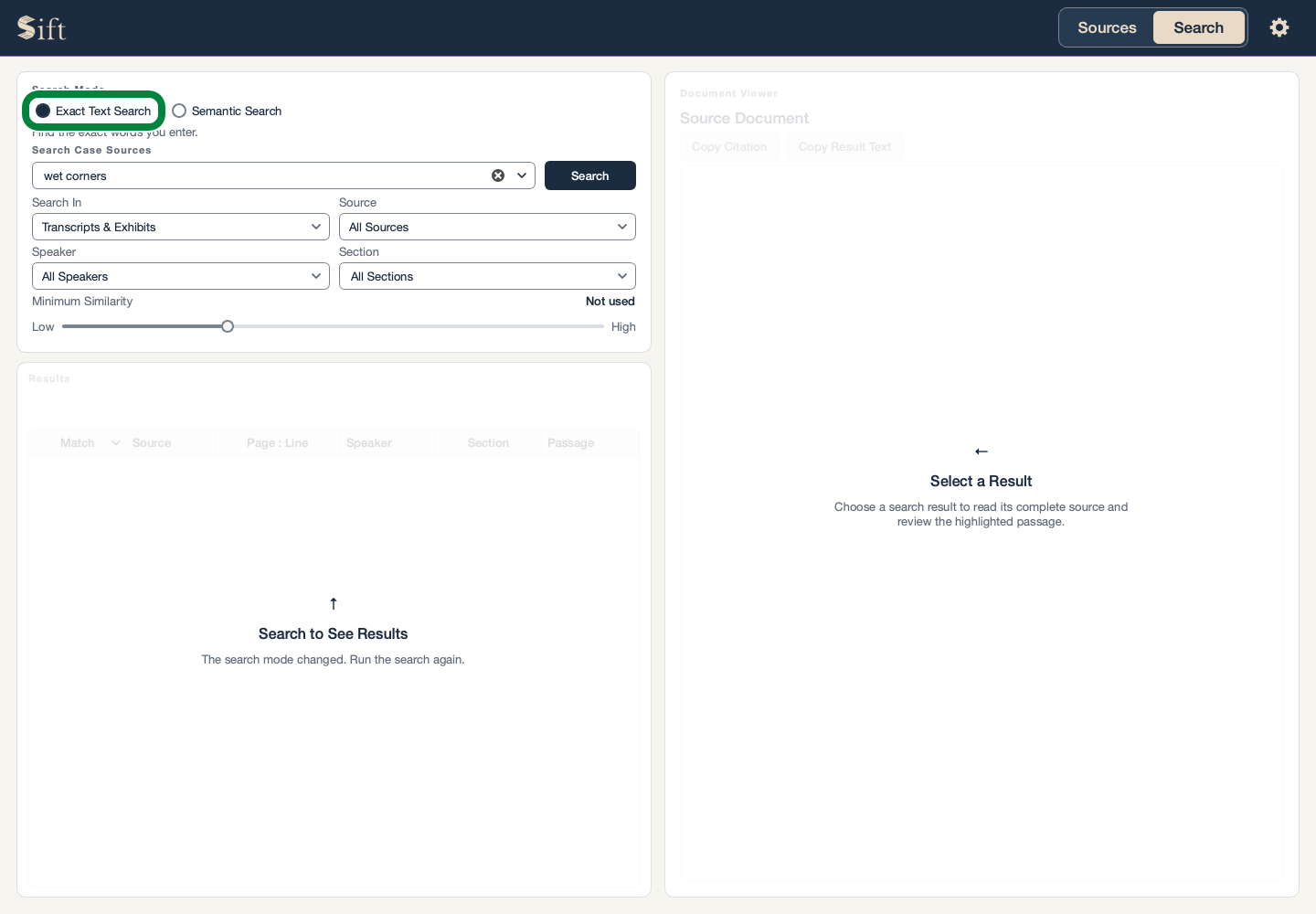
Click Exact Text Search.
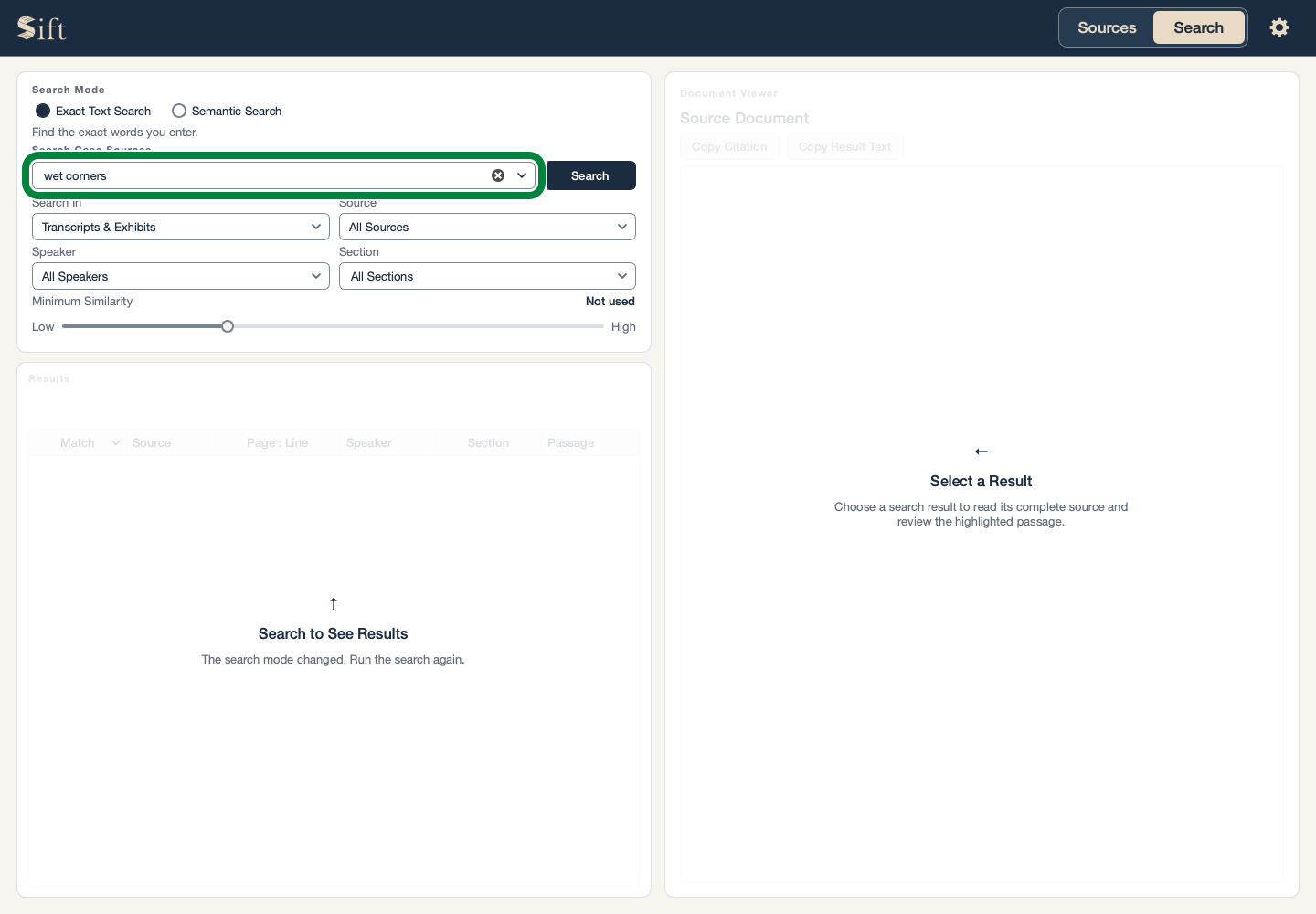
Type the words you want to find in the search box. In the practice case, the words are wet corners.
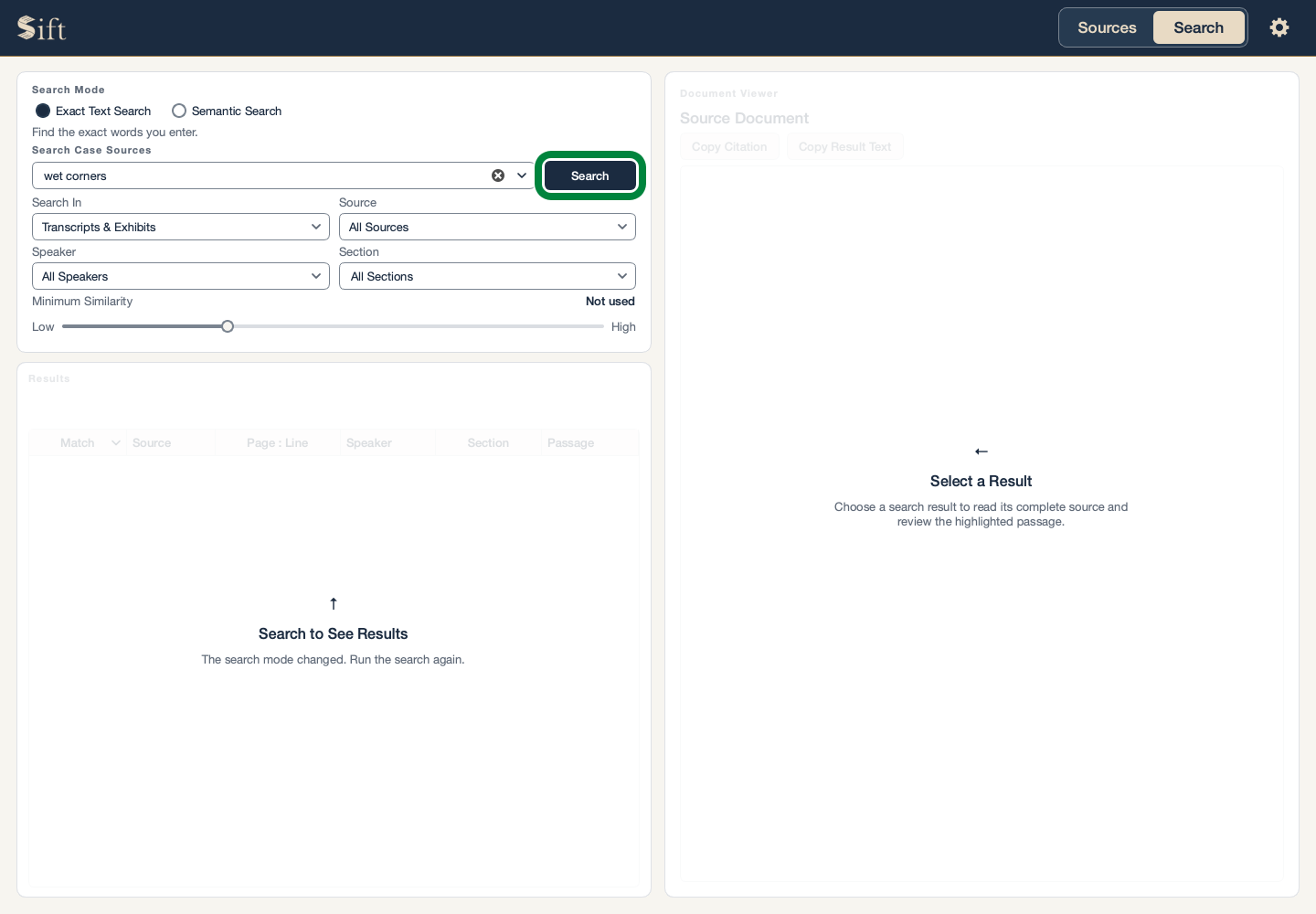
Click Search. Matching passages appear in the results list.
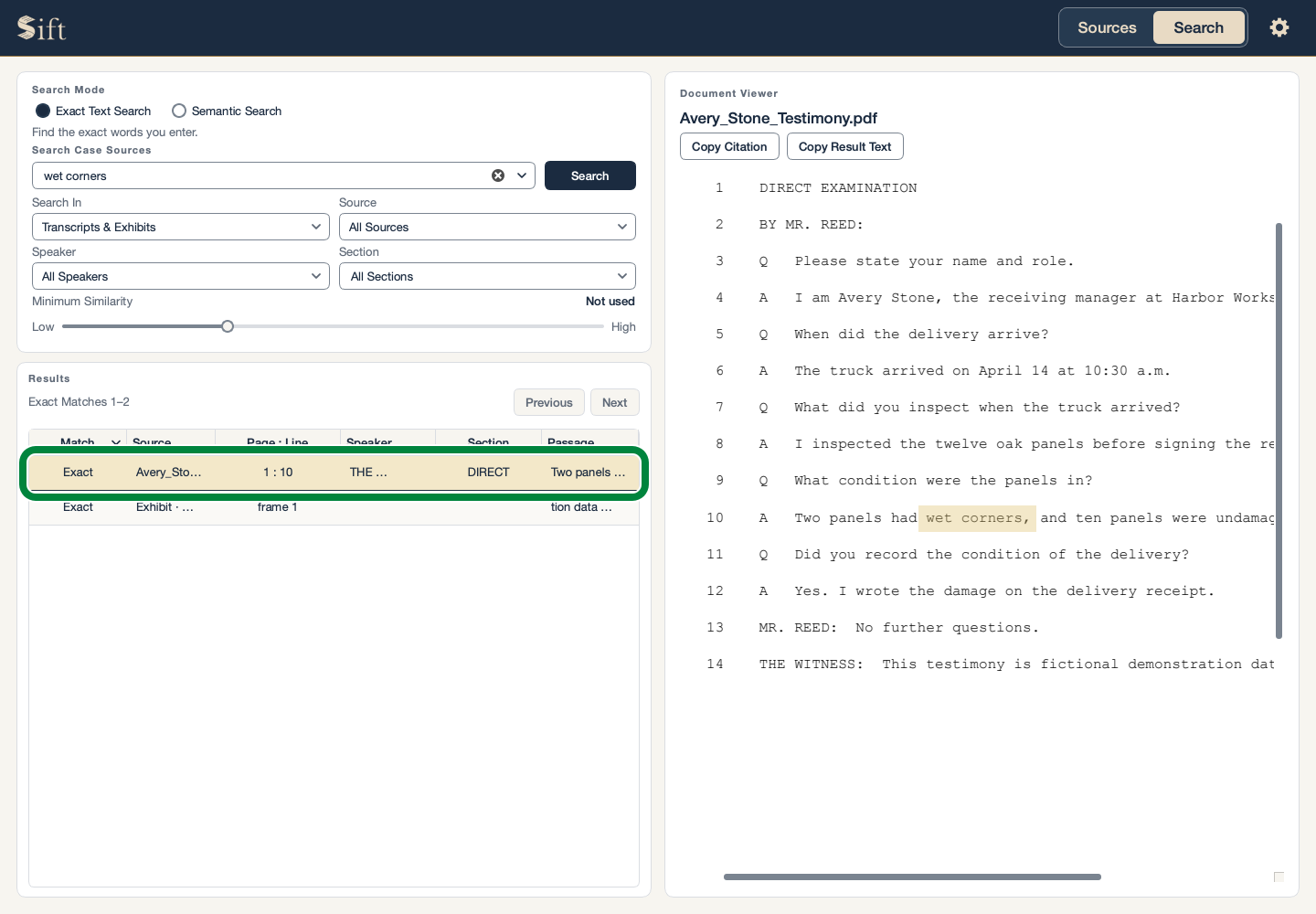
Click a result. Its original passage opens in the Document Viewer with the matching words highlighted.
Capital letters and extra spaces do not prevent an exact match. Different wording or a misspelled word can prevent one.
Search with an Idea or Question
Click Semantic Search.
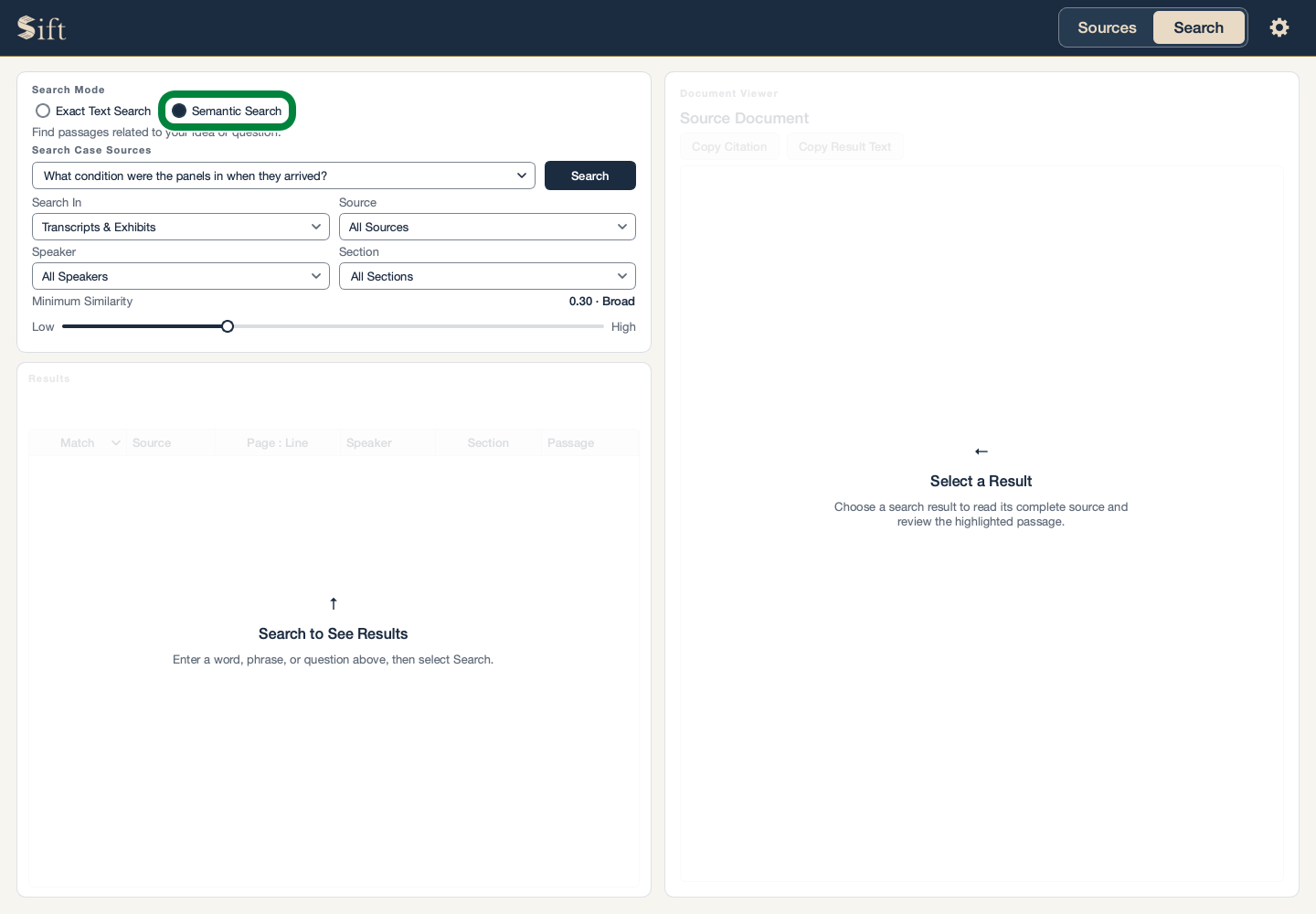
Type a short idea or question in the search box. In the practice case: What condition were the panels in when they arrived?
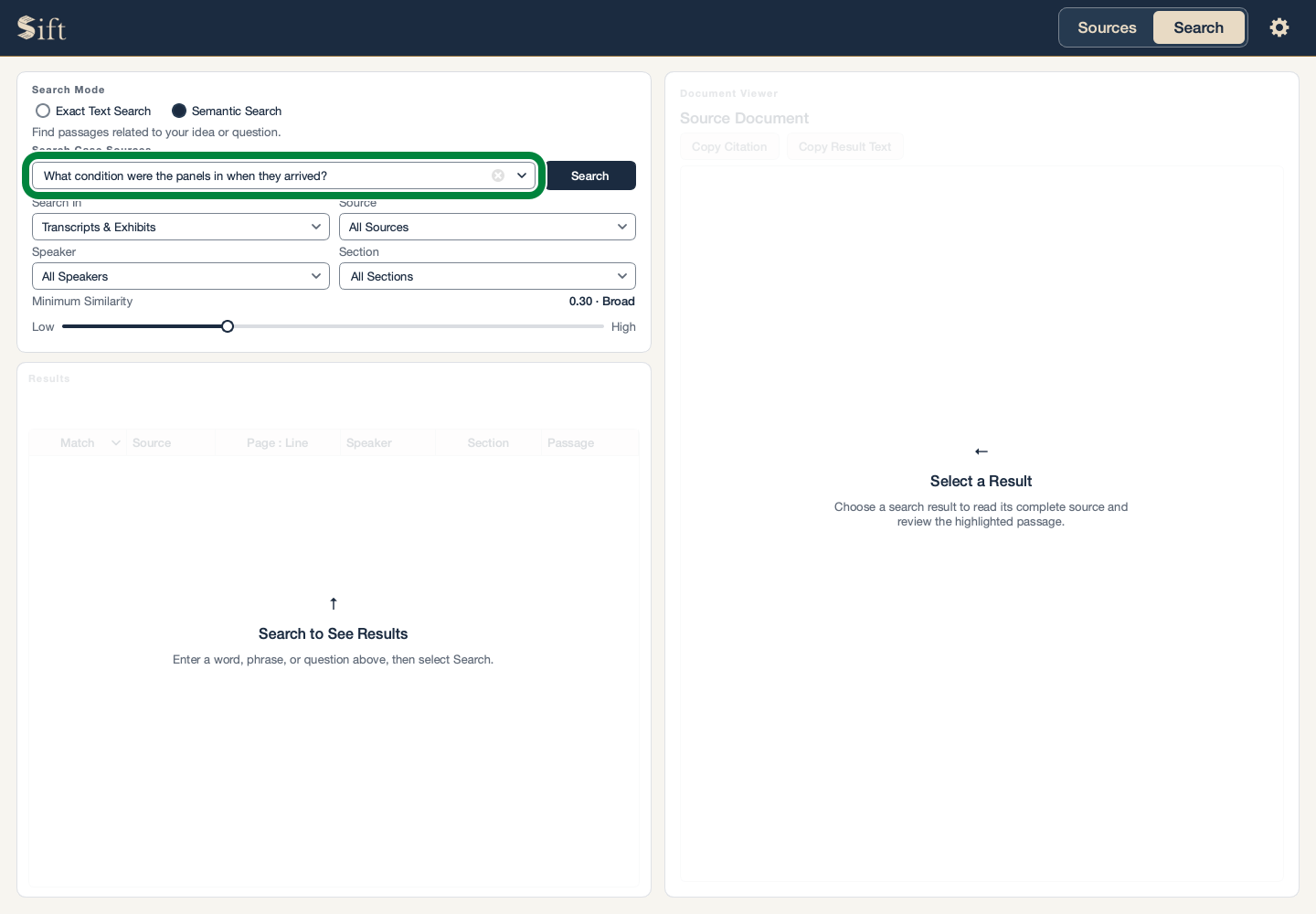
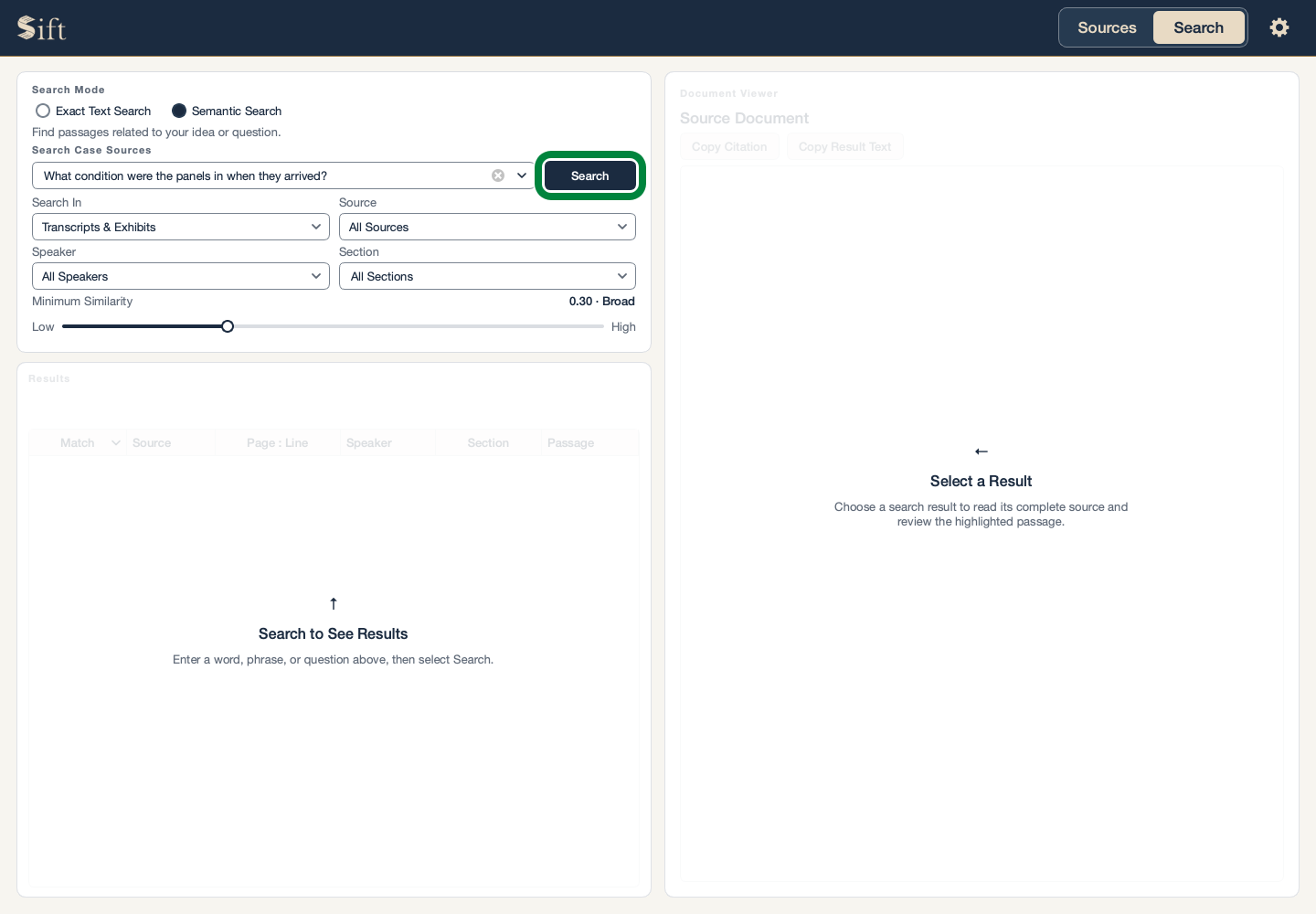
Click Search. Related passages appear in the results list.
Click a result. The original passage opens beside the results.
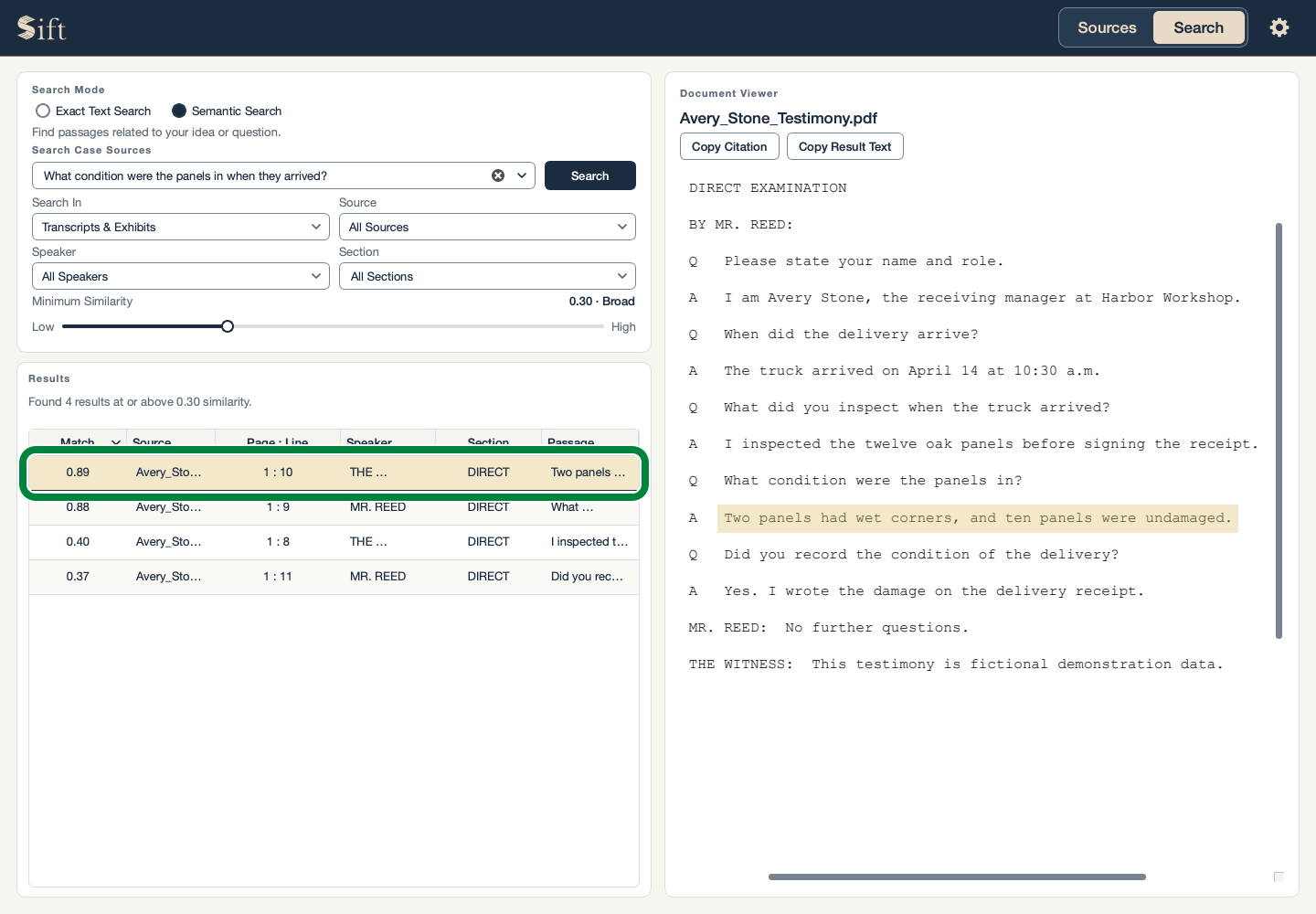
The Match score describes how closely a passage relates to your search. It does not say whether the passage is true or legally significant. Relevant evidence may use unexpected wording and receive a lower score.
Narrow the Results
The controls below the search box limit where Sift looks. A selected limit stays in place for later searches until it is changed.
Choose a document in Source to see results from that document.
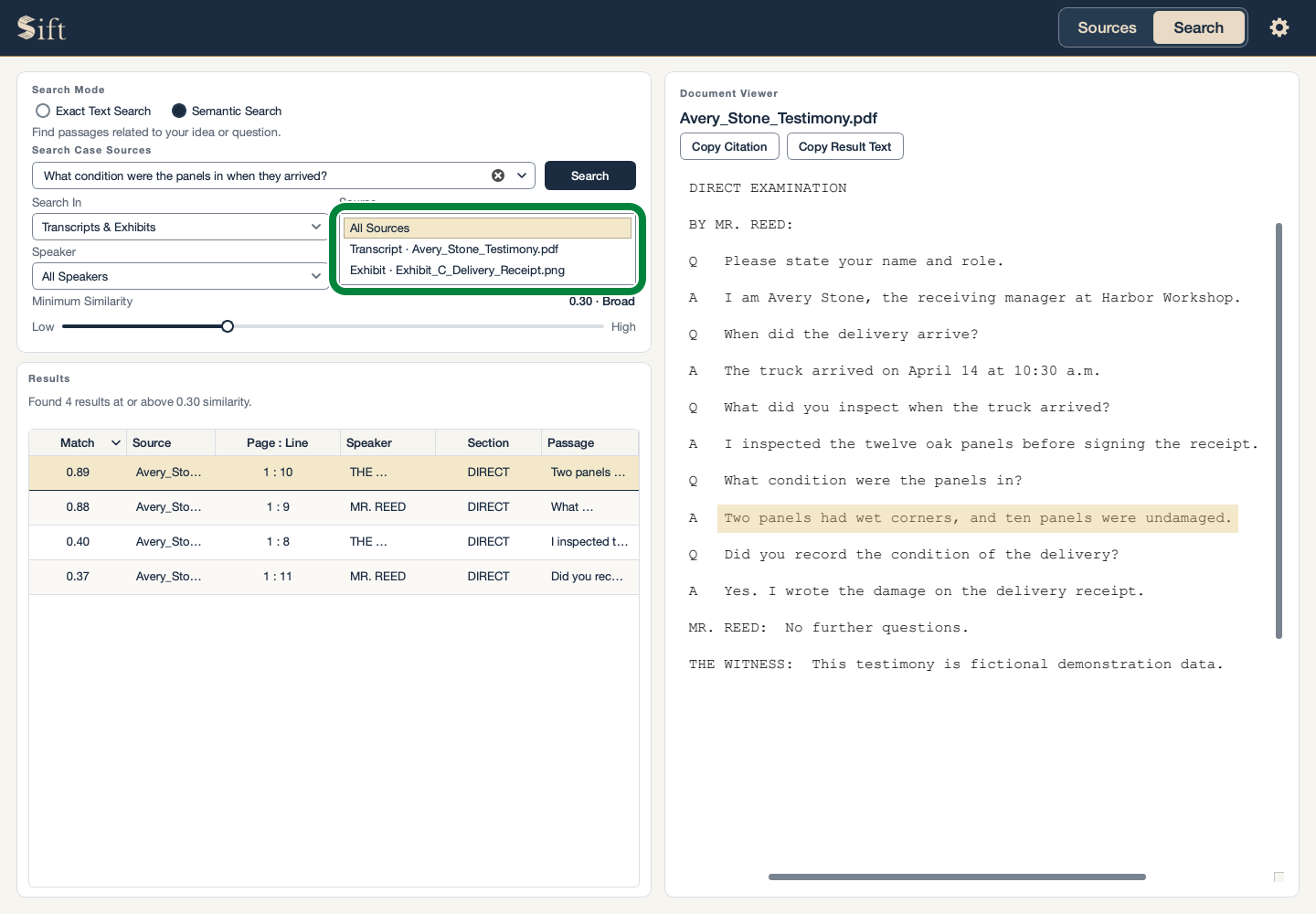
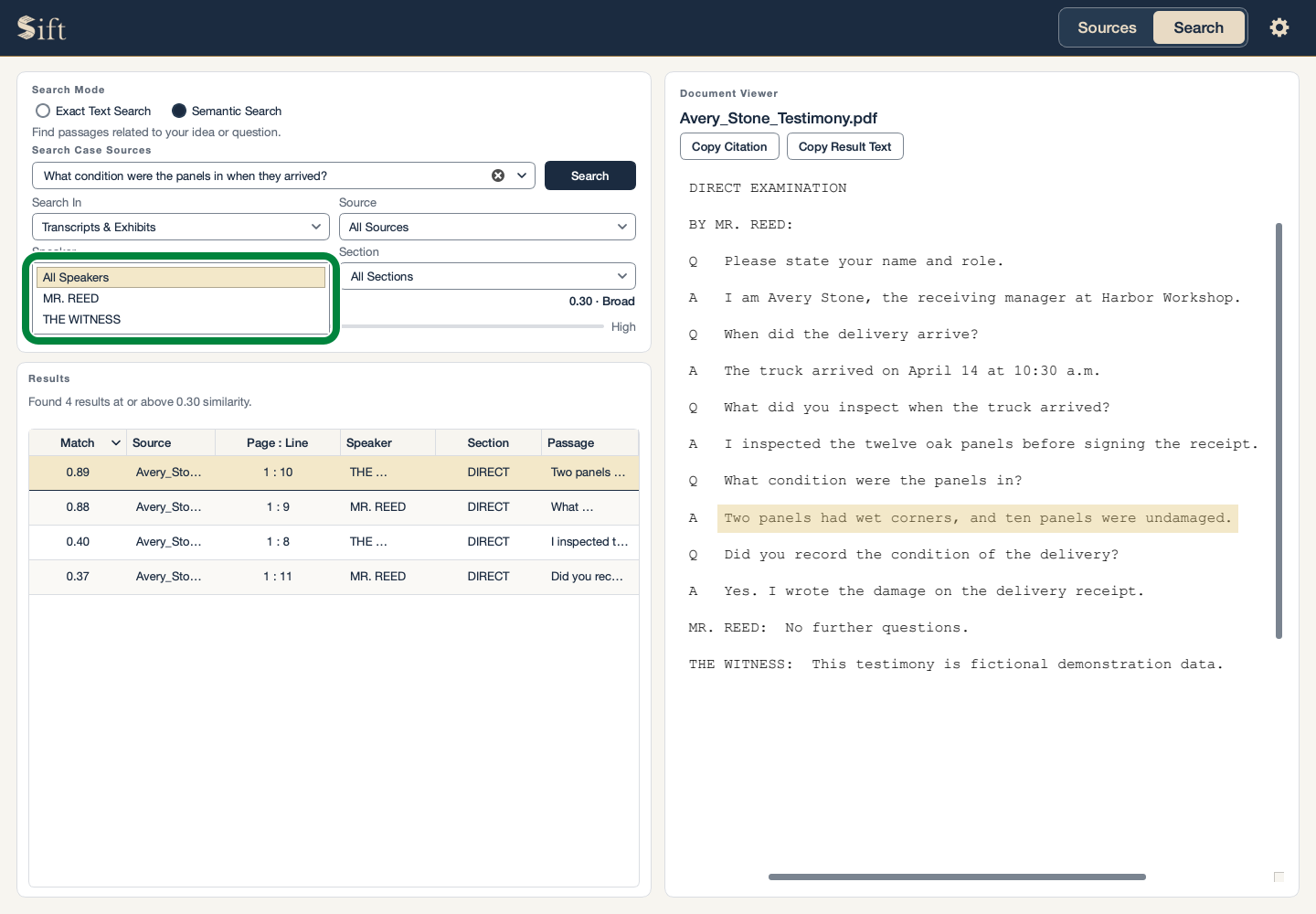
Choose a person in Speaker to narrow transcript results to that speaker.
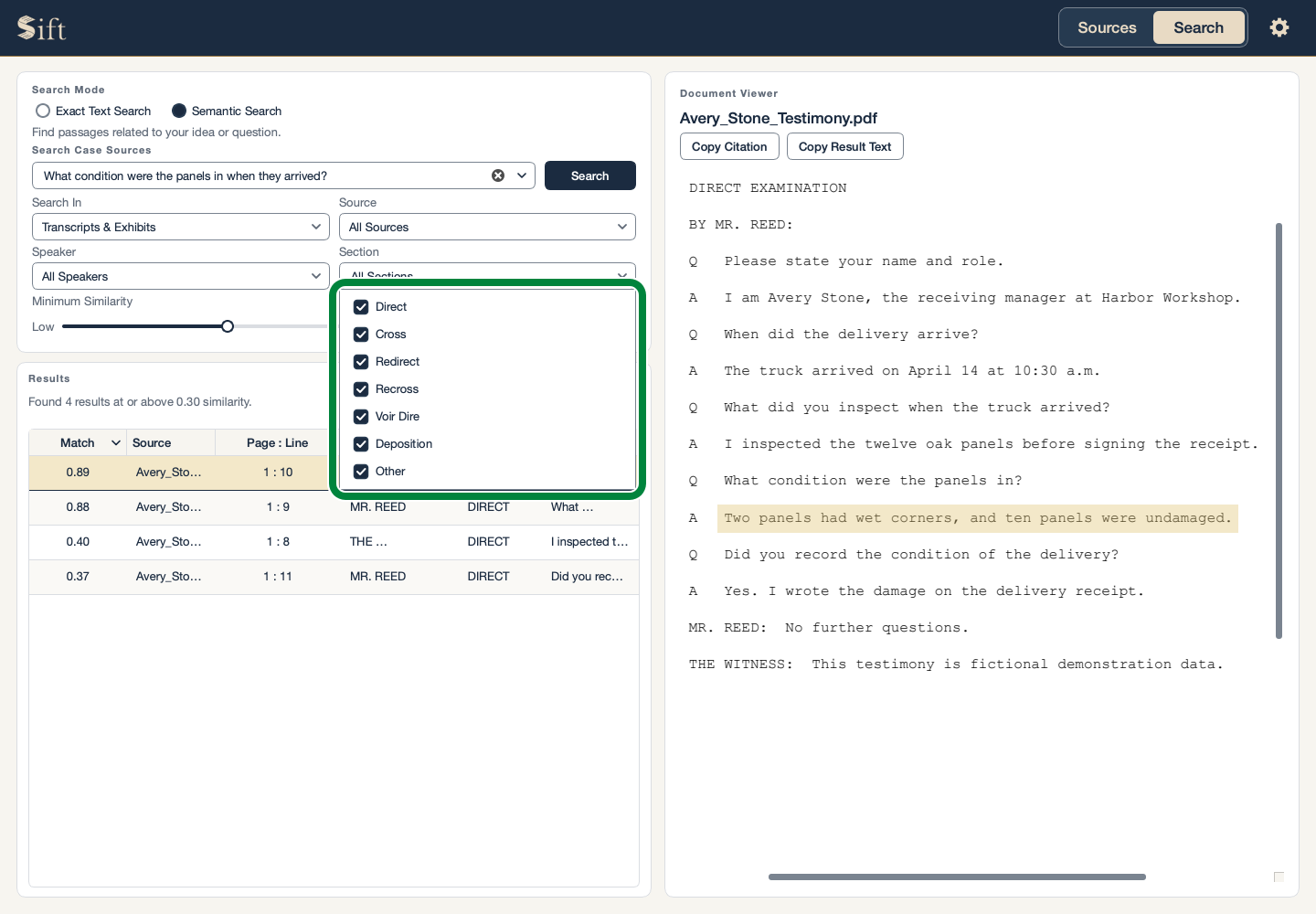
Choose an examination or other part of testimony in Section to narrow transcript results further.
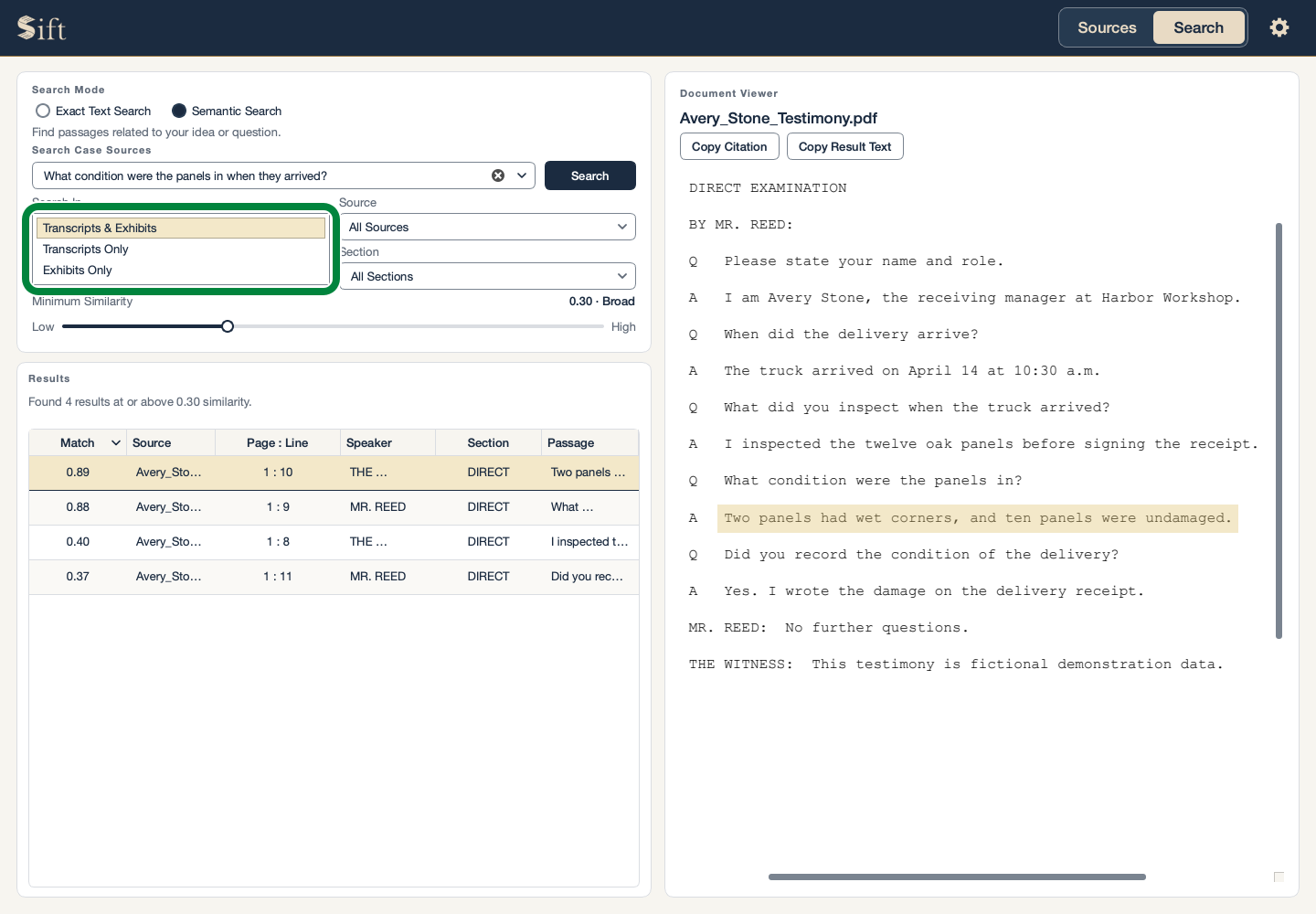
Choose Transcripts Only or Exhibits Only in Search In to search one kind of document.
Move Minimum Similarity toward Low to include more related passages, or toward High to keep closer matches. This control applies to Semantic Search.
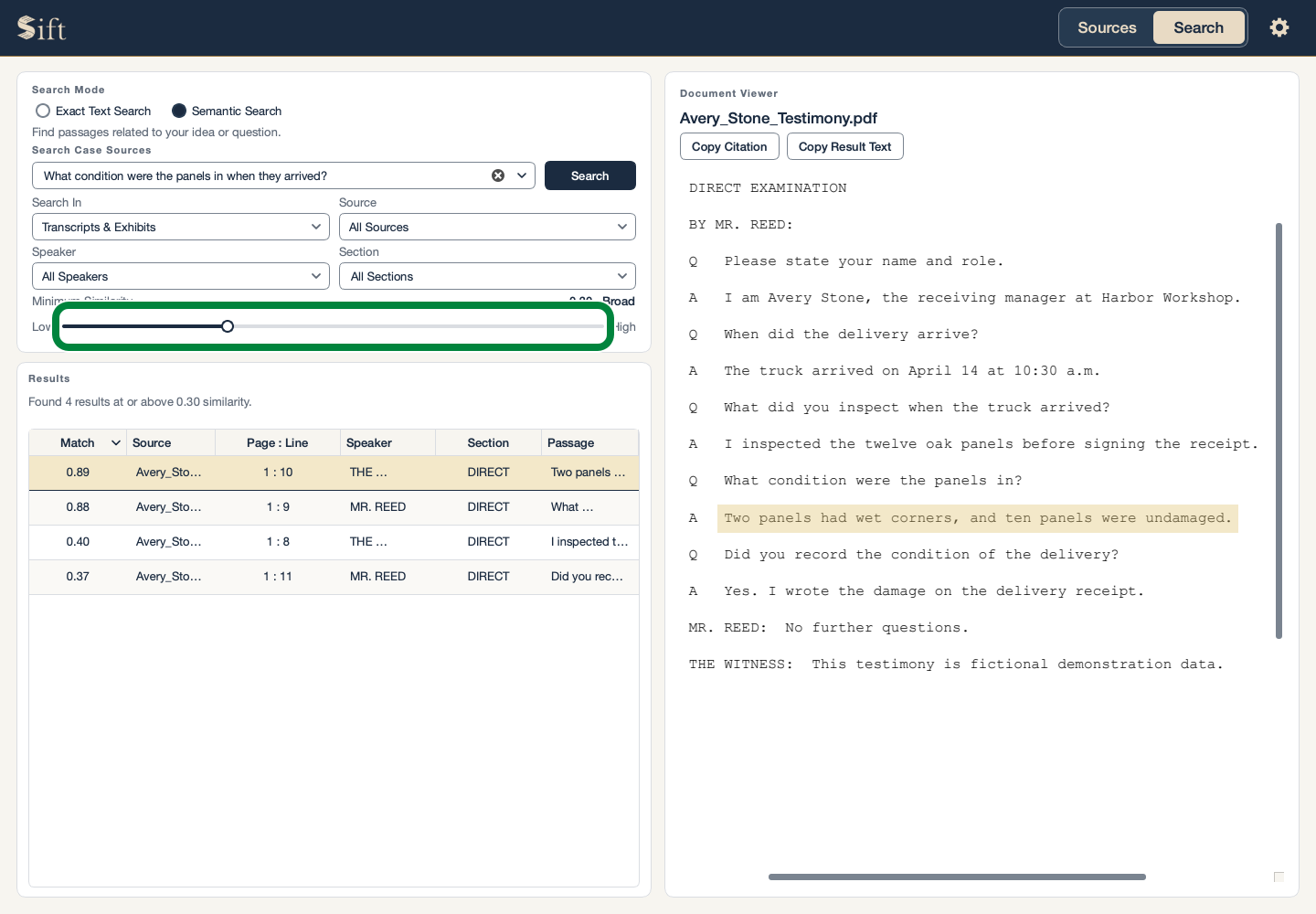
All Sources, All Speakers, and Transcripts & Exhibits are the broad choices. When a search seems too narrow, the selected limits are worth checking.
Reuse a Previous Search
Previous searches are kept while Sift remains open.
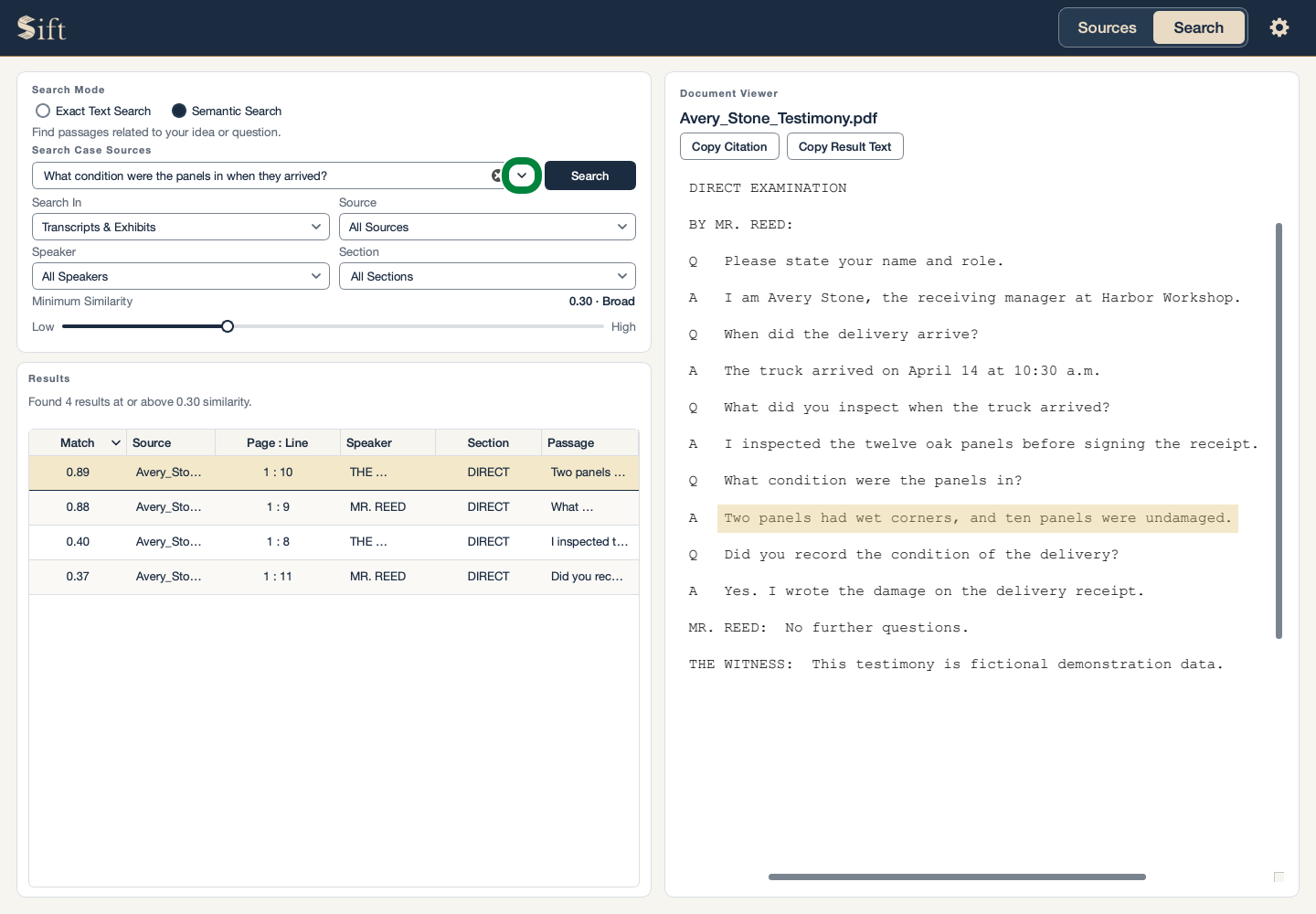
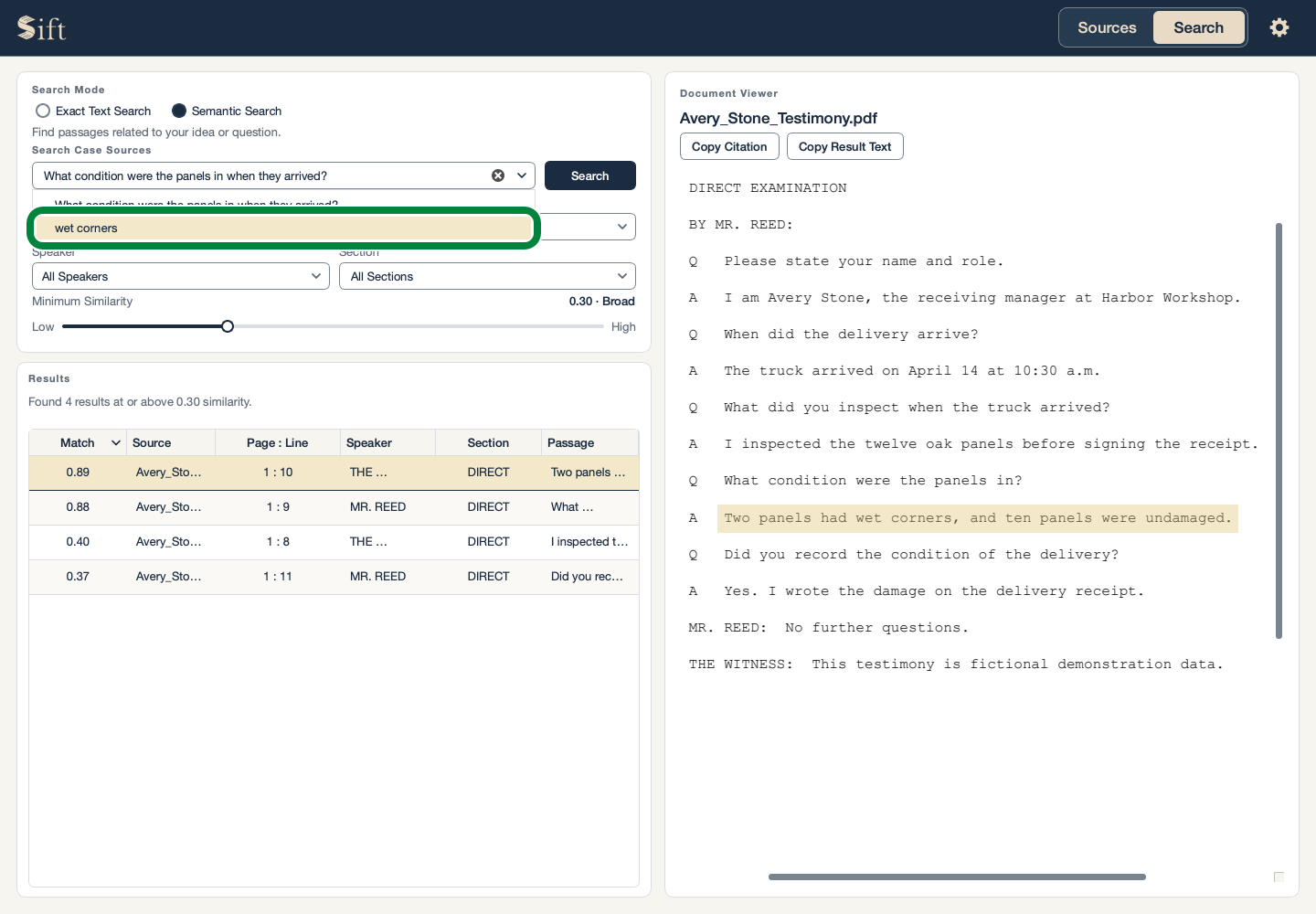
Click the arrow at the right end of the search box. The Previous Searches list opens.
Click an earlier search in the list. Its words appear in the search box.
Click Search. Sift runs the displayed search again.
While Results Arrive
Sift may show some results while a large search is still finishing. Those results are available to read immediately. The progress indicator disappears when the search is complete.
A new search replaces the previous one. Leaving Search for Sources or Settings preserves your current search and results.